
The interface
The canvas, the toolbar, the rulers, the columns, the footer
The window has a canvas in the center and everything else around it, flat and thin: the toolbar at the top, the rulers along the edges, the columns on the right, the footer at the bottom.
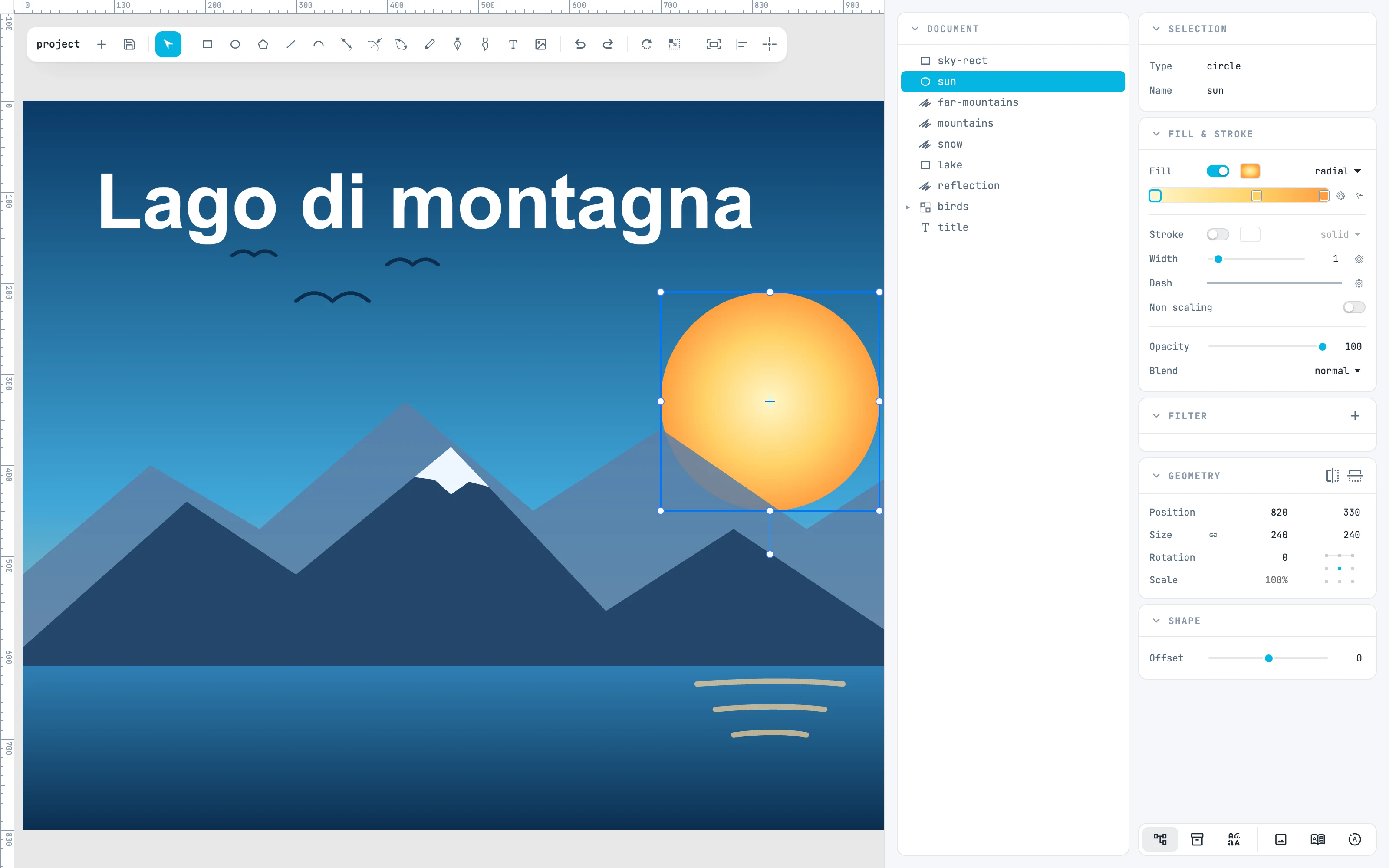
The toolbar
At the top left, above the canvas. From left to right:
| Part | What it contains |
|---|---|
| Project name | the document name; after a save it flashes three times (in red if writing failed) |
| new document | a new document in a new window |
| open and save | opens the File menu (New, Open…, Save, Save as…, Export SVG…, the two print commands) |
| elements selection | the arrow, V |
| Drawing tools | page, rectangle, ellipse, polygon, line, arc, three dimension tools, Pencil, path, Brush, text, place an image |
| undo redo | undo and redo |
| rotate scale | free rotate and scale around the reference point, A and S |
| fit selection / page to view | fits the selection in the view or, with no selection, the active page |
| align and distribute | hovering over it opens the bar for aligning and distributing |
| snap | hovering over it opens the snapping panel |
| Exit | appears only inside a container: exits it (the container name is in the tooltip) |
Below the toolbar appear the tool options: a bar or a panel that belongs to the current tool. See Tool options bars.
The canvas and the rulers
The canvas is the drawing: pages are white sheets with a shadow, on a gray background. Along the top and left edges are the rulers, which measure in the project unit starting from the origin of the active page; you drag the small square in the corner between the two rulers to move that origin. See Rulers and origin.
The columns on the right
To the right of the canvas there are two columns:
- Document: the document tree. You turn it on and off with the first button of the resource bar.
- The inspectors: the property panels for what is selected. Which ones you see depends on the selection: with nothing selected you see Project, Page (for the active page), and Fill & stroke, which there describes the style the next shape will be created with; with a rectangle selected, Selection, Geometry, Shape, Fill & stroke, and Filter. See Panels.
At the bottom of the inspector column is the resource bar: one button for the Document column and one for each resource panel (Colors, Gradients, Patterns, Symbols, Markers, Fonts, Widgets) and footer panel (Pages, Timeline, Images). See Resource bar.
The footer
At the bottom, full width, the footer holds one panel at a time: Images, Pages, or Timeline. You open it with its button in the resource bar, raise and lower it by dragging its top edge, and close it with its ×.
The right-click menu
A right-click on the canvas, without moving the mouse, opens the context menu: undo and redo, the Edit, Arrange, and Transform submenus, groups, lock and hide, Booleans, Modifiers, Path editing, Convert to path, Create resource, Tools, and View. Dragging with the right button instead pans the view. See Context menu.
Light and dark themes
You turn on the dark theme in the Project panel, Dark theme row. It is an editor preference, not a document one: it does not enter the history and is not saved in the file.