
Photo grid
Photos that lay themselves out in a frame
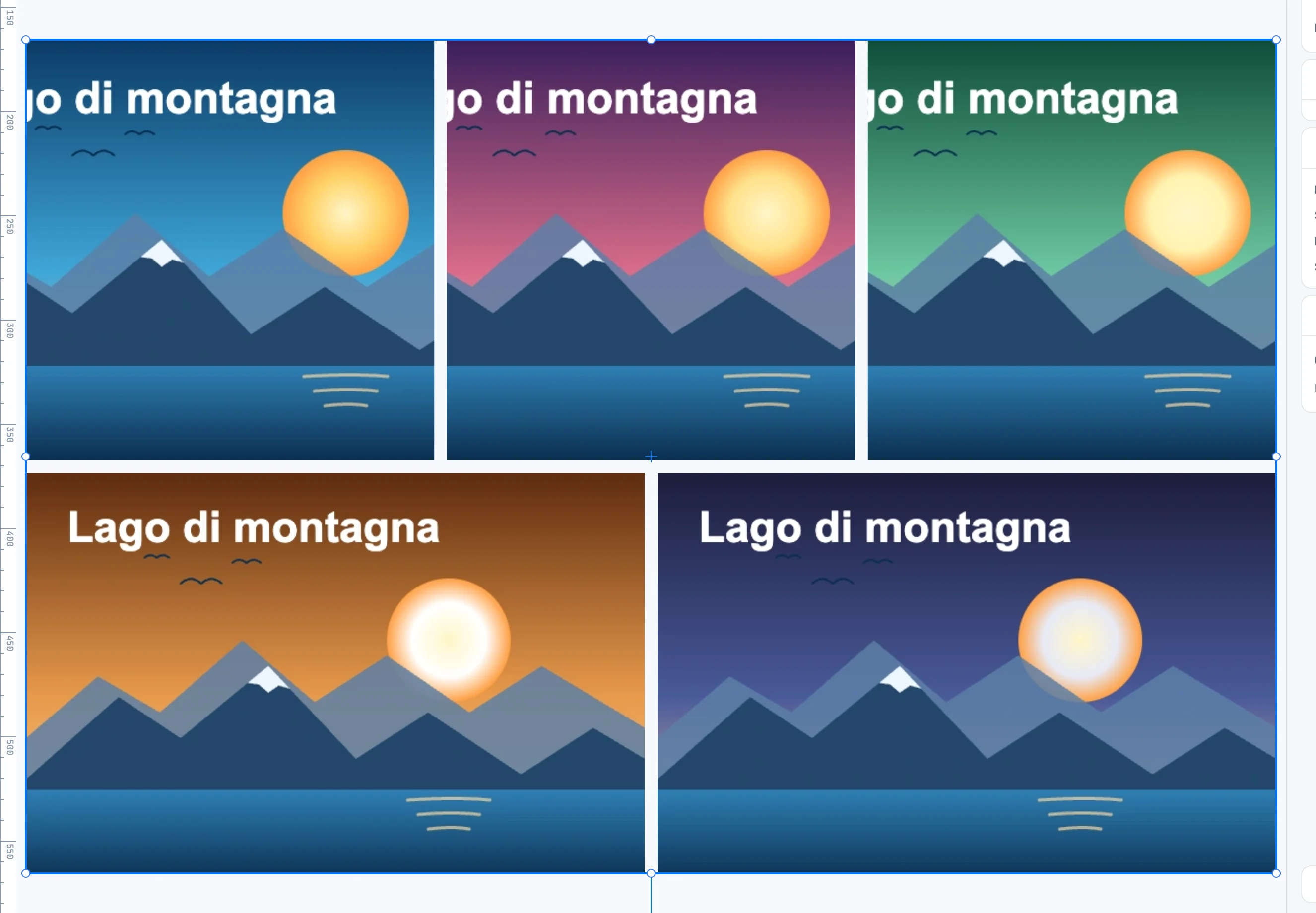
Creating it
From the Widgets panel, in the Resources column: drag the Photo grid cell onto the canvas, or double-click it to place it in the middle. Empty, it shows as a gray veil, which is not exported.
Filling it
- Drop images on it: from the disk (even many at once) or from the Images panel.
- They are added at the end, and those that arrive together are ordered by date: the capture date (read from the EXIF data), or the file date if that is missing.
- Photos never overlap and they fill the frame: each one is cropped in its own cell.
The layout
Janvas divides the frame into cells, looking for the split that crops the photos least, while respecting their order and their weight: a photo at 2 wants twice the area of one at 1.
| Field | What it does |
|---|---|
| Gap | the space between cells |
| Layout | the variant: 0 is the best layout, 1 to 20 are other splits with the same photos in the same order; a given variant is always the same |
| Weight | with a photo inside the grid selected: its weight |
A photo's weight is the one set on the photo in the grid, otherwise the one of the image in the archive, otherwise the one of its category (a preferred image counts as 2), otherwise 1.
Sorting
The ≡ of the Photo grid panel › Sort by date puts the photos back in order of capture date (or file date, if the photo has none), in one step. It works with the grid or one of its photos selected; it is disabled if the grid has fewer than two photos or none with a date.
Scaling it
When you scale the grid, the scale goes into the width, the height and the space between cells: the photos are laid out again. Inside the grid, the size and position of a photo do not matter: the cell decides them.