
Rounded corners and arcs
Exact rounded corners, and arcs you bulge with fixed endpoints
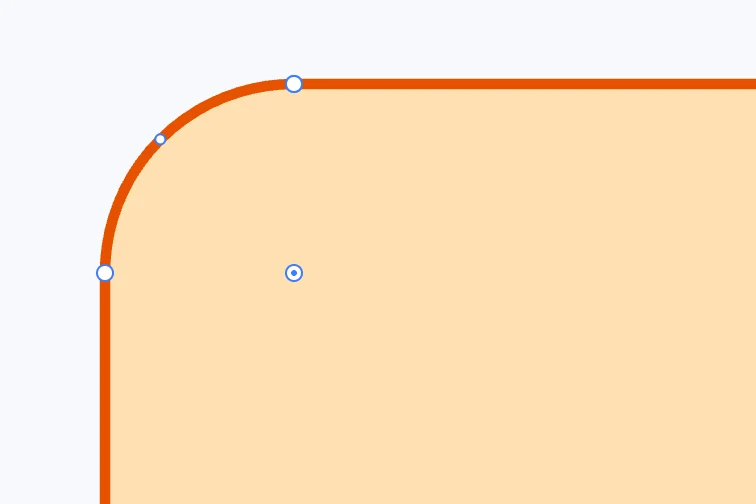
Rounding a corner
- In anchor point mode, select an anchor point that is a corner point.
- Inside the corner, on the bisector, a grip appears: a ring with a dot.
- Drag it: the center of the rounded corner follows the pointer. With ⌥ at the start, all corners are rounded.
The rounded corner is an exact circular arc, tangent to both sides, never larger than half a side. The sides can be straight, quadratic or cubic curves, or arcs. A smooth point (direction handles in line) is not a corner and has no grip. One undo step per gesture; Esc returns to the previous shape.
Adjusting a rounded corner
Every rounded corner — including those of an imported SVG, recognized by their shape — always has a grip at its center, with no need to select anchor points. Dragging it rebuilds the corner and rounds it again with the new radius; at zero the corner becomes sharp again, identical to before.
Bulging an arc
Every arc has a grip on the circumference, halfway along its angle. Dragging it makes the arc bulge or flatten with its endpoints fixed; a rotated ellipse keeps its proportions and rotation. On a pie-slice arc the grip stays at the center.
With numbers
In the Point panel, with an endpoint selected, Radius in and Radius out are the radius of the incoming arc and of the outgoing one: when you enter them, a rounded corner is rounded again and an arc changes size with its endpoints fixed.