
Fill and stroke
The two paints of an object
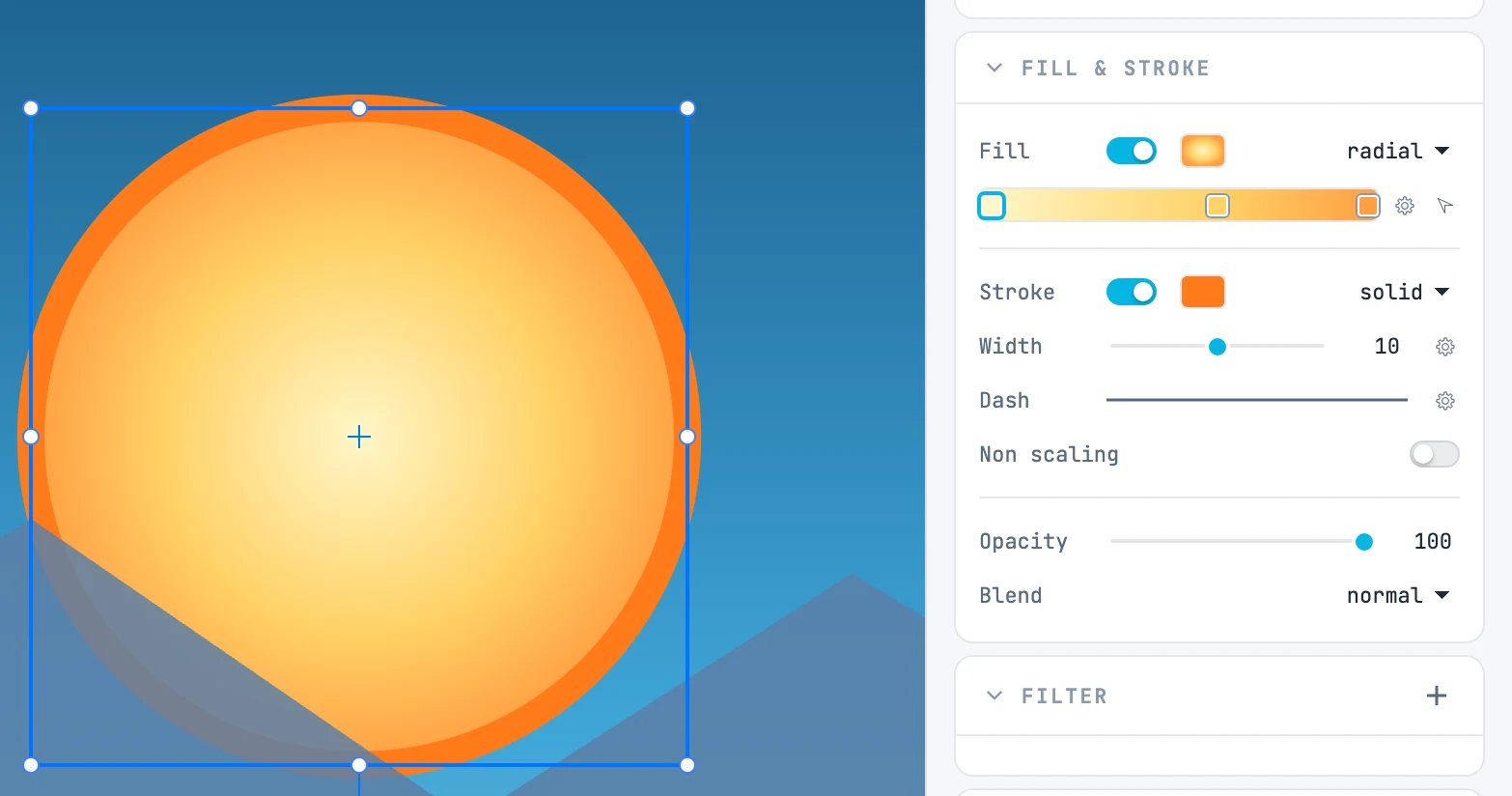
The two rows
At the top of Fill & stroke there are two identical rows, Fill and Stroke:
| Element | What it does |
|---|---|
| Switch | on, the paint is there; off, it is none. Turn it back on and the previous paint returns |
| Swatch | a click opens the color picker (color and opacity); a checkerboard shows through a transparent color |
| Preview | for a gradient, the gradient; for a pattern, a checkerboard |
| Type | the paint: solid, linear, radial, pattern, current color |
Paint types
| Type | What happens when you choose it |
|---|---|
| solid | a flat color; from a gradient, it takes the gradient's first color |
| linear / radial | a two-stop gradient is created, from the current color to white, across the object's bounding box. Switching from linear to radial keeps the colors |
| pattern | the document's most recent pattern; if there is none, the default one is created (30 × 30, four squares in terracotta tones) |
| current color | the inherited color (currentColor): the one a container declares, or black |
Nothing selected: the style
With an empty selection the panel does not turn off: it describes how the next shape will be created. You choose the color while looking at the drawing instead of fixing it afterward. Writing to the style is not an undo step.
Multiple objects
With several objects selected, the panel shows the one in focus and writes to all of them: coloring ten objects at once is the normal case. On the selected letters of an open text it writes only to those; on a threaded text frame that follows another, it writes to the first frame of the story.
Dragging paints
A color, gradient or pattern dragged from its panel onto a shape becomes its fill; with ⌥, its stroke. While you drag, the target shape highlights. See Dragging paints and resources.