
Add, delete, convert, cut
ALT and ALT + SHIFT on anchor points and on the outline
The four gestures
| Where | Keys | What it does | Cursor |
|---|---|---|---|
| on an anchor point | ⌥ + click | deletes the anchor point; the drawing is rebuilt without it. You cannot delete the starting point or the last one left | an X |
| on an anchor point | ⌥ ⇧ + click | makes it a curve: two direction handles aligned with the line between the previous and the next point, each a third as long as its side | ^ |
| on the outline | ⌥ + click | adds an anchor point there, within 6 pixels of the outline; the drawing does not change | a cross |
| on the outline | ⌥ ⇧ + click | cuts the path there, like scissors | scissors |
The cursor changes as soon as you hold down the keys, without moving the mouse.
Adding an anchor point
- The segment is split exactly at the point nearest the click, on curves and arcs too: the drawing stays identical.
- The anchor point is created selected, in one undo step. Keep dragging to move it: the move is a second step.
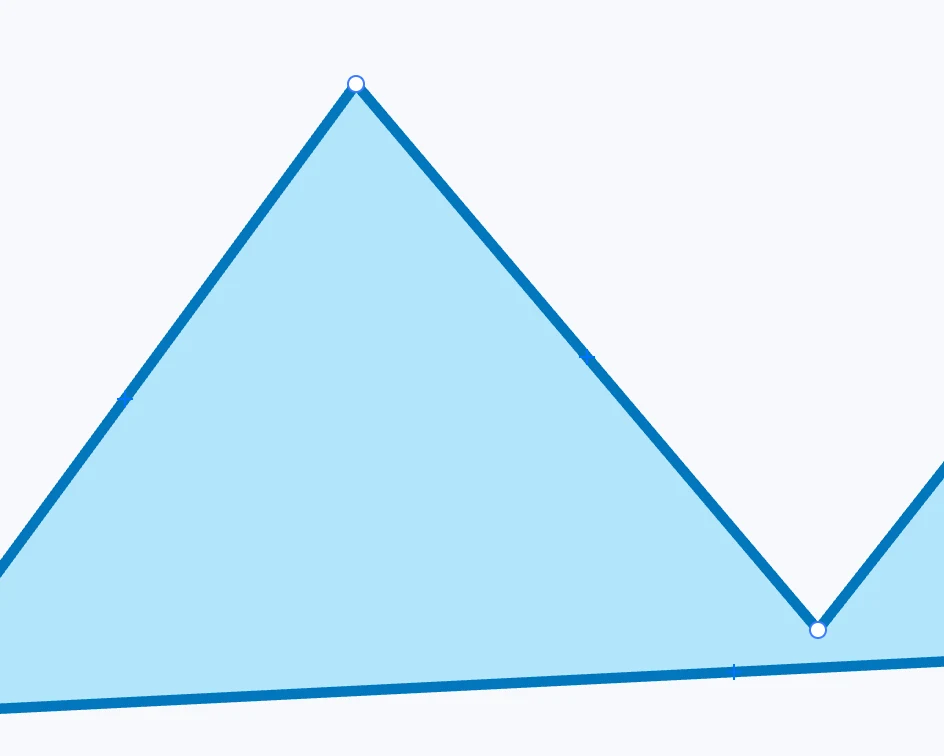
- At the middle of every straight segment there is also a small cross: drag it to create an anchor point and move it in the same gesture, in a single step. Curves and arcs do not have one.
Making an anchor point a curve
It works on any anchor point, corner or already curved. An adjacent straight segment becomes a curve that does not change direction at its other end; a quadratic becomes the equivalent cubic; on a cubic only the direction handle at that point changes. The same gesture does not turn it back into a corner: break a direction handle with ⌥.
Cutting
- On an open subpath: it becomes two, which touch at the cut; the piece that comes off is a new path, with the same properties, just above. The original stays selected with its anchor points.
- On a closed one: it opens, and starts and ends at the cut.
- The cut point is exact on curves and arcs too. One undo step.