
Appearance
Fill, stroke, colors, gradients, patterns, filters, markers

You control an object's appearance from the Fill & stroke panel, the Filter panel and, for lines and paths, the Markers panel. You can also drag colors, gradients and patterns onto objects from the resource panels.
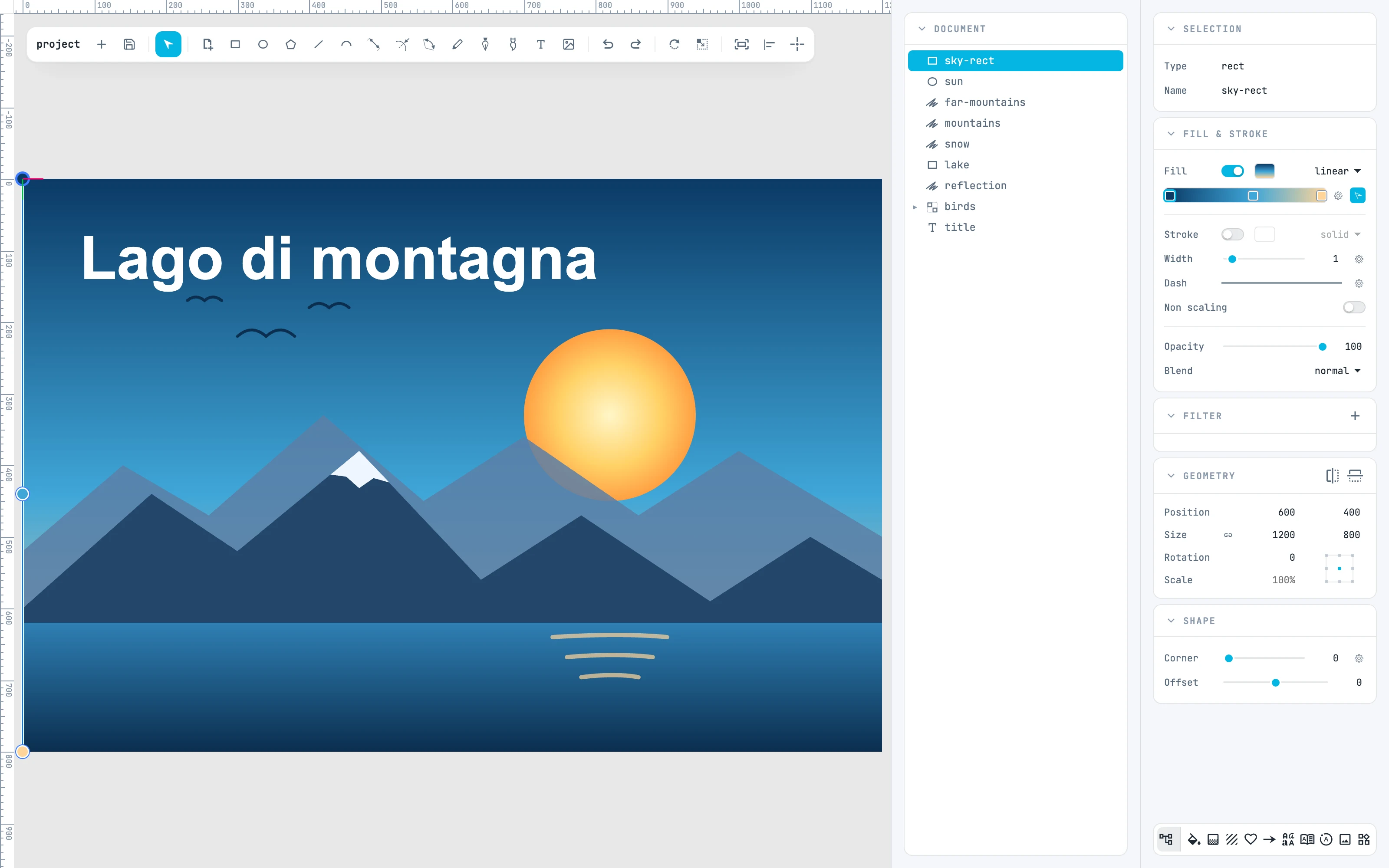
The sky gradient open on the canvas, with its color stops in the Fill & stroke panel
7.1

Fill and stroke

Turn them on and off, choose the paint type, set the style of the next shape.
7.2

Stroke style and dashes

The Width row with its menu, the Dash row with its own, and Non scaling.
7.3

Opacity and blending

Opacity and Blend at the bottom of Fill & stroke.
7.4

The color picker

The menu that opens from every color swatch.
7.5

Gradients

Color stops, angle, ends and center, and the copy on the first edit.
7.6

Patterns

Choose a pattern, then move, rotate and scale it on the object.
7.7

Filters

The Filter panel: adding, reusing, reordering, parameters.
7.8

Markers

Assign a marker to the start, middle or end; edit it.