
Pan and zoom
Pan, zoom, wheel, right button
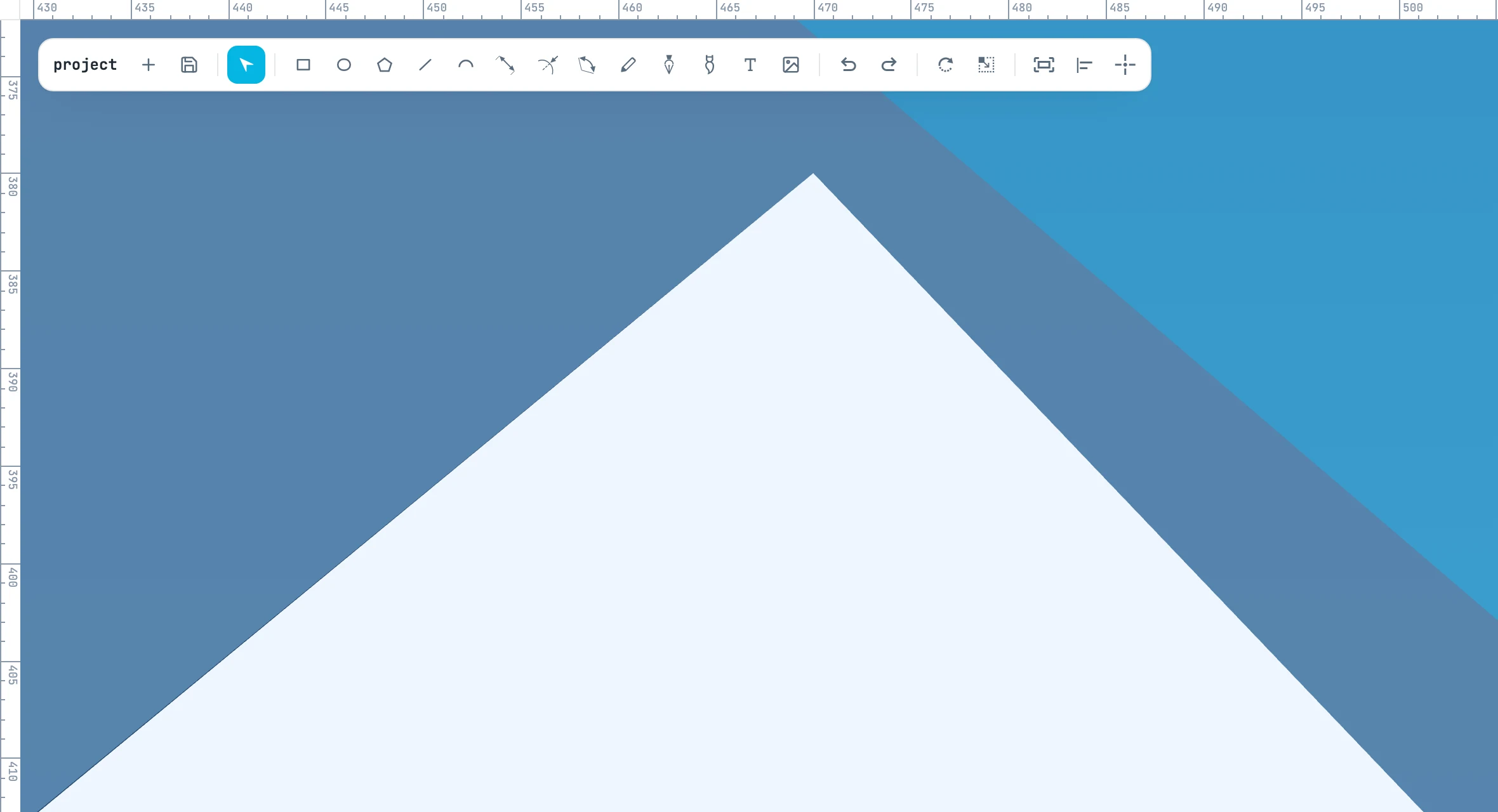
Pan the view
| Gesture | What it does |
|---|---|
| Drag with the right button | pans the view, with any tool active |
| Hold Space and drag | pans the view, with any tool active |
| ⌘ + wheel | pans the view in the direction of the wheel (or trackpad) |
A right-click without moving the mouse (within 4 pixels) opens the context menu; as soon as you move it becomes a pan.
Zoom in and out
| Gesture | What it does |
|---|---|
| Wheel | zooms in or out around the point under the pointer |
| ⌘ 0 | Fit to view: the whole drawing in the window |
| ⌘ 1 | Zoom 100%: one drawing pixel per screen pixel |
| ⌘ ⌥ 0 | Zoom to selection: the selection in the window |
| fit selection / page to view button | the selection if there is one, otherwise the active page |
| Double-click on an empty area of a page | fits that page in the view and makes it active, without selecting it |
| Double-click on an empty area outside the pages | fits the whole drawing in the view |
Zoom ranges from one thousandth to 160 times. If you turn the wheel while holding a mouse button, the view stays still.
While drawing
Pan and zoom also work in the middle of a gesture: in click-and-click mode you can place the first point, turn the wheel, pan the view, and place the second point elsewhere. See The two ways of every gesture.