
Selection
Click, SHIFT and marquee
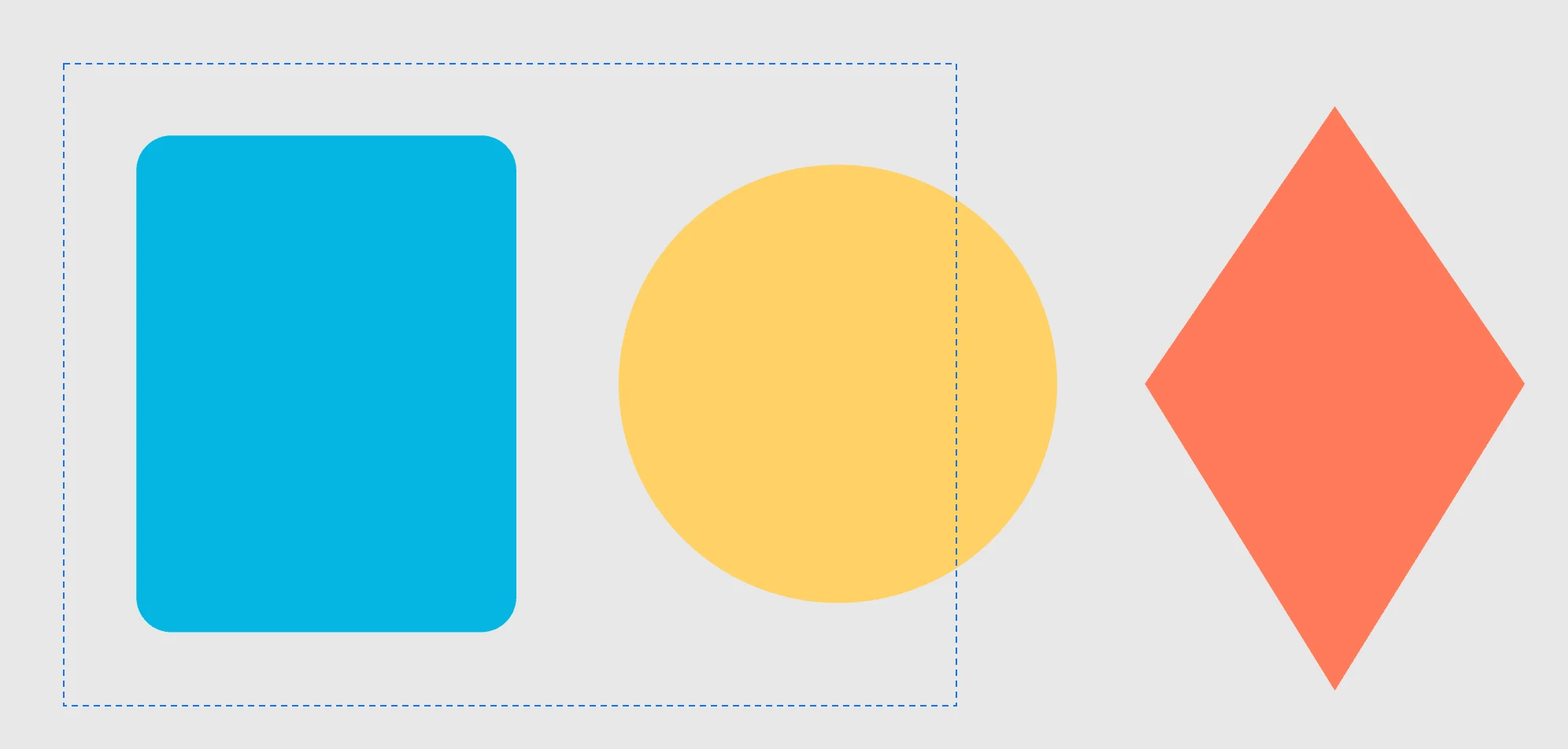
By clicking
| Gesture | What it does |
|---|---|
| Click an object | selects it and deselects the others |
| ⇧ + click | adds the object to the selection, or removes it if it was already selected |
| Click an empty area | clears the selection and the snapping guides |
| Click a page label | selects the page (the sheet itself does not respond to clicks) |
Clicking an object that is inside a group or a modifier selects the outermost container, not the part: to work on the part, enter the container with a double-click. See Entering and exiting containers.
With a marquee
Dragging from an empty area draws a selection marquee:
| Marquee | What it selects |
|---|---|
| no keys | everything the marquee touches, replacing the previous selection |
| with ⌥ on release | only what lies entirely inside |
| with ⇧ | adds to the existing selection |
The marquee selects the objects you see: from a part it goes up to the container, which is selected in its place, just as with a click.
What cannot be selected
- A locked object, or one inside a locked container: neither by clicking nor with a marquee. Unlock it with Unlock all.
- A hidden object: it is not drawn and cannot be selected.
- An animated object outside its time range, with the timeline open: it is off stage.
Where you see it
The selection also shows in the Document tree, where the selected rows are highlighted and the branches that contain them expand automatically, and in the Selection panel, which shows the type and name of the object (or how many objects are selected). Selecting in the tree selects on the canvas.