
Typing and editing
The cursor, character selection, the keys
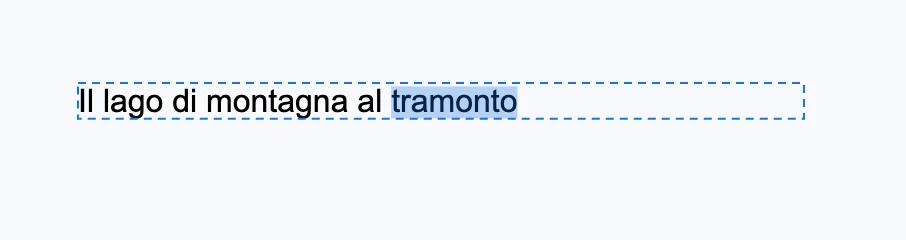
Opening a text
- With the Type tool (T): a click creates point type, a dragged frame creates wrapping text. See Type tool.
- With the Selection tool: double-clicking a text opens it, with the cursor where you clicked.
- With the Type tool active, clicking a placed text opens it (even inside a group).
Inside the text
| Gesture / key | What it does |
|---|---|
| Typing | characters appear on the drawing; selected ones are replaced |
| Enter | starts a new line |
| Arrow keys, ⌫, paste | as in any text box |
| Press and drag | selects characters |
| ⇧ + click | extends the existing selection up to the click |
| Double-click | selects the word |
| ⌘ Z / ⌘ ⇧ Z | undo and redo within the text, styles included |
| Esc | closes the text |
While the text is open, the editor shortcuts do not fire: a typed "r" is a letter, not the rectangle. The open text is selected, and its handles are not drawn.
Text history
Characters typed in a row are one step; a different kind of edit, a selection typed over or a moved cursor start another; an applied style is one step; a color dragged in the color picker is a single step only until you release. When the text closes, a single step remains in the document history. A document undo with the text open leaves the text as it is.
Closing
- Esc, a click outside on the canvas, another tool, a different selection.
- Clicking a panel field or the color picker does not close the text.
- A text left empty goes away; one opened and closed without changes leaves no step.