
Saving
Save, Save as and the save dialog
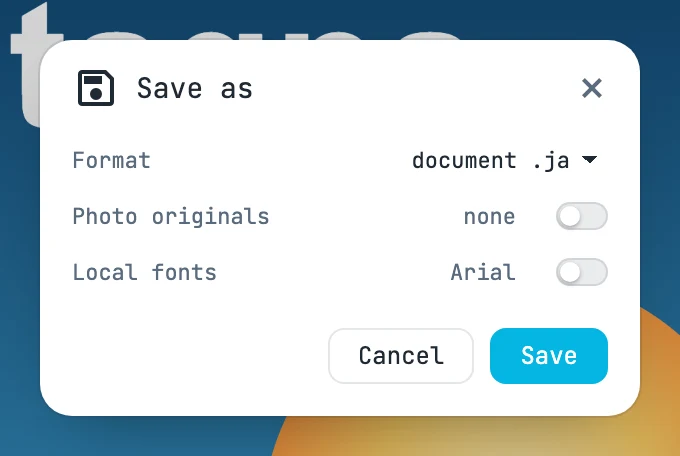
Save and Save as
- Save ⌘ S overwrites the document's file with the previous choices; without a file, it works like Save as….
- Save as… ⌘ ⇧ S opens the save dialog, then the file dialog.
- When you save to a chosen file, the project takes the file's name.
- When the save succeeds, the name in the toolbar flashes three times; in red if writing failed.
- Outside Chrome and Edge, the document is downloaded as a
.ja.
The dialog
| Field | What it does |
|---|---|
| Format | document .ja or package .jaz |
| Photo originals | only with the package, and if there are photos: puts the originals inside (next to it, how many and how large). When you check it, the browser asks permission to read them |
| Local fonts | only with the package, and if texts use installed fonts (next to it, which ones): puts them inside |
Document fonts and working images are always included: they belong to the document. If there is nothing to put in a package — no fonts, no images, no originals, no installed fonts — the dialog does not open and it goes straight to the .ja.