
Groups, locking and visibility
Group, lock, hide
Groups
| Keys | What it does |
|---|---|
| ⌘ G | Group: puts the selected objects in a group |
| ⌘ ⇧ G | Ungroup: dissolves the selected groups; disabled if there are none |
A group is selected as a whole; double-click to enter it. When you scale a group the scale passes down to the children: text inside it scales its size and leading too.
Locking
- Lock locks the selected objects and clears the selection. When locked — the object itself or a container that contains it — it cannot be picked on the canvas, neither by clicking, nor with a marquee, nor from the page label; selected elsewhere (in the tree), it cannot be dragged.
- Unlock all unlocks all locked objects and selects them. Disabled if nothing is locked.
Hiding
- Hide hides the selected objects: they are not drawn, cannot be picked and are not printed. SVG export includes them only with the Hidden objects option.
- Show all makes all hidden objects visible. Disabled if nothing is hidden.
From the Document tree
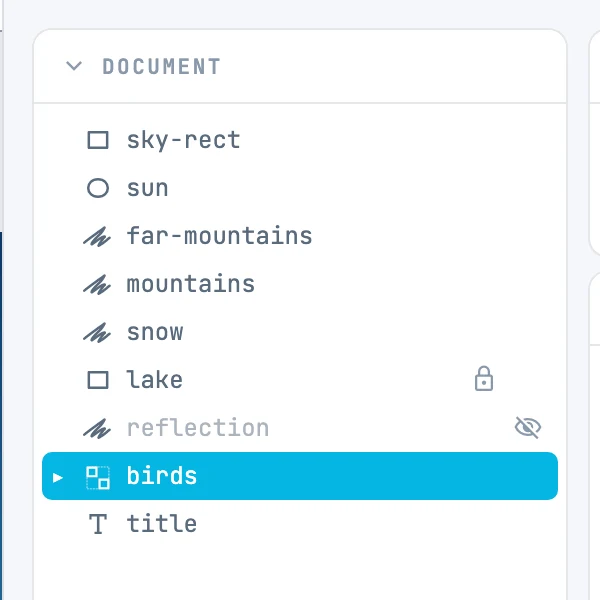
At the end of each row of the tree there are a lock and an eye: when on they are always visible, when off they appear as you hover over the row. A click turns locking and visibility on or off in one step, without selecting the row, and removes the object from the selection if it locks or hides it. The name of a hidden object is faded.
Each one is a step
Group, Ungroup, Lock, Unlock all, Hide and Show all are each one undo step.