
Scale and rotate with the handles
The bounding box of the selection
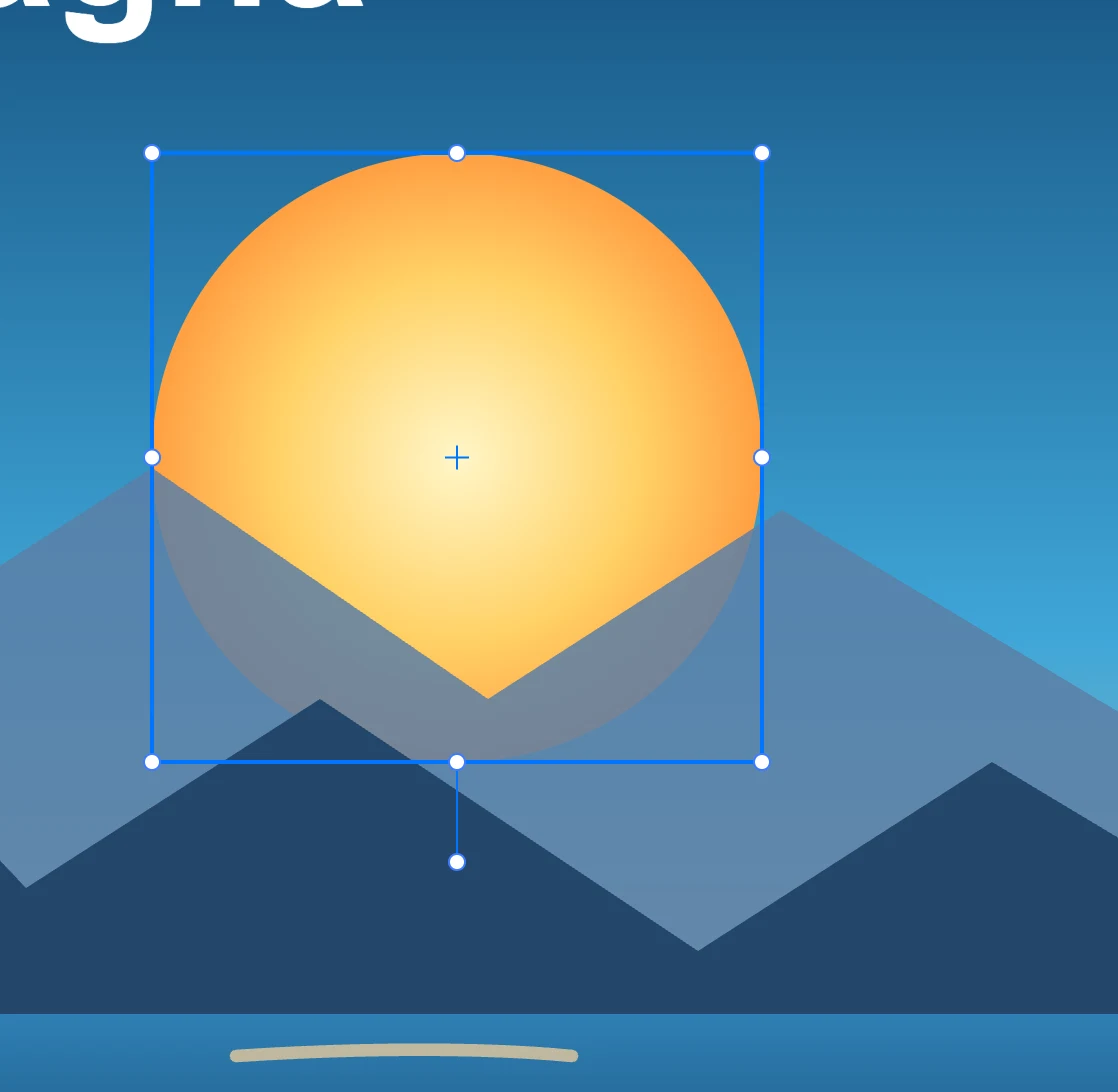
The bounding box
Around what is selected there is a bounding box with:
- eight handles at the corners and at the middle of the sides;
- the center, with its cross;
- the rotation handle, beyond the bottom side, on the line that comes from the center.
Each handle has two parts: the dot in the middle resizes, the ring around it moves. On a small object the handles touch, and the larger target is the one you use most often.
With a single object the bounding box rotates with it; with several objects it is the shared bounding box, upright. On a side that is too short on screen, the handles of that side disappear, and on an object that is small in both directions the center and the rotation handle disappear too. The cursor shows what the handle under the pointer will do.
Scaling
| Gesture | What it does |
|---|---|
| Drag a handle | scales keeping the opposite point fixed |
| with ⇧ | proportionally |
| with ⌥ | from the center |
At the end of the gesture the scale goes into the dimensions: a scaled rectangle changes width and height, and its matrix stays unscaled. The exceptions are text, which rewraps to the new width (see Text frames and columns), and animated objects, which keep the scale in the matrix.
Rotating
| Gesture | What it does |
|---|---|
| Drag the rotation handle | rotates around the center of the bounding box, by the angle between where you grabbed and where you are |
| with ⇧ | in increments of Rotation step (15° by default): the way to straighten a tilted object |
| with ⌥ at the start | rotates a copy; ⌘ D repeats the rotation |
With numbers
Position, size, rotation and scale are entered in the Geometry panel, with the nine-point reference point that sets which point stays fixed.