
Editing anchor points
The anchor point mode of a path
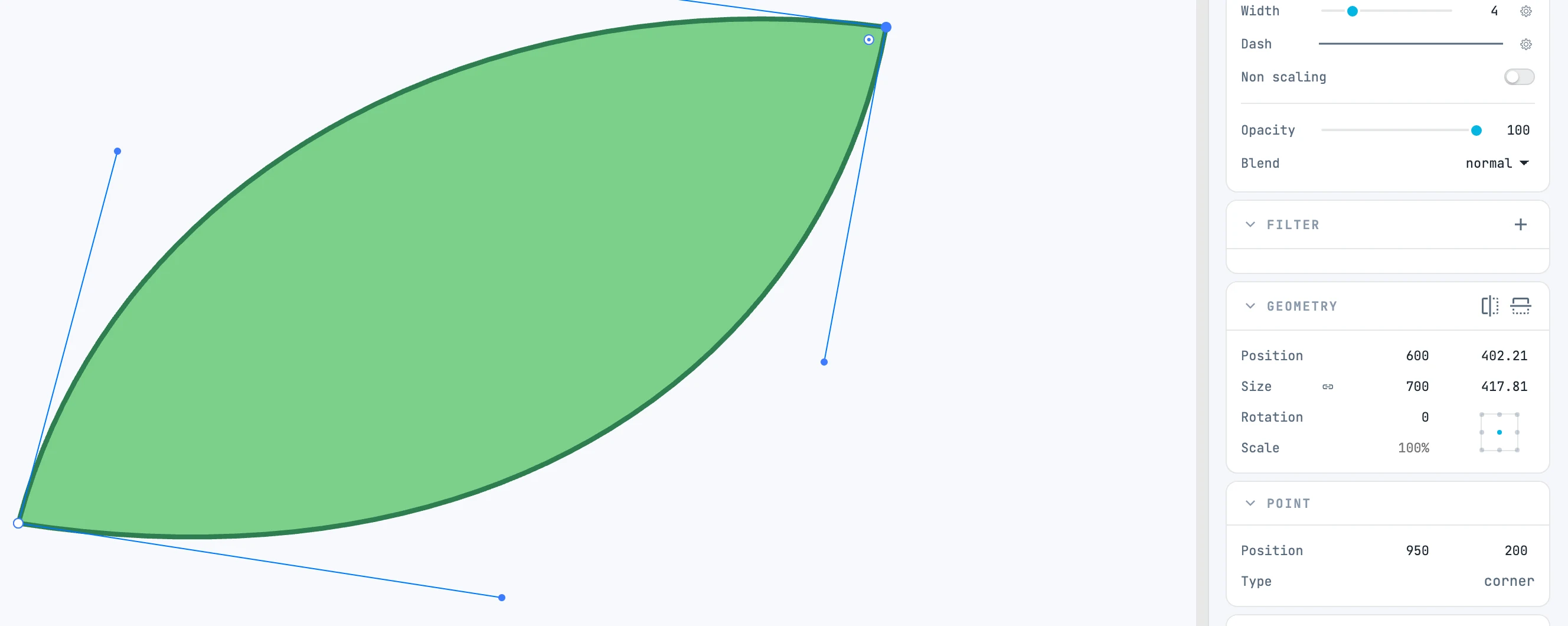
Entering and exiting
Double-clicking a path opens its anchor points: until you enter it, a selected path has a bounding box like any other object. Exit with Esc, by clicking an empty area, by selecting something else or by choosing another tool.
| Object | Where its anchor points are |
|---|---|
| path | in anchor point mode, with a double-click |
| line, dimension | the endpoints are the handles, as soon as you select them |
| arc on its own | the arc grips (endpoints, circumference, center) are the handles, as soon as you select it |
| spine, brush stroke, array on a path, area type or type on a path | the anchor points of the guide show when you select the modifier, and you drag them from outside. ⌥ on an anchor point deletes it, ⌥ ⇧ makes it a curve; a new anchor point can only be added from the small cross at the middle of a straight segment |
Anchor points always open, even on paths with hundreds of points (a converted brush stroke can have more than a thousand).
Selecting anchor points
| Gesture | What it does |
|---|---|
| Click an anchor point | selects it |
| ⇧ + click | adds or removes it, and nothing else: it does not arm any gesture |
| Click an already selected anchor point | does not clear the selection: it is the start of a move of all the selected ones |
| Marquee from an empty area | selects the anchor points inside it; with ⇧ it adds them |
Moving
Drag an anchor point: all the selected ones move, with snapping. A direction handle moves along with its point. Each gesture is one undo step, and Esc during the gesture restores the previous state.
Each grip has two parts, as in the bounding box: the dot reshapes, the ring around it moves the whole object.
Curve direction handles
A cubic curve has two direction handles, one at each end. When you drag one:
| Keys | What happens to the opposite handle |
|---|---|
| none | if the anchor point was smooth (the two handles in line, within just over one degree), it stays in line; if it was a corner point, it stays where it is |
| ⌥ | it breaks: the opposite handle stays put, and the anchor point becomes a corner point |
| ⇧ | it stays in line regardless, even if it was not before |
| ⇧ ⌥ | it stays in line and takes the same length: the anchor point is symmetric |
A direction handle cannot be selected: it is the how, not the where. It does not snap and is not picked by the marquee.
Quadratic curves
A quadratic curve (common in SVG files) has a single control point, shared by both ends: it shows as two short bars, one at each end. When you move an end, the control point stays put. Continuity also holds between a quadratic and a cubic curve, or between two quadratic curves.
Entering an anchor point
With a single anchor point selected, the Point panel shows its position, type and the radius of the arcs that touch it, and lets you enter them.