
The view
The View menu and the view options
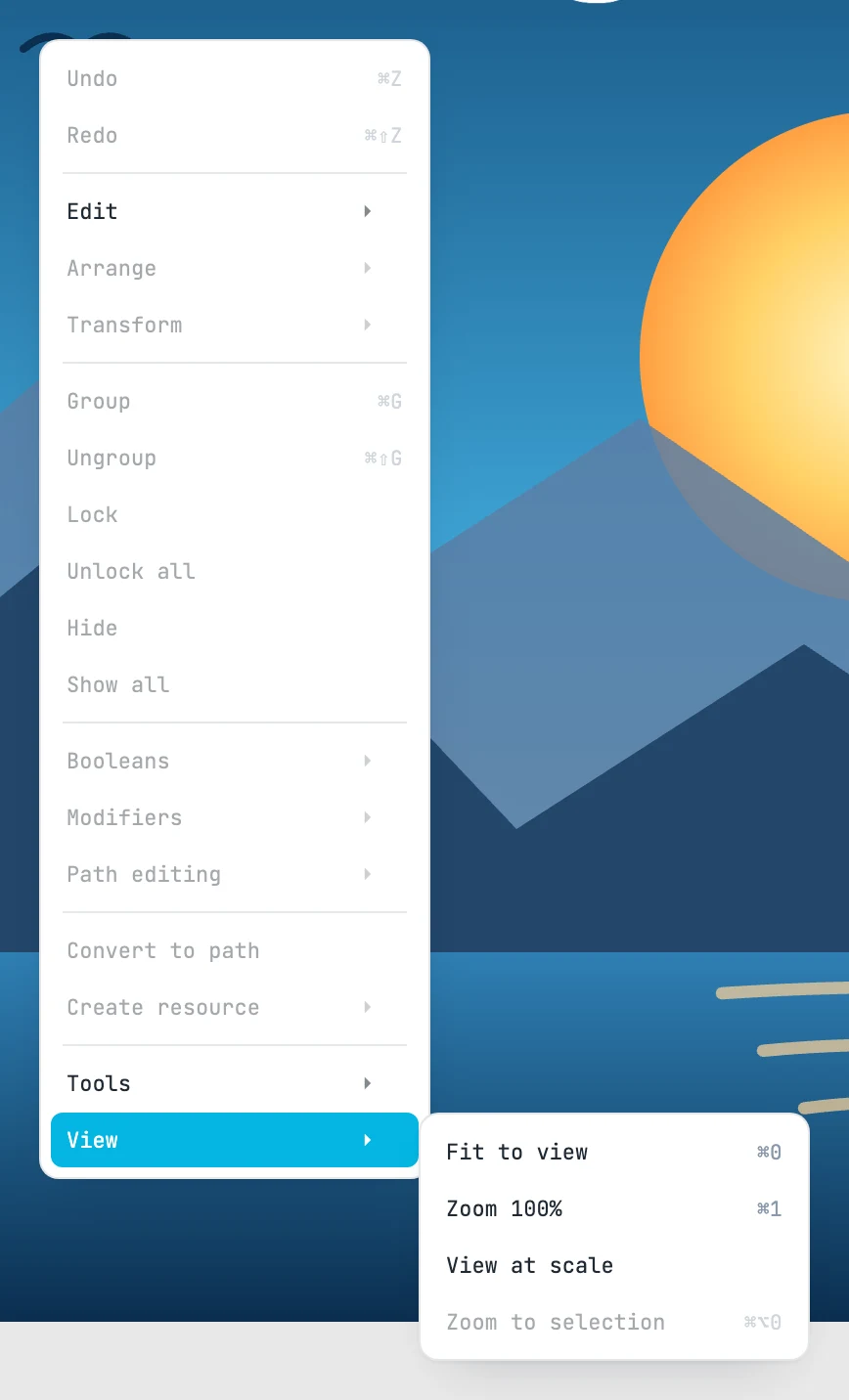
The View menu
In the right-click menu, View submenu:
| Item | Keys | What it does |
|---|---|---|
| Fit to view | ⌘ 0 | the whole drawing in the window |
| Zoom 100% | ⌘ 1 | zoom 1, around the center of the window |
| View at scale | — | the screen shows the paper: at 96 pixels per inch, taking the project scale into account. With a new document at 1:1 it matches 100% zoom |
| Zoom to selection | ⌘ ⌥ 0 | the selection in the window; disabled with no selection |
The view options
They are at the bottom of the Project panel (with nothing selected). They are editor preferences, not document ones: they do not enter the history and are not saved.
| Field | What it does |
|---|---|
| Fast view | fast pan and zoom: during the gesture the last painted image is moved, and the canvas is repainted when you stop. On by default |
| Scale page labels | page labels follow the zoom; when off, they keep the same size on screen. On by default |
| Show origin | the origin cross of the active page (X pink, Y green). On by default |
| Show object origin | the origin of the selected object, with its two axes rotated along with it. On by default |
| Dark theme | the dark theme of the interface; the page paper stays white |