
Gradients and Patterns
The gradients and patterns panels
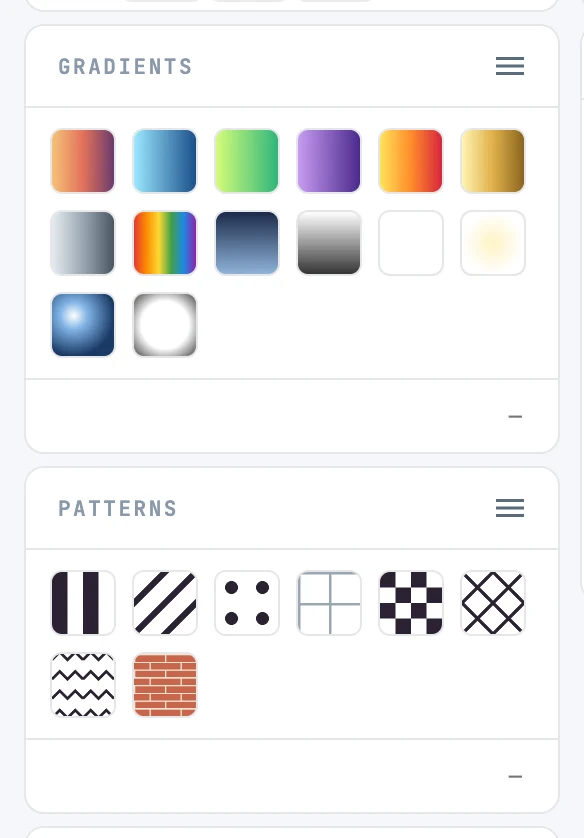
The grid
Each cell is the real preview of the resource, painted on a sample. By default the grid shows the library; with Document in the menu, every resource an object of the document can reference, wherever it is in the file.
Gestures
| Gesture | What it does |
|---|---|
| Click | selects the cell, and only that one |
| ⌘ + click | adds or removes |
| ⇧ + click | all cells between the last one clicked and this one |
| Double-click in the library | applies it as fill to the selected objects (with ⌥ as stroke), copying it into the document. With nothing selected it becomes the paint you draw with |
| Double-click a document gradient | selects on the canvas the objects that use it as fill (with ⌥ as stroke) and frames them |
| Double-click a document pattern | you enter the pattern to edit it |
| Drag onto a shape | on the outline the stroke, inside the fill. From the library, the resource is copied into the document |
The name
With the panels on the document, the footer shows the name of the selected resource — which is its id — and you rename it there: spaces become hyphens, a name already taken becomes "name-2", and every object that referenced it is rewritten. One step. With several cells selected the footer says "N selected". Library resources cannot be renamed.
The menu
The ≡ in the header: see The resource menu.