
Path (Pen)
Shortcut P
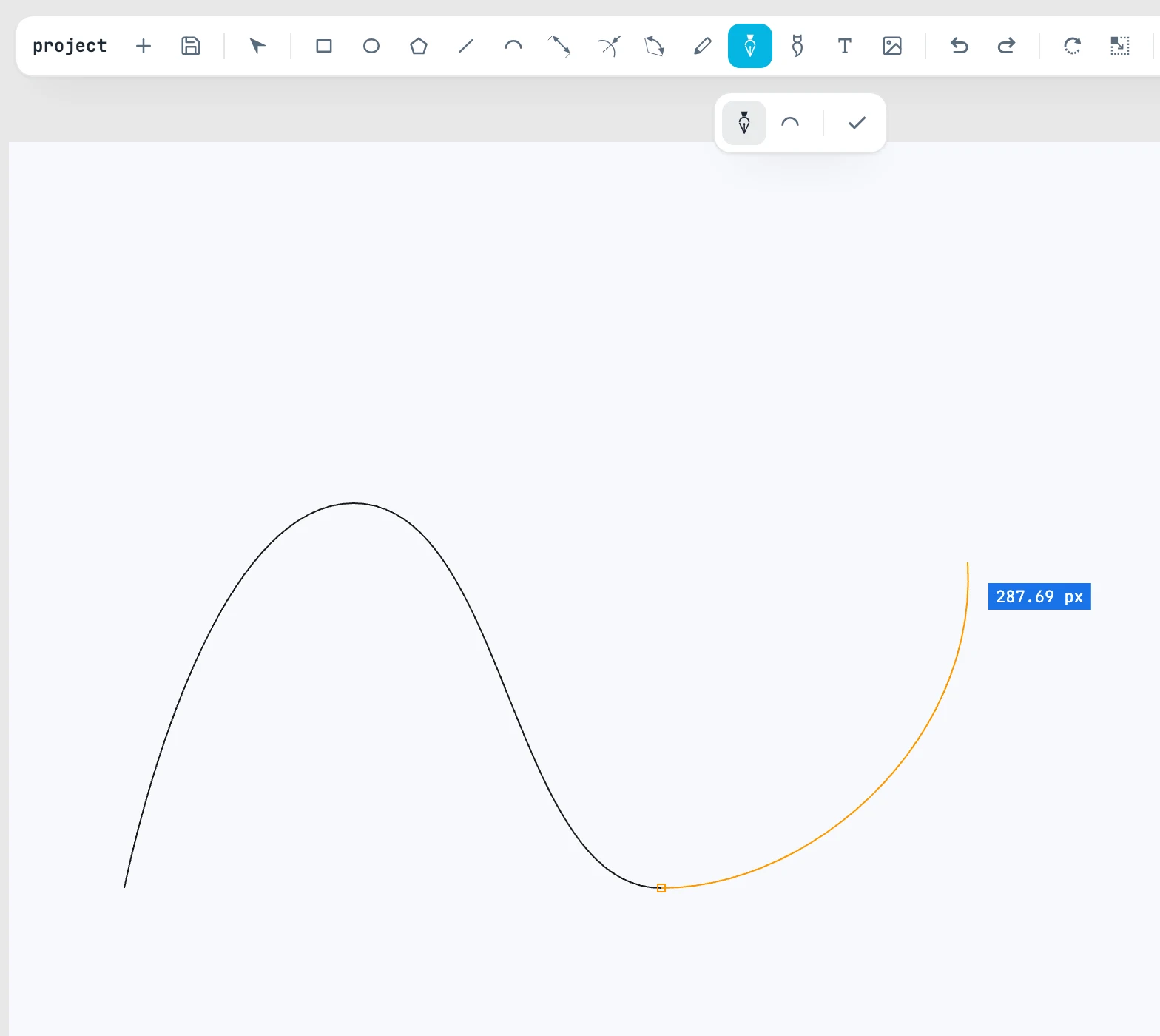
Placing points
| Gesture | What it does |
|---|---|
| Click | places a corner point (a straight segment, if there was no curve before) |
| Press and drag | places the point on release and pulls out the tangent: the incoming and outgoing segments stay continuous with each other |
| Click on the last point | breaks the continuity: the next segment starts again without a handle |
| Going back to the first point | closes the path (within 10 pixels); dragging while closing gives the loop its curvature |
| ⇧ | 45° angles from the last point |
After a curved segment, a click does not flatten the incoming segment: the curve keeps curving, tangent at both ends. The snapping axes and diagonals start again from the last point placed. The direction handle does not snap: it is a direction, not a point.
Curve or arc
In the tool's bar:
| Mode | What it does |
|---|---|
| curve | dragging pulls out the direction handles |
| arc | the segment is a circular arc tangent to the way you left the previous point. The first arc of a path needs one extra click, which gives the starting tangent |
Line is not a mode: two points without handles give a straight segment in both.
The length
The field in the bar sets the length of the next segment, in the project unit: the point is placed at that distance, in the direction you are pointing. It applies to one segment only. Typing a digit while drawing opens the Length dialog, as for the line.
Finishing
| Key | What it does |
|---|---|
| Enter | places the path open |
| check mark in the bar | finishes the path, keeping what is drawn |
| Esc | exits the current segment, keeping the points already placed; the Pen stays selected |
| ⌘ Z | removes the last point |
When you close the path, with Enter or with the check mark, the Selection tool comes back with the path selected; with Esc the Pen stays selected. While you draw, each point is one undo step; once finished, the whole path is a single step. A path with a single point is not kept.