
The bar and the Resources column
The buttons at the bottom of the inspectors, and the resource panels
The bar
| Button | Opens |
|---|---|
| document | the Document column |
| resources | the Resources column |
| fonts | the fonts column, with the Google, Local and Document sources in its header: see Fonts |
| images | the image archive, in the footer |
| pages | the pages, in the footer; from there also the masters |
| templates | the templates, in the footer |
| timeline | the timeline, in the footer |
The bar always sits at the bottom of the inspector column. The three columns sit one at a time before the inspectors: pressing the button of the one you see turns it off. Images, Pages, Templates and Timeline open in the footer, one at a time.
The Resources column
The resource panels sit one below the other, in the column. At the top, one button per panel turns it on and off:
| Tab | Panel |
|---|---|
| colors | Colors |
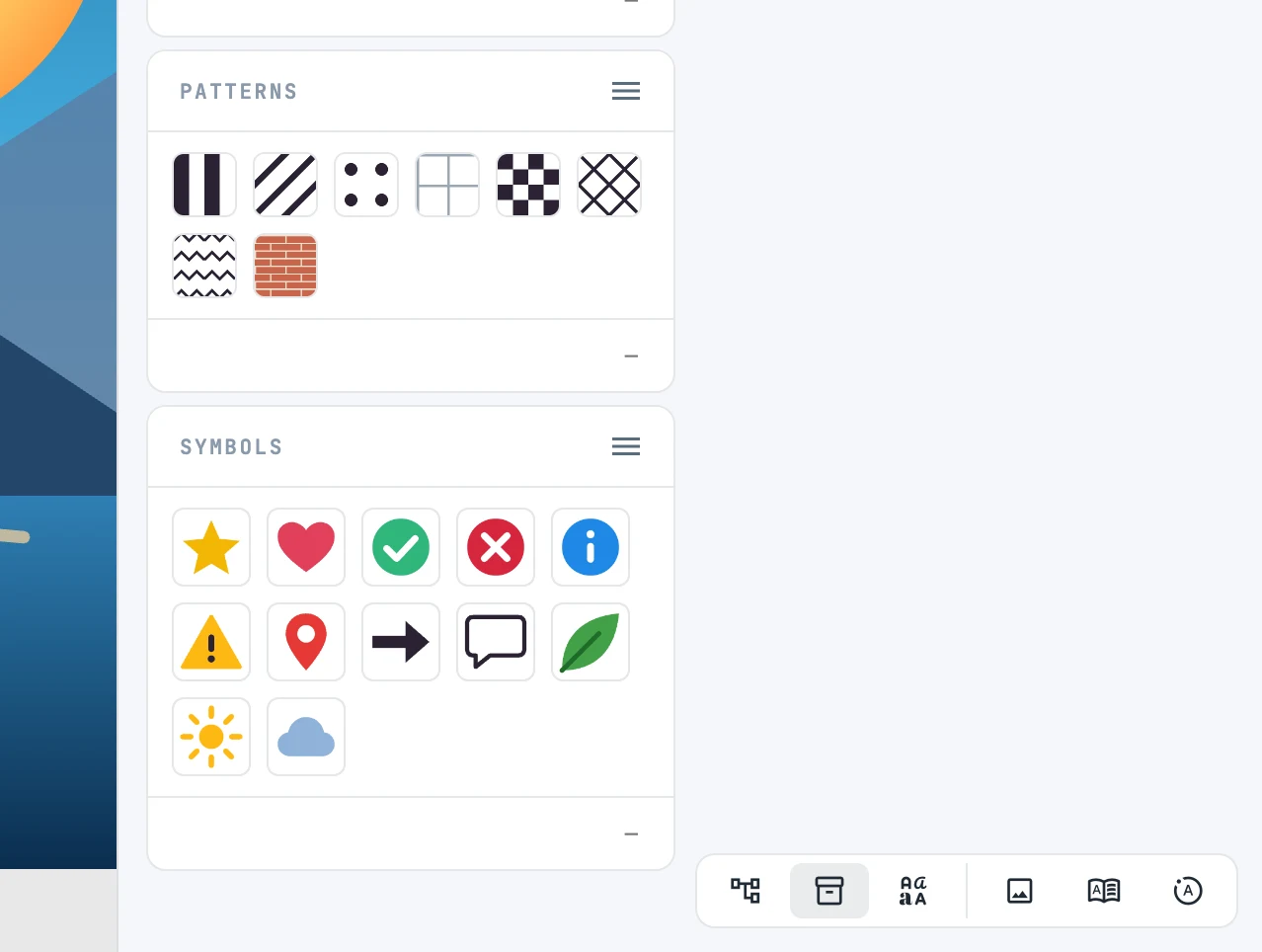
| gradients, patterns | Gradients and Patterns |
| symbols, markers | Symbols and Markers |
| widgets | Widgets |
| tables | Tables |
At startup Markers, Widgets and Tables are off. Turned on again, the column shows the panels that were on last time.
Detaching a panel
- Dragged by its header, a panel leaves the column and floats over the canvas; you resize it from the corner.
- Detached, it has the ×: it puts it back in the column.
- A detached panel stays visible even when the column is off.
Library or document
Colors, Gradients, Patterns, Symbols and Markers show the Janvas library by default: ready-made swatches, gradients, patterns, symbols and markers. The Document item of their ≡ menu switches to those of the document, and gets a check mark; choose it again to go back to the library. A library resource used in the drawing is copied into the document, or the identical one already there is reused.