
Undo and redo
The document history
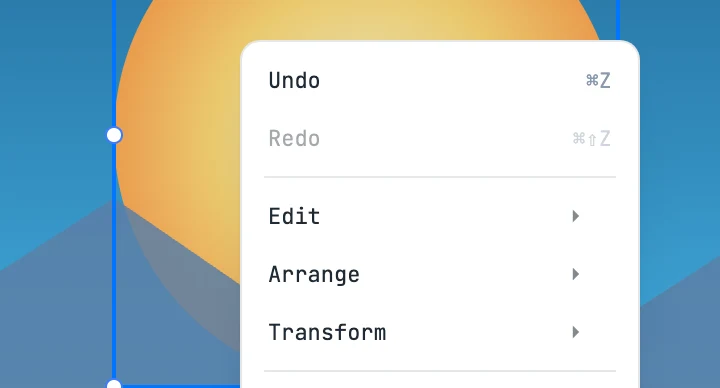
The commands
| Keys | What it does |
|---|---|
| ⌘ Z | undoes the previous step |
| ⌘ ⇧ Z | redoes the undone step |
The same commands are in the toolbar and at the top of the right-click menu. The toolbar buttons are always enabled (with nothing to undo they do nothing); in the menu the items are disabled.
What a step is
- Every operation is a step: drawing an object, moving it, entering a value in a field, a menu command.
- A dragged slider is a single step, however many movements it takes.
- A gesture with the color picker is a single step, until release.
- An operation that creates several things at once (a boolean operation, a modifier, an automatic layout) is a single step: one undo removes all of it.
The selection
When you undo, you get back the selection there was before the step; when you redo, the one the step had left. Objects that ended up in the trash or outside the document do not come back selected.
While drawing a path
With the Pen tool every point you place is a step: ⌘ Z removes the last point instead of discarding the path. Once the path is finished, the steps of the single points disappear and a single step remains, the one that created the object.
While typing text
With a text open, ⌘ Z and ⌘ ⇧ Z work on the text's own history: letters typed in a row are one step, an applied style is another. When you close the text, a single step remains in the document history.
In text fields
Inside a panel field, ⌘ Z undoes what you are typing in the field, not the document.