
Area type and type on a path
Two modifiers that guide the lines and the characters
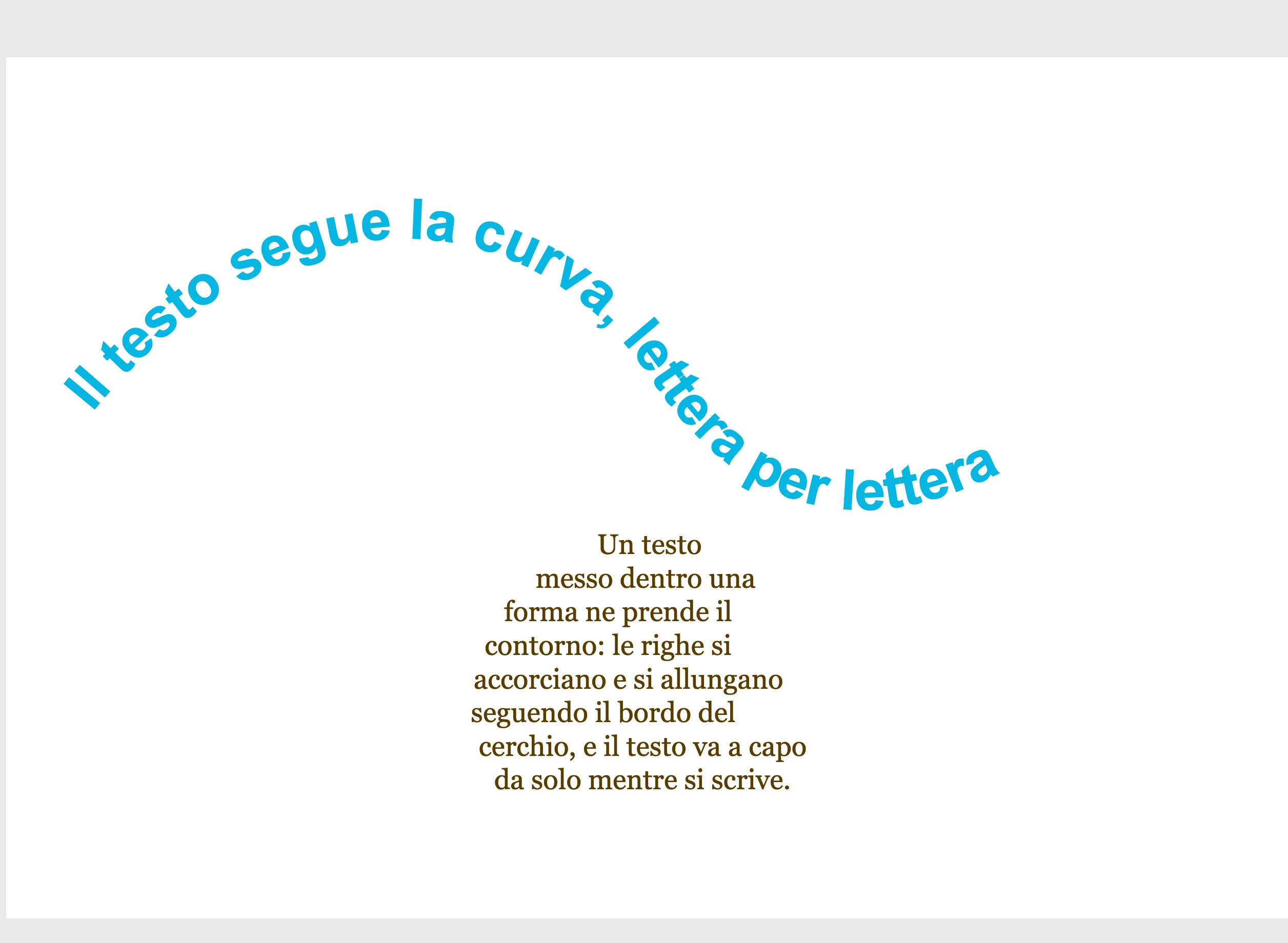
Text in shape
Select one or more texts and one shape with an outline, and nothing else, then right-click menu › Modifiers › Text in shape. The lines wrap inside the outline of the shape, hole included; what does not fit continues below the shape, as wide as the shape.
The shape becomes the guide: a path with no fill or stroke, which is neither painted nor exported. With the modifier selected, the guide is shown dashed and its anchor points can be dragged from outside, with the lines rewrapping during the gesture. The original shape goes to the trash. One undo step.
| Field | What it does |
|---|---|
| Inset | in the Spine panel ("Text in shape" header): how far the lines stay from the outline. A margin that eats up the whole shape sends the text below |
Text on path
Select one text and a shape, then Modifiers › Text on path: the characters follow the line, each with the center of its baseline on the guide and rotated to the tangent. Beyond the ends, the line continues straight.
The parameters are in the Spine panel ("Text on path" header):
| Field | What it does |
|---|---|
| Stretch | the characters stretch to cover the whole line; off (the default), they keep their size |
| Start | where the text begins, as a fraction of the line; the alignment offsets from there |
| Side | how far the text sits to the side of the line; lines after the first go below |
| Width | how much the characters widen across the line |
| Scale · Start / Middle / End | the scale across the line along the guide, in three stops |
Editing the text
You edit the text of a modifier by entering it: double-click the modifier, then double-click the text. Inside, the guide is shown in blue and remains a real path, which you can select and edit; the lines stay in the shape and the characters on the line.