
Clip and Mask
Clipping and masking
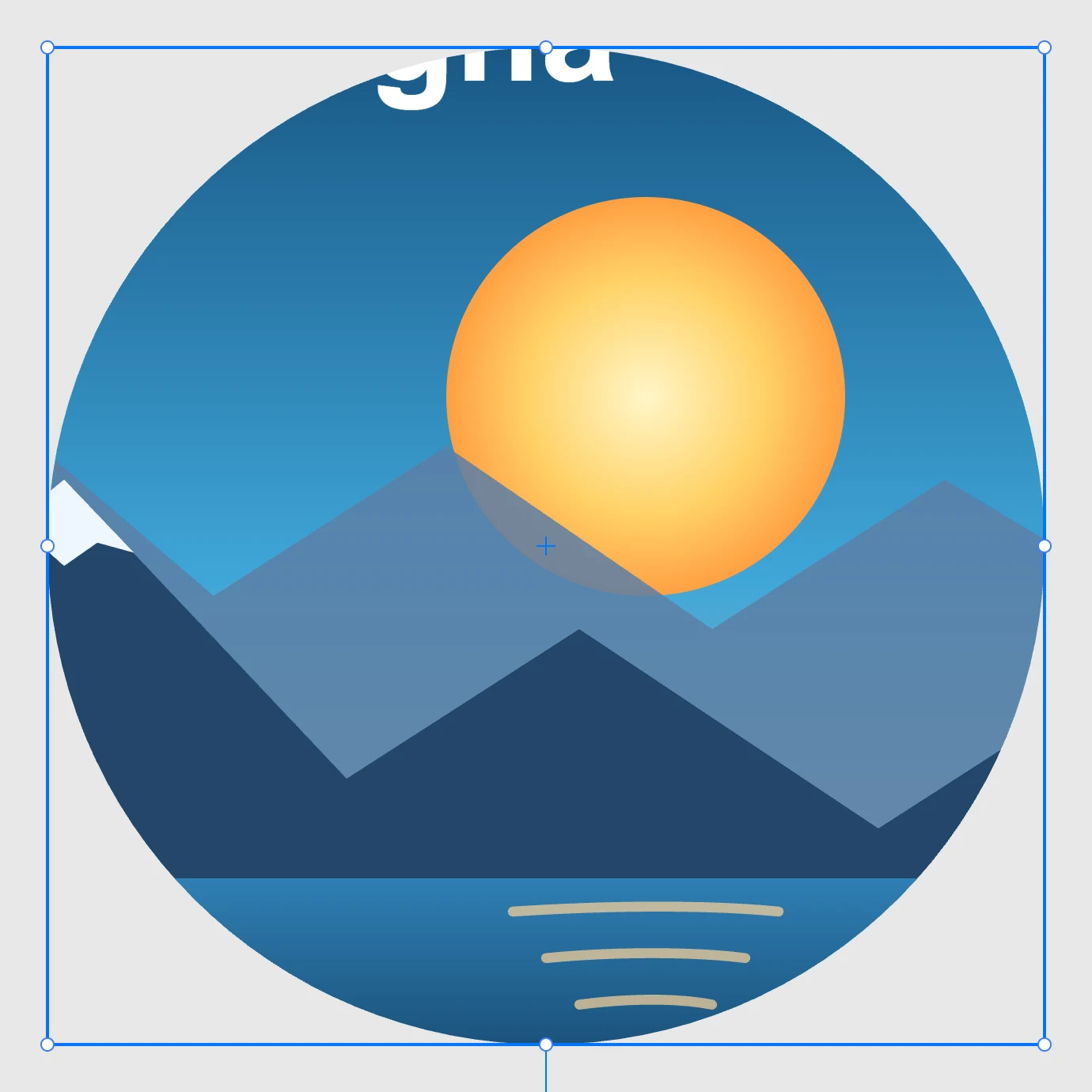
Creating them
Right-click menu › Modifiers › Clip or Mask, with at least two objects selected. The position sets the role:
- the lowest object is the content (it can also be an image, a group, a text);
- everything above it is the clipping shape.
| Item | What it does |
|---|---|
| Clip | only the part of the content inside the clipping shape is visible |
| Mask | the shape acts as a luminance mask: white lets through, black hides, grays are in between |
In a mask the fill is the mask: a mask shape without a fill (a path, a Pencil stroke, an arc) gets white and loses its stroke, otherwise it would mask nothing. Shapes that already have a fill are left untouched.
Inside
Double-click to enter: the clipping shapes appear as a dashed blue outline and the content is shown whole, so you can see what they cut. You move and edit them like any shape.
In imported SVGs
When you open an SVG or a PDF, every object with a clipping path or a mask becomes a group of this kind: the content behind, the clipping shapes in front. The clips appear in the Document tree and you enter them with a double-click, as for those made in Janvas.