
Document tree
The document as a tree of nodes
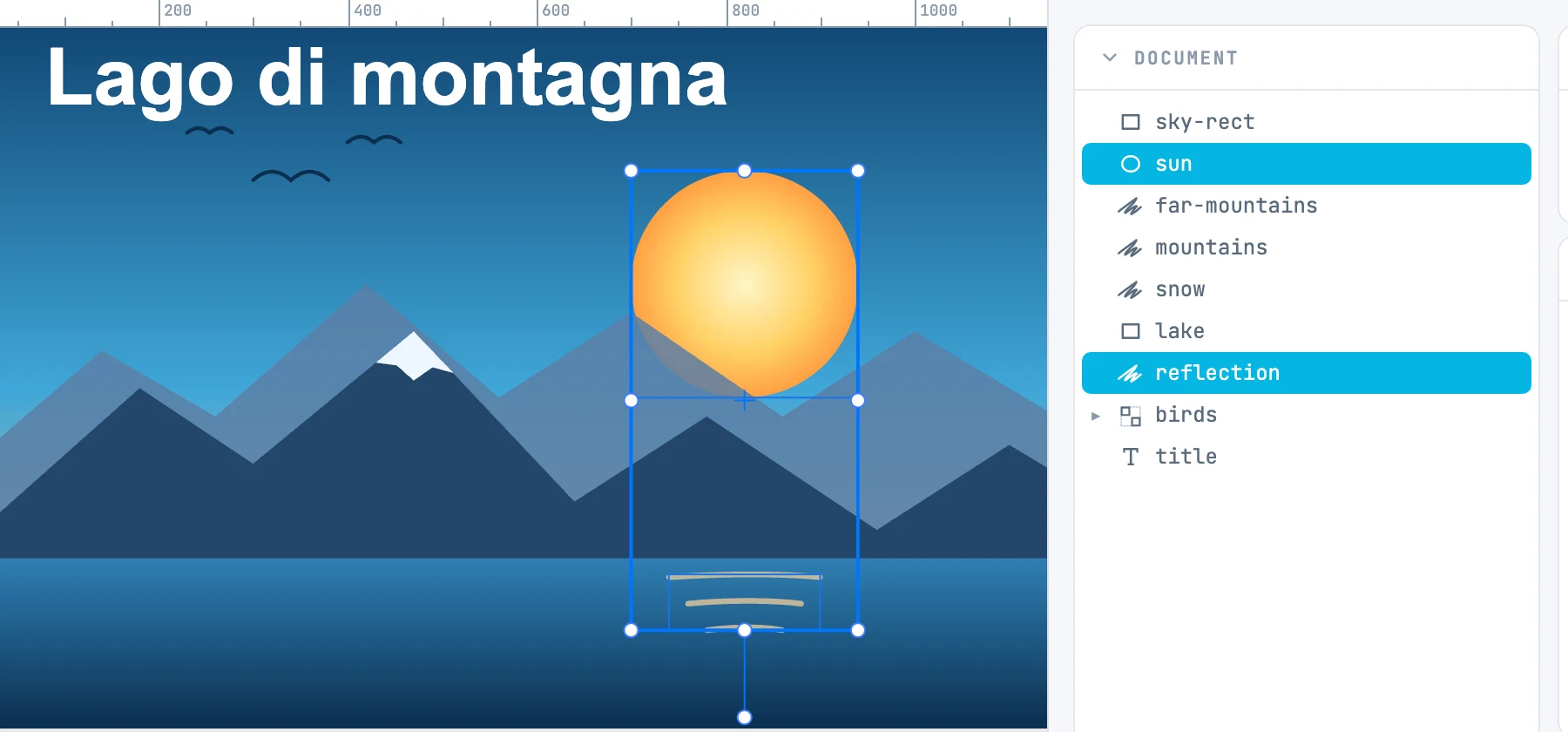
The column
The Document column sits before the inspectors. You turn it on and off with the first button of the bar at the bottom of the inspectors (document); at startup it is off, and the canvas widens on its own. In its place you can turn on the Resources column or the fonts column, one at a time: when you turn them off, Document comes back as it was. It belongs to the editor and is not saved.
The rows
- One row per node, in document order: pages, groups, shapes, text, modifiers, and their children.
- The name is the object's name, otherwise its id, otherwise its type.
- The icon shows the type; boolean operations, clips, and arrays also show the operation or mode.
- The image archive appears as "Images", and the data tables, as soon as there is one, as "Tables".
- The document resources have no rows: they are in their panels.
Selecting
| Gesture | What it does |
|---|---|
| Click on a row | selects that object, and only that one |
| ⌘ + click | adds it or removes it |
| ⇧ + click | selects all rows between the last one clicked and this one, if they are in the same list; across different branches it works like ⌘ |
| Double-click on a row | selects it and fits it in the view (Zoom to selection) |
| Click on a page row | does not select it: it makes it the active page and fits it in the view. The active page row has a line on the left and is in bold |
| Arrow | expands and collapses the branch |
Dragging rows
- Dropped above or below another row, the selected rows change place in the order; dropped on the middle of a page or a group, they go inside it.
- The moved objects stay where you see them on the canvas, and stay selected. Whatever is inside a dragged object travels with it. One step.
- On the middle of an object that is neither a page nor a group, they count as "after".
- Pages are reordered only among pages, as in the Pages panel, and are not dragged together with other objects.
Both directions
When you select on the canvas, the selected rows are highlighted, the branches containing them expand by themselves, and the focused row scrolls into view. A branch you collapsed by hand above the selection expands again at the next selection change.
Lock and eye
At the end of each row: the lock locks, the eye hides. When on they are always visible; when off they appear as you hover over the row. The click is one undo step and does not select the row. See Groups, locking, and visibility.