
Arc
Shortcut U
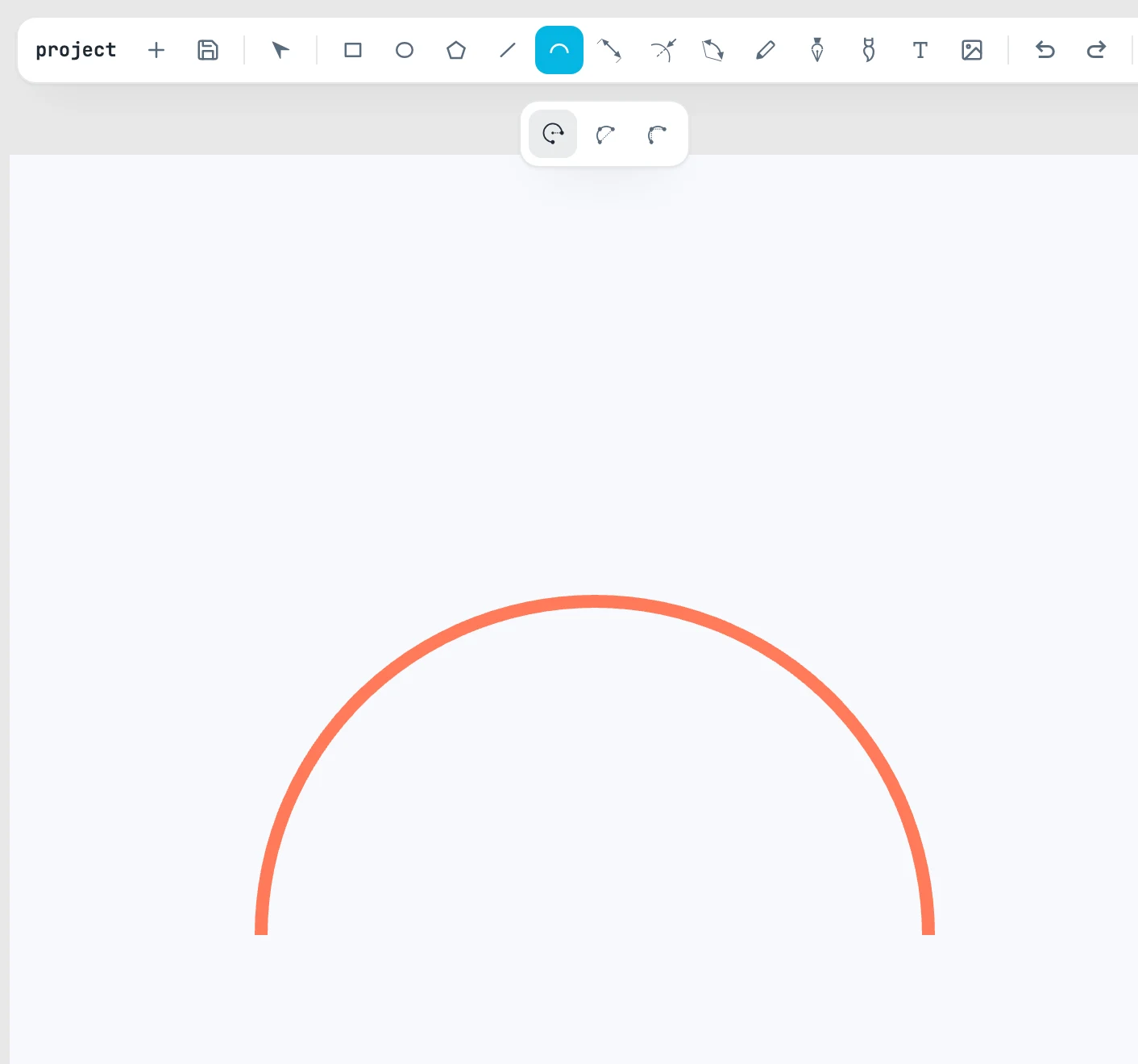
The three modes
You select them in the bar that opens when you hover over the Arc button; selecting a mode picks up the Arc tool, and changing it starts over from scratch.
| Mode | The three points |
|---|---|
| center and endpoints | the center, then where the arc starts, then where it ends |
| diameter | the two ends of the diameter, then which side the bulge is on |
| three points | start, a middle point, end: the arc is the one passing through all three |
The direction
In center and endpoints mode, the arc ends where the pointer is, and its direction depends on which way you turned to get there: you can go past half a turn, up to a full turn. Until the arc exists, you see the straight line that prepares it: the radius, the diameter, the chord.
What is created
Once the shape is placed, you are back to the Selection tool with the shape selected. It is created above the objects next to it, inside the page under the center of the gesture (or in the active page, or in the open container), with the Fill & stroke style set with an empty selection. The arc is a path with an arc command: you edit it like any path, and the Shape panel shows its Radius, Start, Sweep and Pie (as a slice).