Write and shape text
Free text, boxes and columns, text inside a shape, text on a path, text converted to paths
All the ways to put text in the drawing: free, in a box that wraps, in columns, inside a shape, along a line, and finally converted to paths.
1 · One click: free text
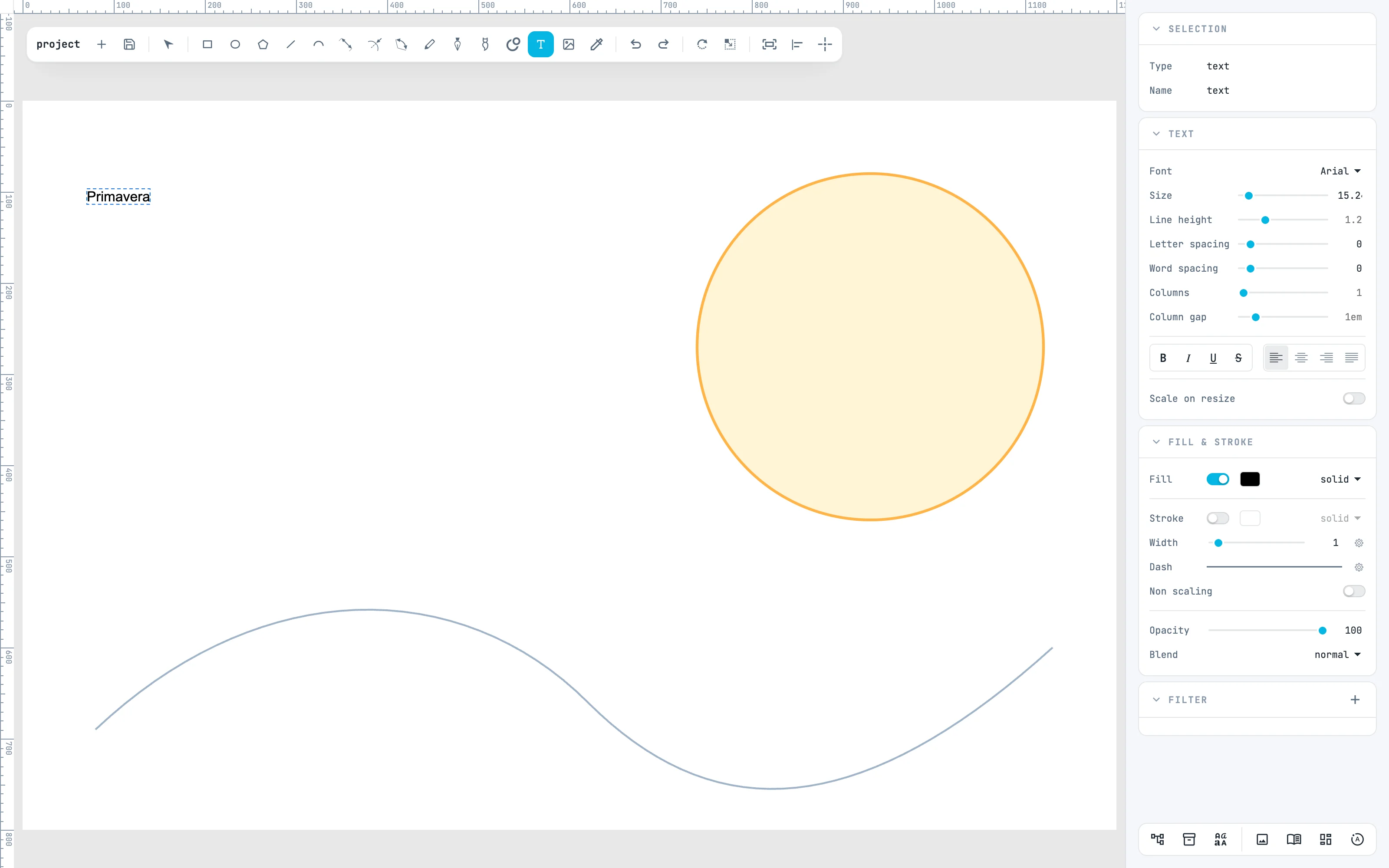
Take the text tool (T) and click on the canvas: a free text is created, open with the cursor, and you type. While the text is open the editor shortcuts do not fire: an "r" is a letter. Esc closes it.
2 · The Text panel
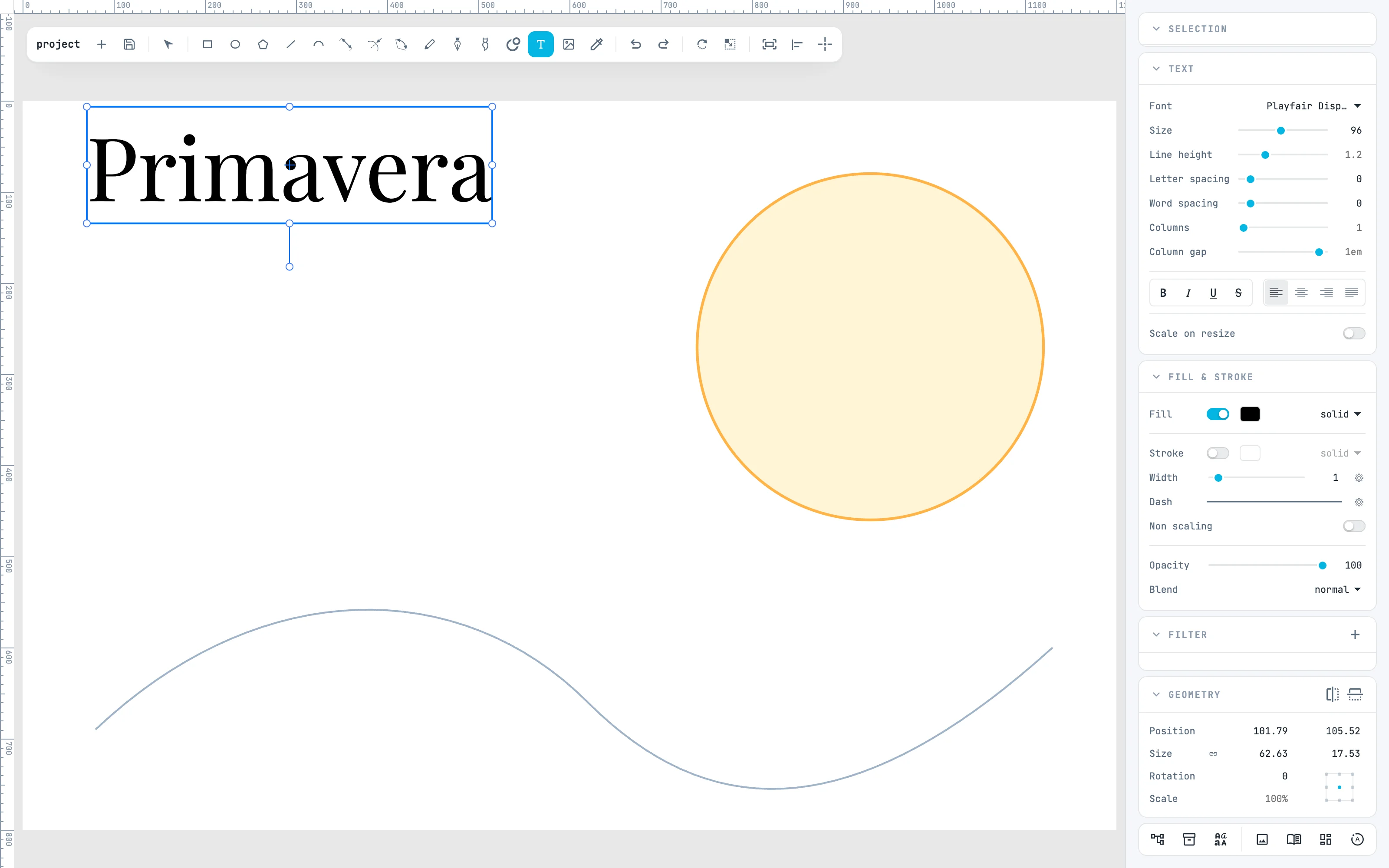
With the text selected, the Text panel changes font, size, line height, spacing, bold, italic and alignment. Here Playfair Display, one of the library fonts, at 96. To change only some letters, open it with a double-click and select them: see Letter style.
3 · A box: wrapping text
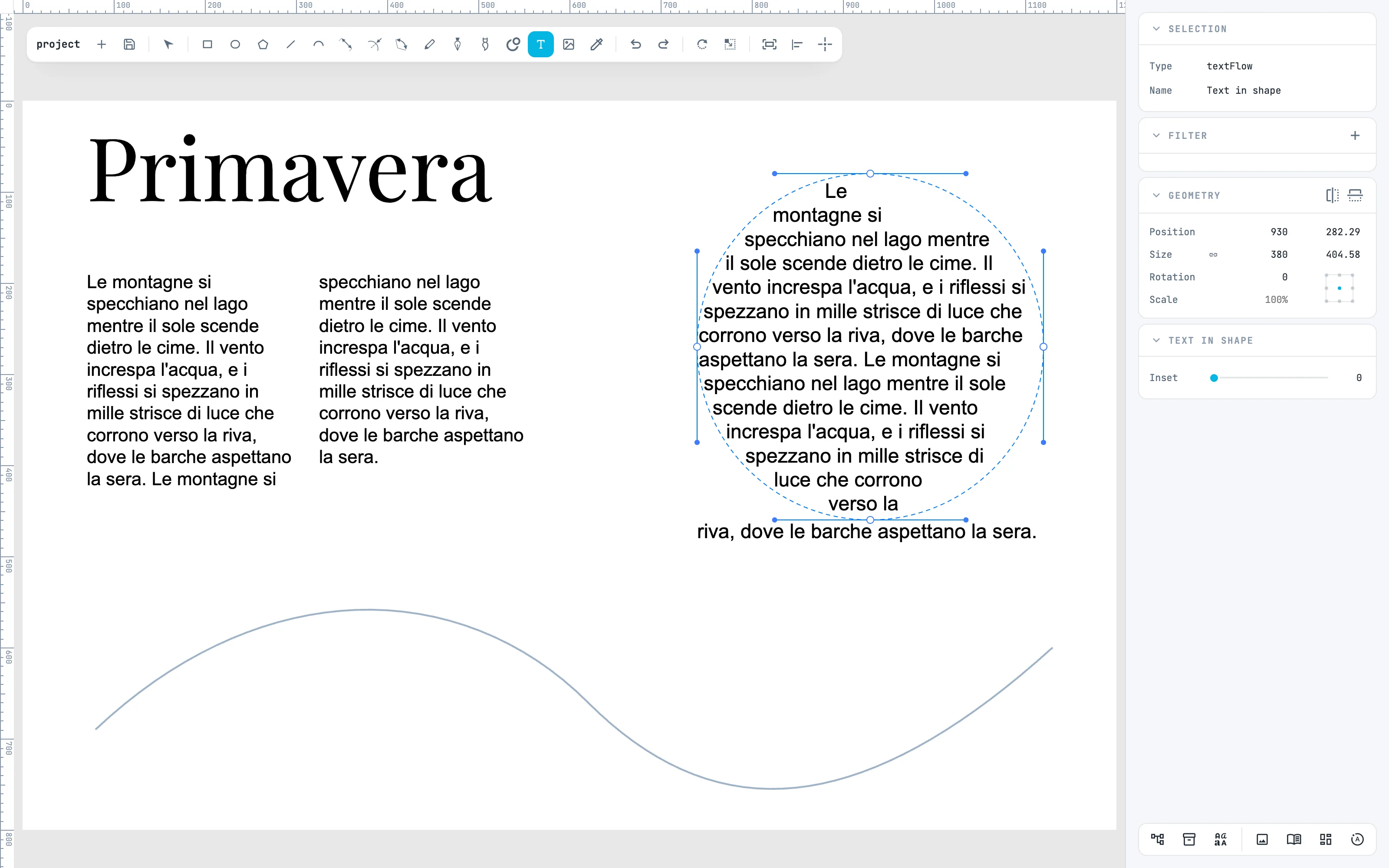
With the text tool drag a box: the text wraps by itself, between words, within the width of the box. In the Text panel, Columns splits it into columns and Column gap spaces them. Several boxes can also be linked: see Linked boxes.

4 · Inside a shape: Text in shape
Select a text and a shape, and nothing else, then right-click menu › Modifiers › Text in shape: the lines wrap inside the outline; what does not fit continues below the shape. The shape becomes the guide, dashed when the modifier is selected; Inset moves the lines away from the outline.
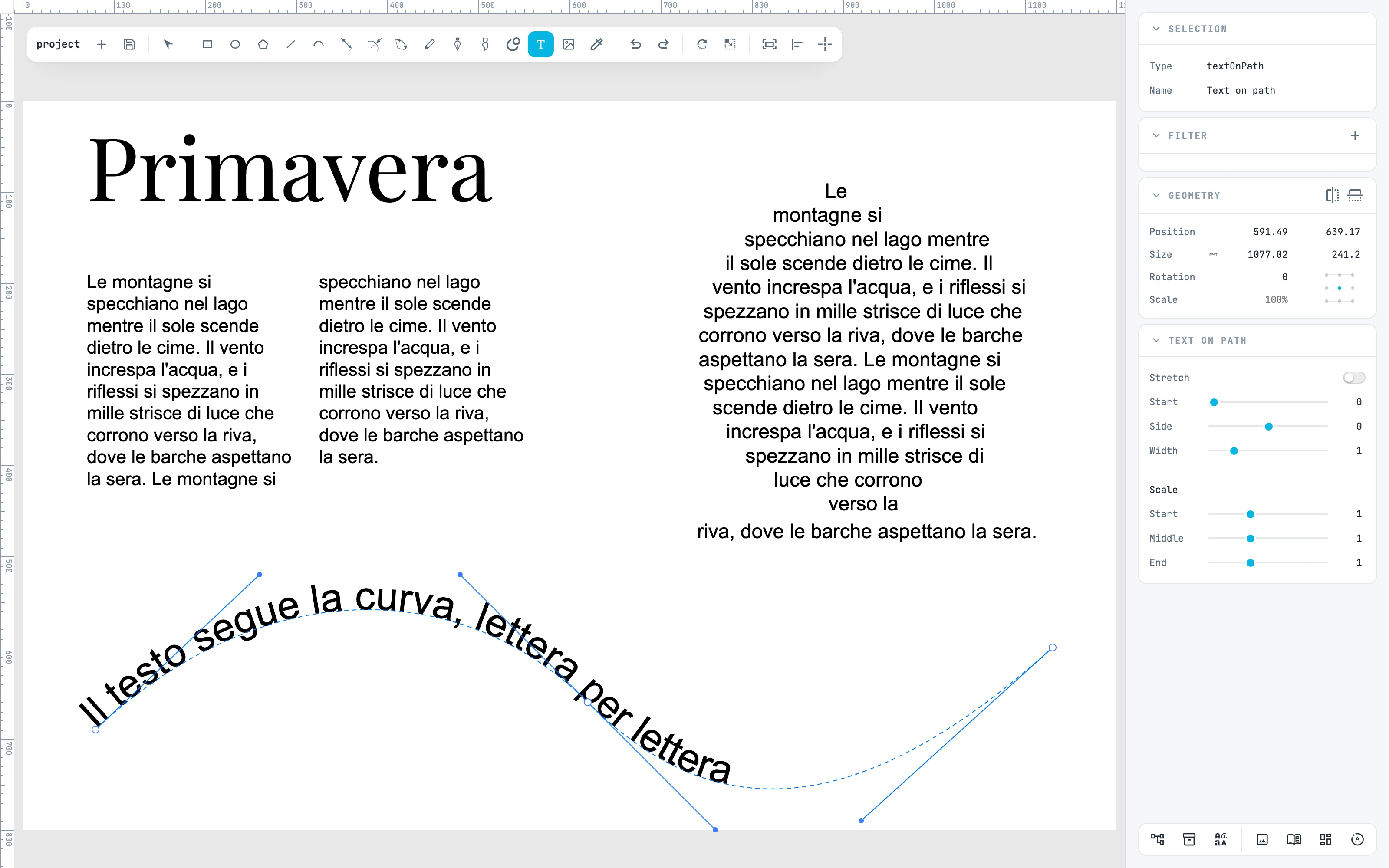
5 · Along a line: Text on path
Select a text and a line, then Modifiers › Text on path: each letter sits on the line, turned like it. In the Text on path panel: Start where it begins, Side how far to the side it sits, Stretch stretches the letters over the whole line, Scale enlarges them along the guide. To edit the text, double-click the modifier and then the text.
6 · Convert to path
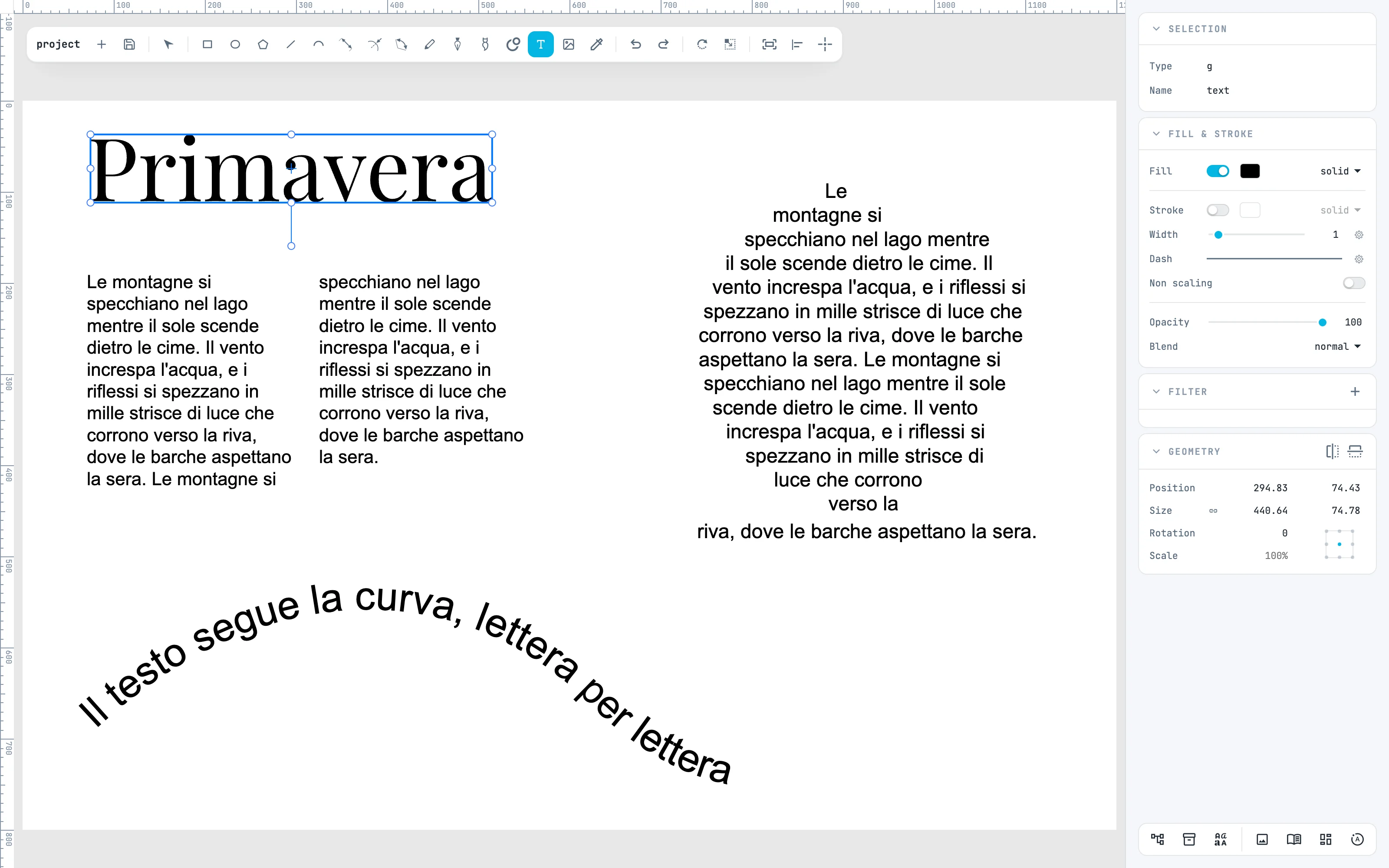
Select the title and, in the right-click menu, Convert to path: the text becomes a group with one path per letter, each with its own look, to edit point by point. It needs the font file: the library fonts, the document fonts or those installed on the computer; a text whose font cannot be found stays a text.
Going further
In the guide: writing and editing, boxes and columns, text in a shape and on a path and Convert to path.