
Move between pages
Panning and zooming the view, Fit to view, the Pages panel, pages in a grid
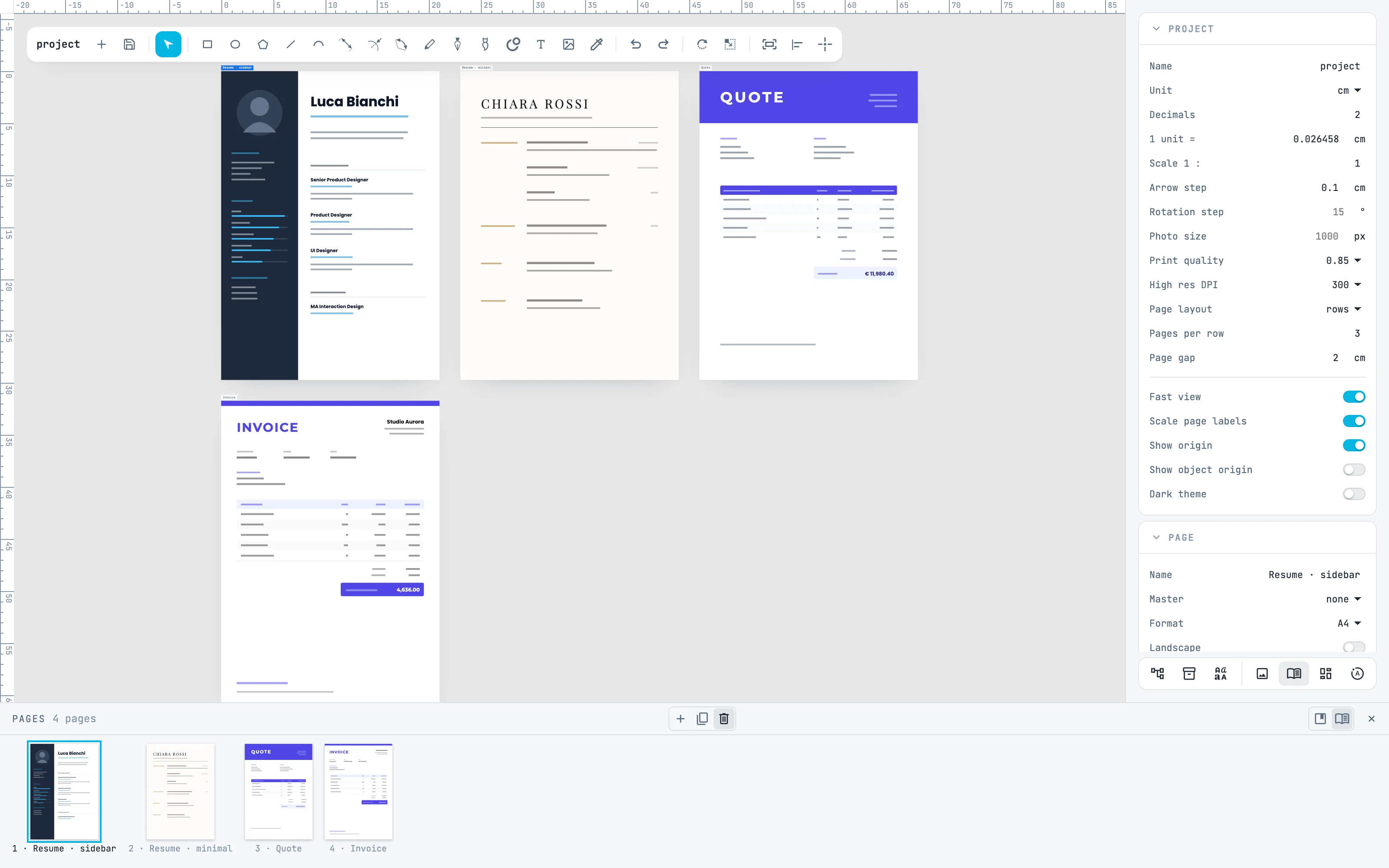
A document with several pages: you see them all, put them in a grid, go to a page, zoom into a detail and remove one. Here the pages come from four templates of the Business category.
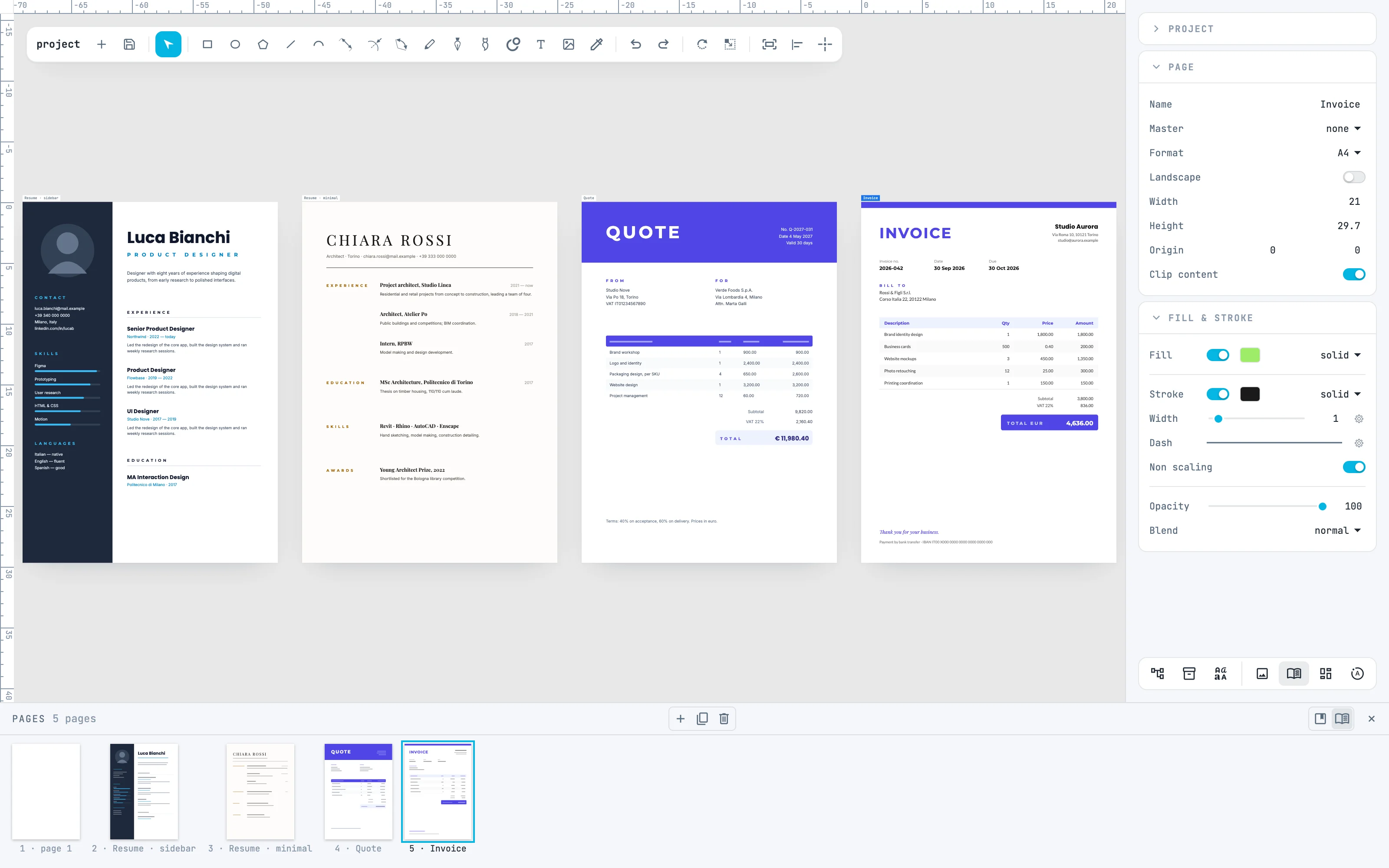
1 · The whole drawing: Fit to view
Open the Pages panel from the pages button of the bar at the bottom of the inspectors: the pages in a row, with thumbnail, number and name; the active one is lit. ⌘ 0, or View › Fit to view in the right-click menu, puts the whole drawing in the window. It frames the content: here the first page, empty, stays out on the left.
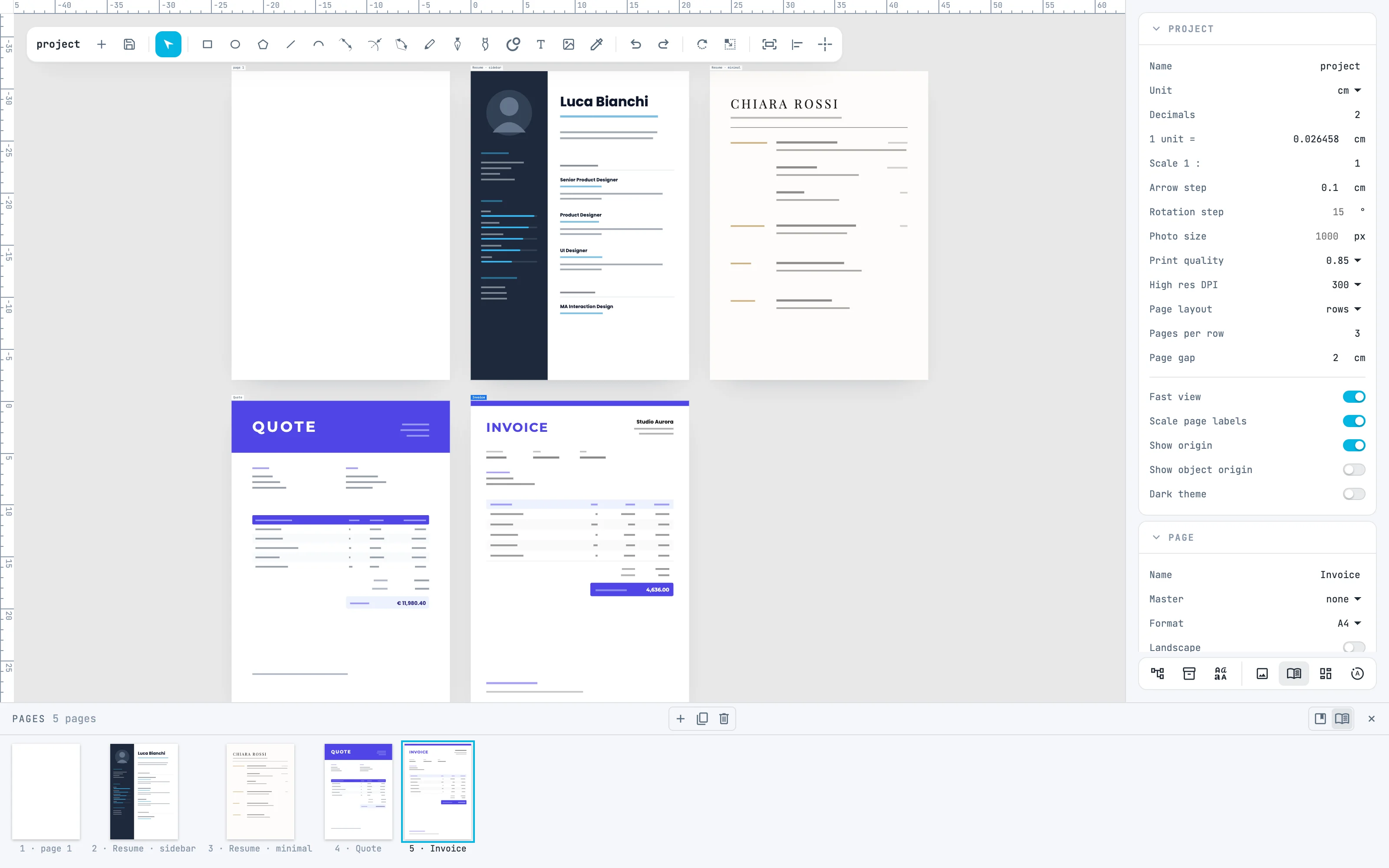
2 · Pages in a grid
Open the Project panel, at the top of the column. Page layout rows keeps the pages in a row, in their order; Pages per row says how many per row (0 a single row, 1 a column), Page gap the space between them. Here 3 per row: the pages go back into a grid in the same step.
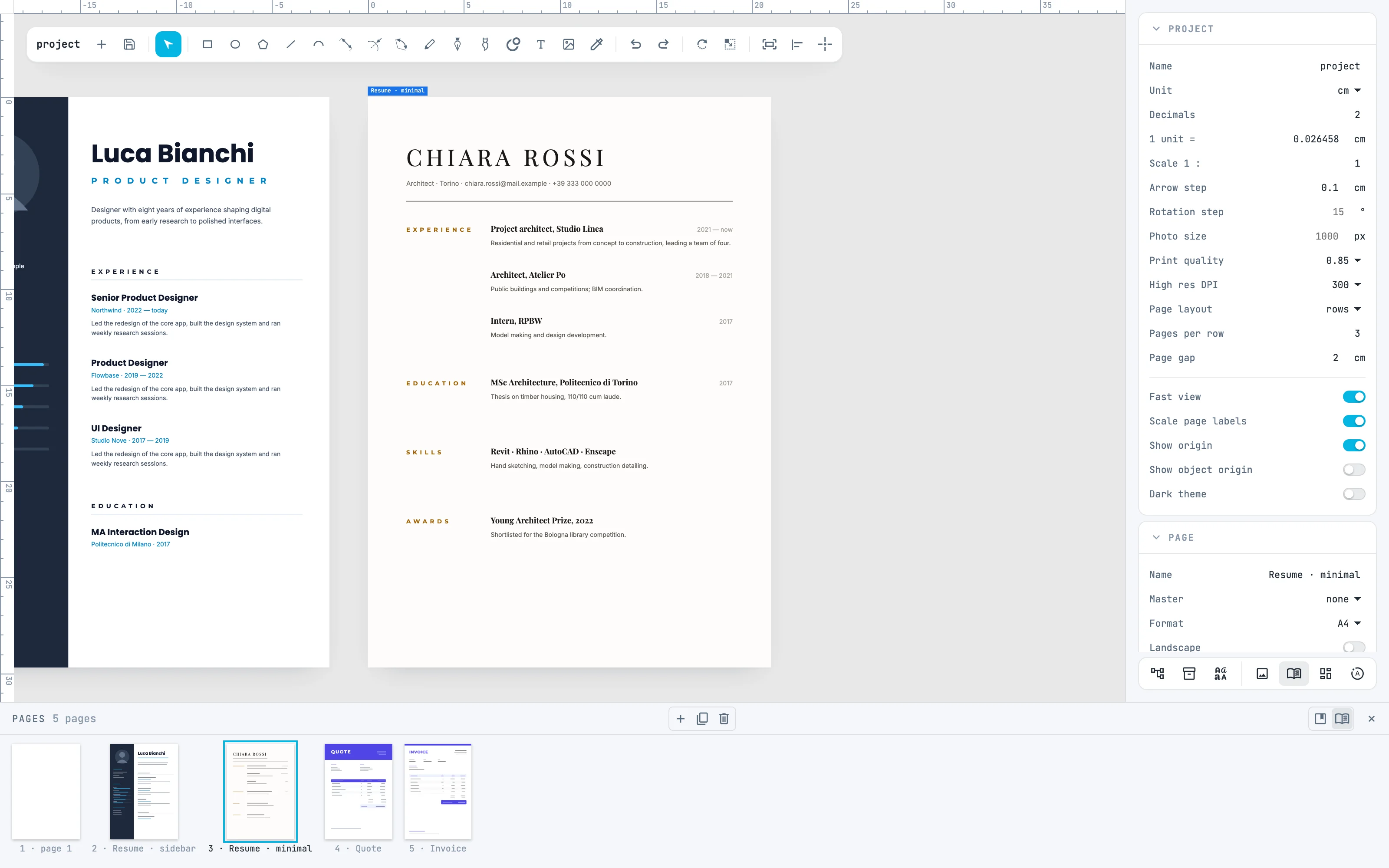
3 · Go to a page
Click a thumbnail in the Pages panel: that page becomes active and is framed, without being selected. On the canvas a double-click on the empty area of a page does it; a double-click outside the pages frames everything. The fit selection / page to view button of the toolbar frames the selection, or if there is none the active page.
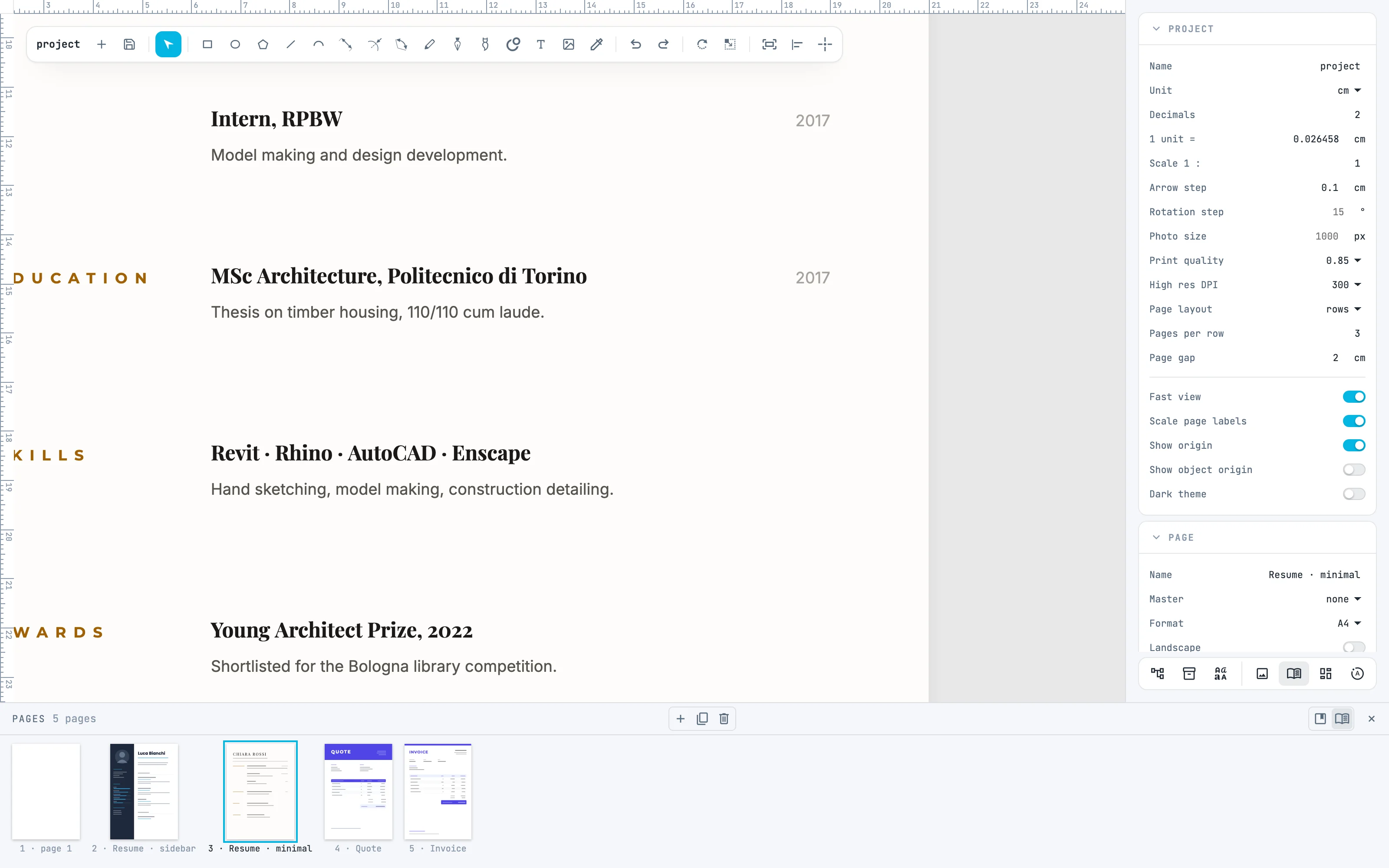
4 · Zoom and pan
The wheel zooms in or out around the point under the pointer. To pan the view drag with the right button, or hold Space and drag, with any tool in hand; ⌘ + wheel pans in the direction of the wheel. ⌘ 1 goes back to 100% zoom. See Panning and zooming.
5 · Remove a page
Click the thumbnail of the empty page, then delete in the middle of the panel header: the page goes to the trash with its content, and the others line up again. Next to it add page (+) adds one the size of the active page, duplicate copies it with its content. Dragging a thumbnail changes the order.
Going further
In the guide: panning and zooming, the view, the Pages panel and pages in a row.