
Colors, gradients and patterns
The libraries of the Resources column: giving a color, a gradient, a pattern, and recoloring the document
The Resources column holds the Janvas libraries: colors, gradients, patterns, symbols. A double-click gives a paint to the selected objects, a drag drops it wherever you like; and the document colors change everywhere in one go.
1 · A color: double-click
Turn on the Resources column from the resources button of the bar at the bottom of the inspectors. Select the card and double-click a swatch of the Colors panel: it becomes its fill. The color name is in the tooltip. With nothing selected, the swatch becomes the color you draw with.
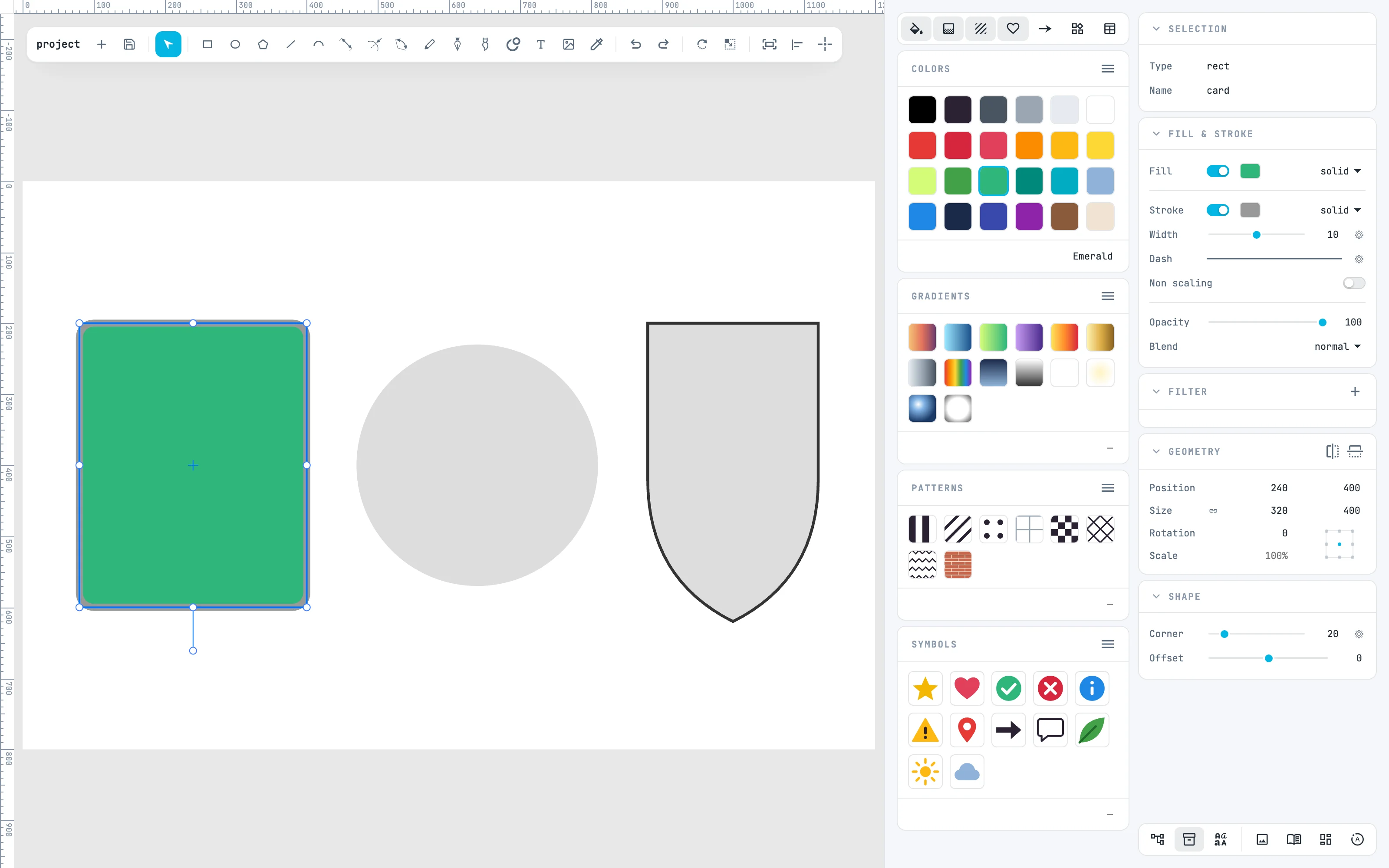
2 · With ⌥: the stroke
⌥ + double-click gives the swatch as the stroke: here purple. The same goes for gradients and patterns.
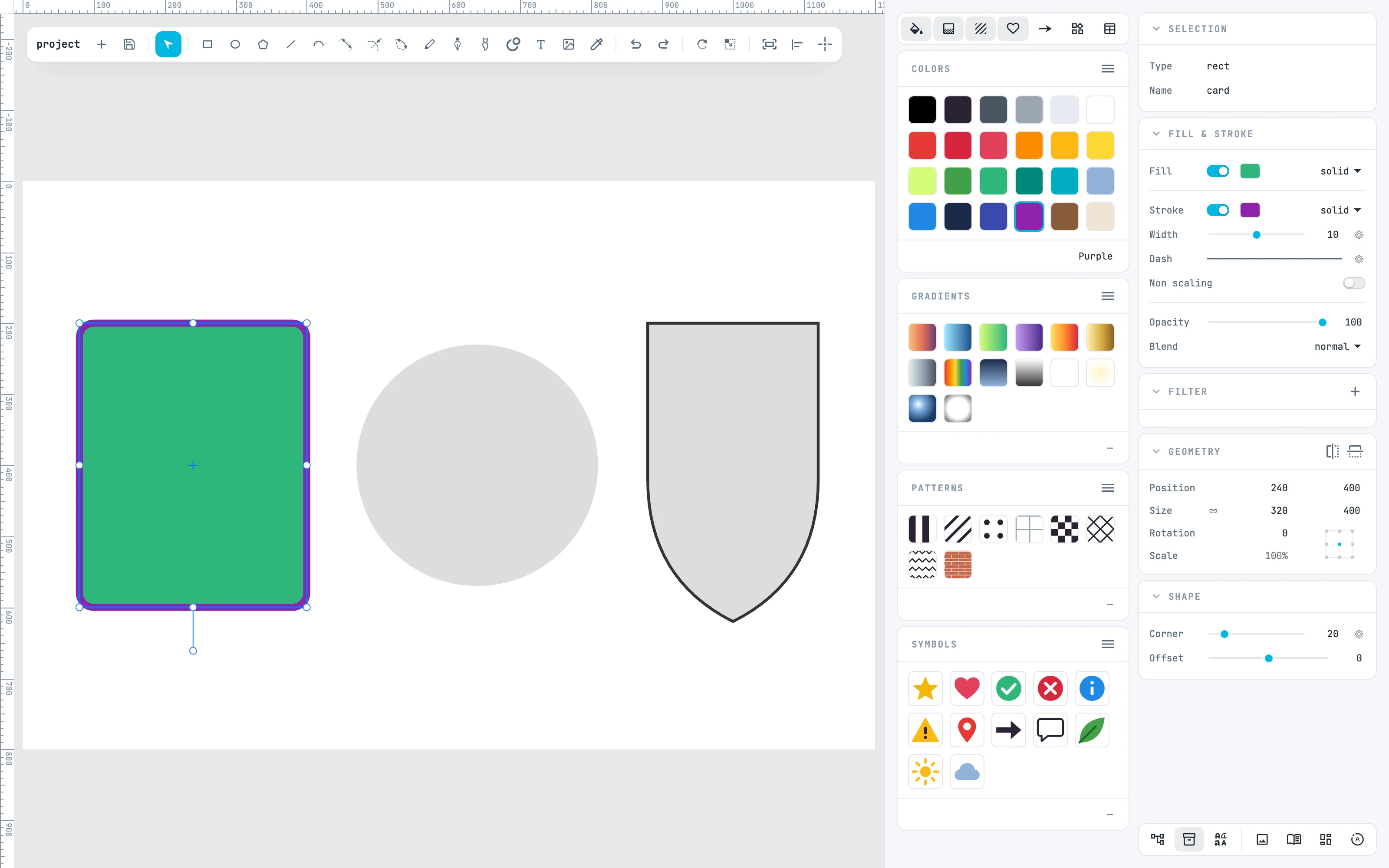
3 · A gradient
Select the circle and double-click a gradient of the Gradients panel: the gradient is copied into the document and becomes the fill. Each cell is the real preview of the resource.
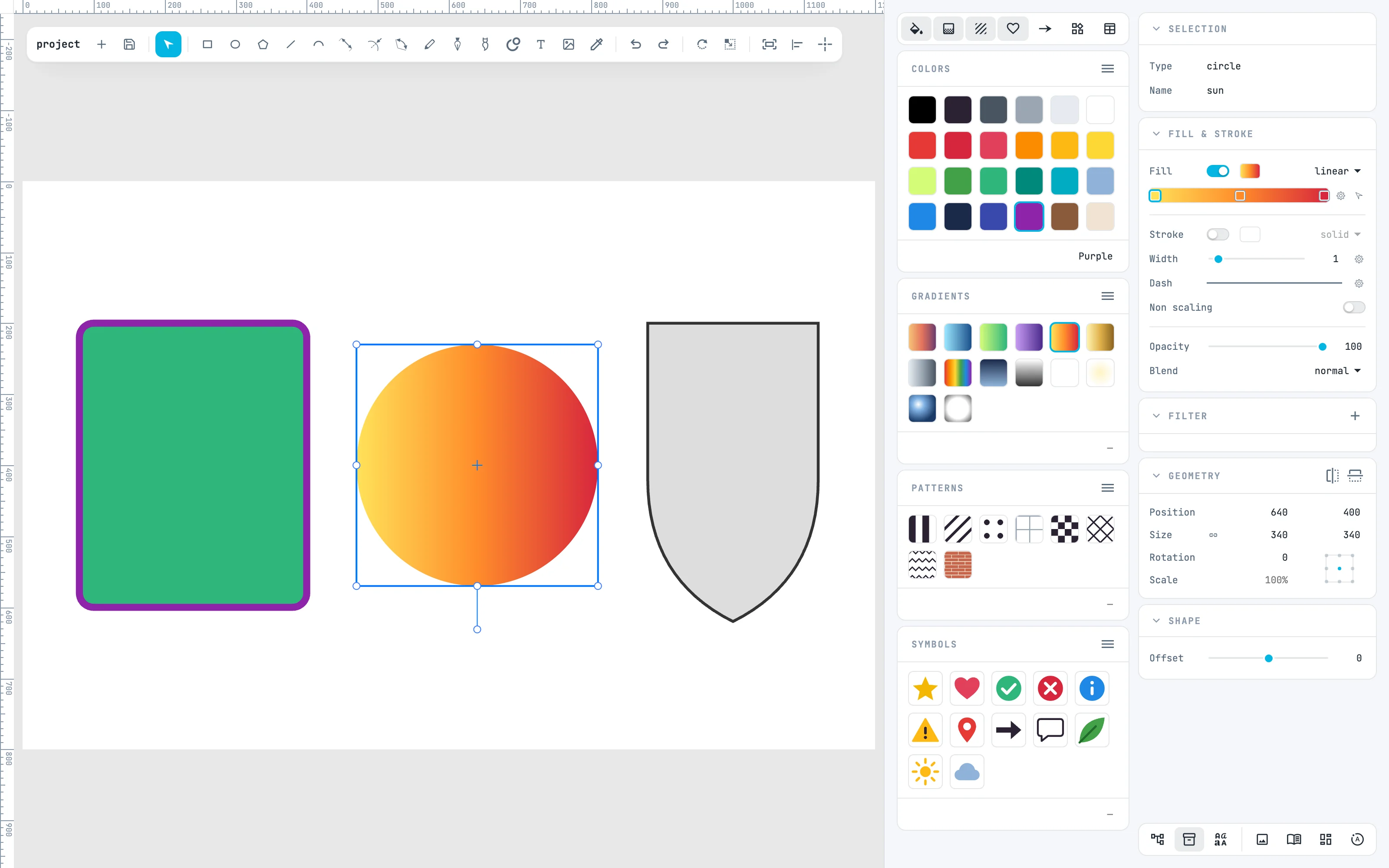
4 · A pattern, dragged
Drag a cell of the Patterns panel onto a shape: dropped inside it becomes the fill, on the outline the stroke. While dragging, the shape that will take it lights up. No need to select it first.
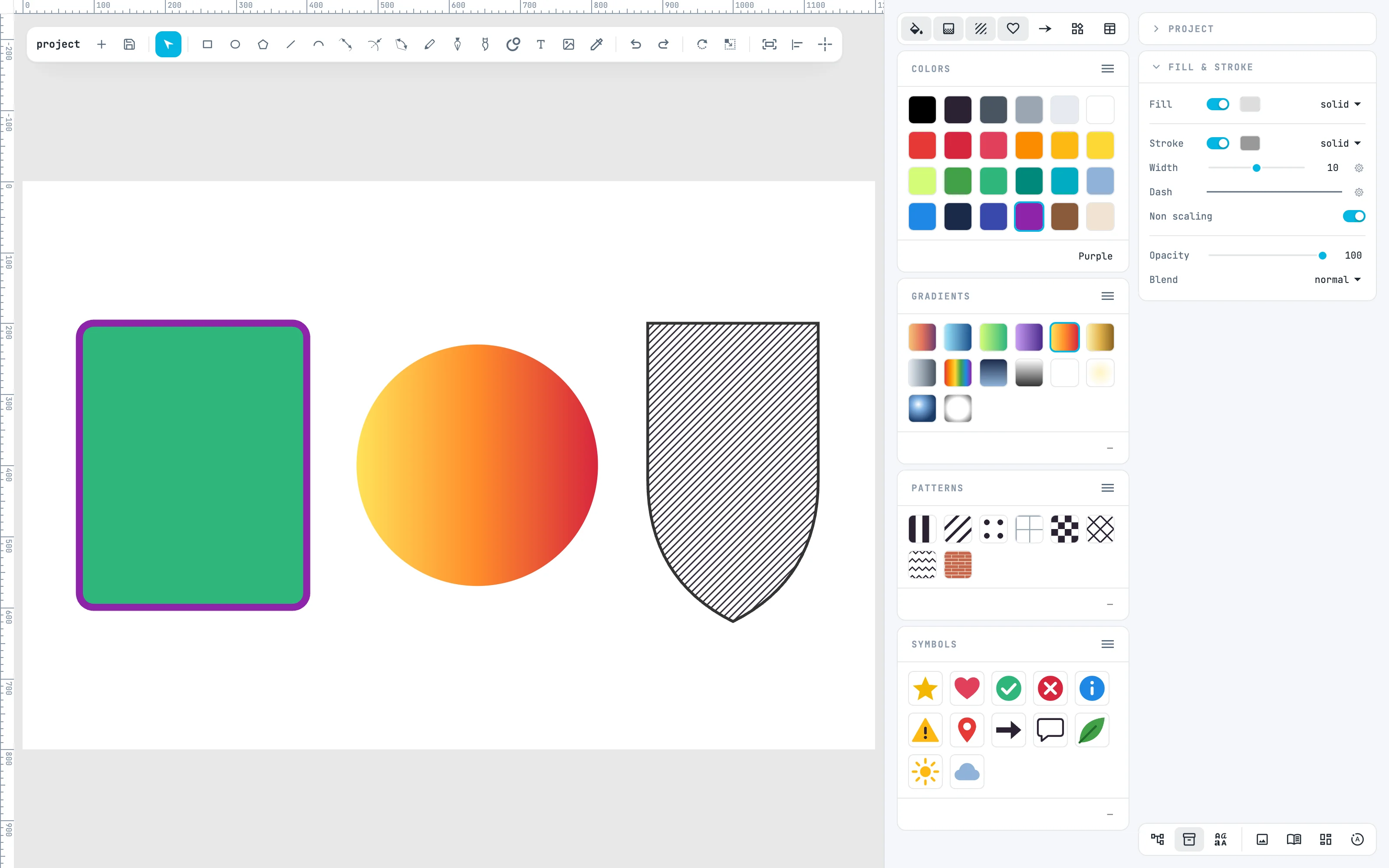
5 · The document colors
In the ≡ menu of the Colors panel, Document: instead of the library, the colors the drawing really paints appear, the most used first. Here the white of the background, the green, the purple and the dark grey. A double-click on one of them selects on the canvas what uses it as fill (with ⌥ as stroke).
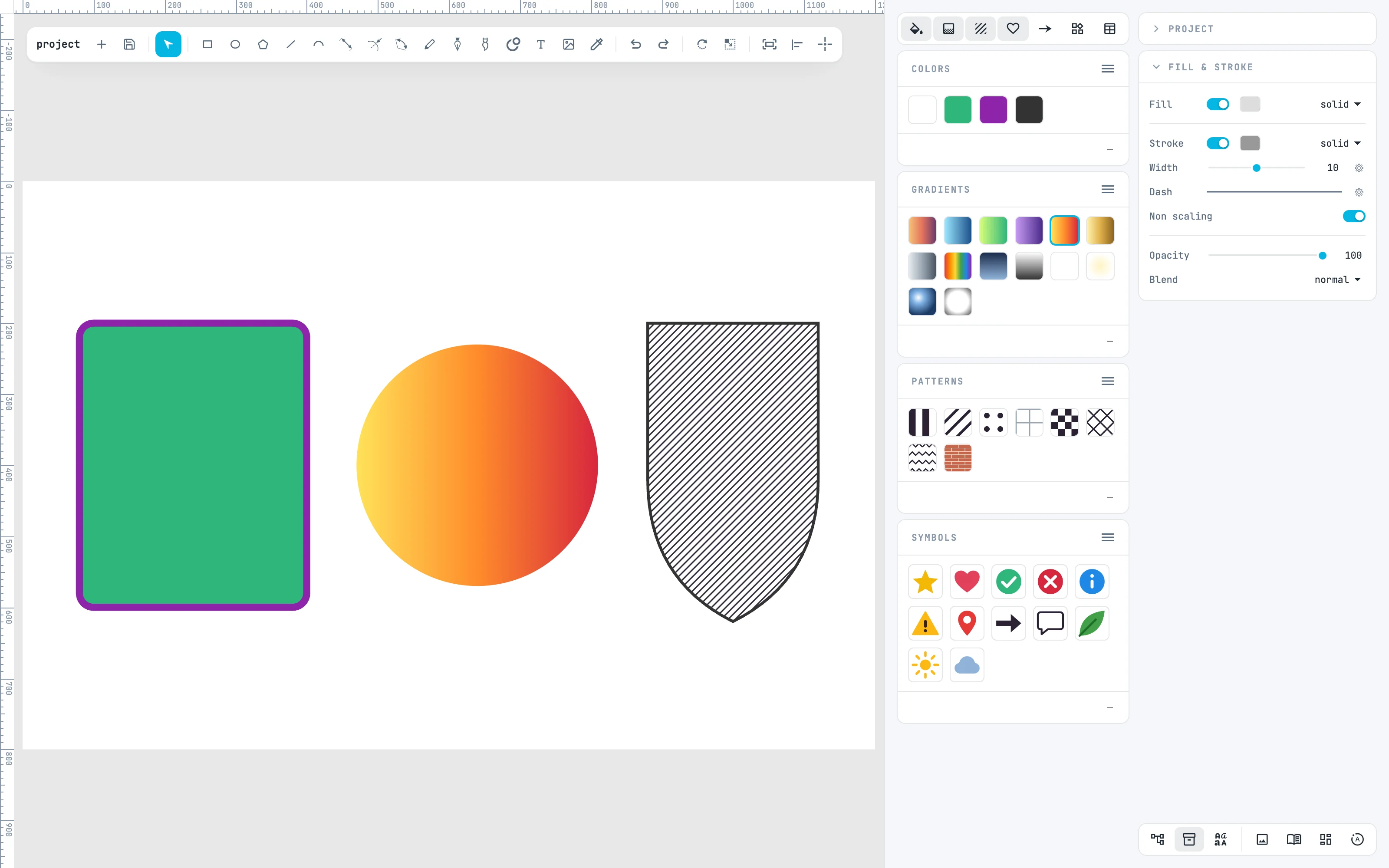
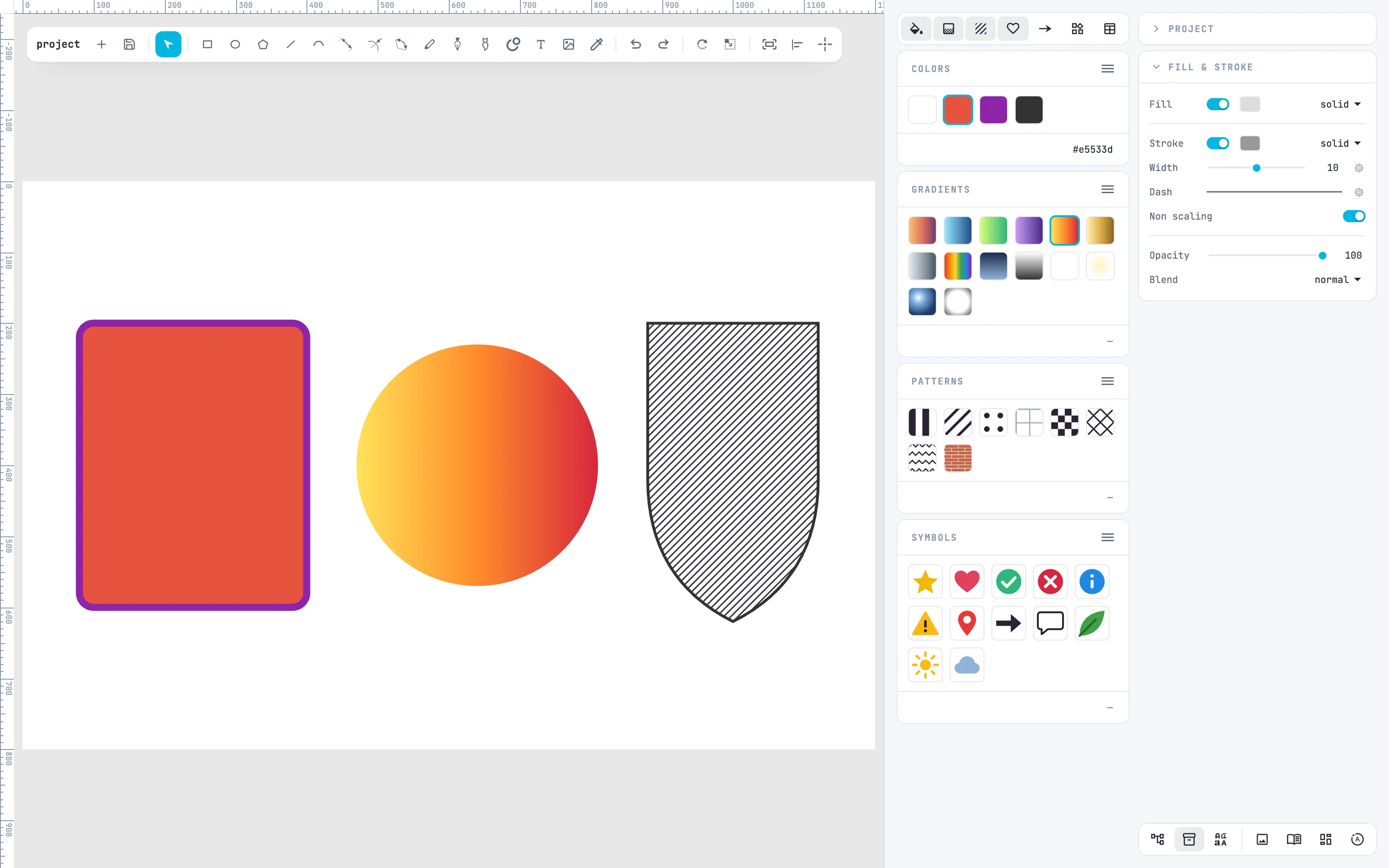
6 · Recolor everywhere
Select a document color and type a new color in the panel footer: every fill and stroke of that color takes the new one, in one step. Here the green becomes red. With gradients and patterns, the footer renames the resource.
Going further
In the guide: the Colors panel, Gradients and Patterns, dragging resources and the resource menu.