
The template library
Seven categories of ready-made pages: choosing, adding and changing them
Janvas has a library of ready-made pages, divided by category. You add two of them to the document, in two ways, and change the copy: the template stays as it is.
1 · The Templates panel
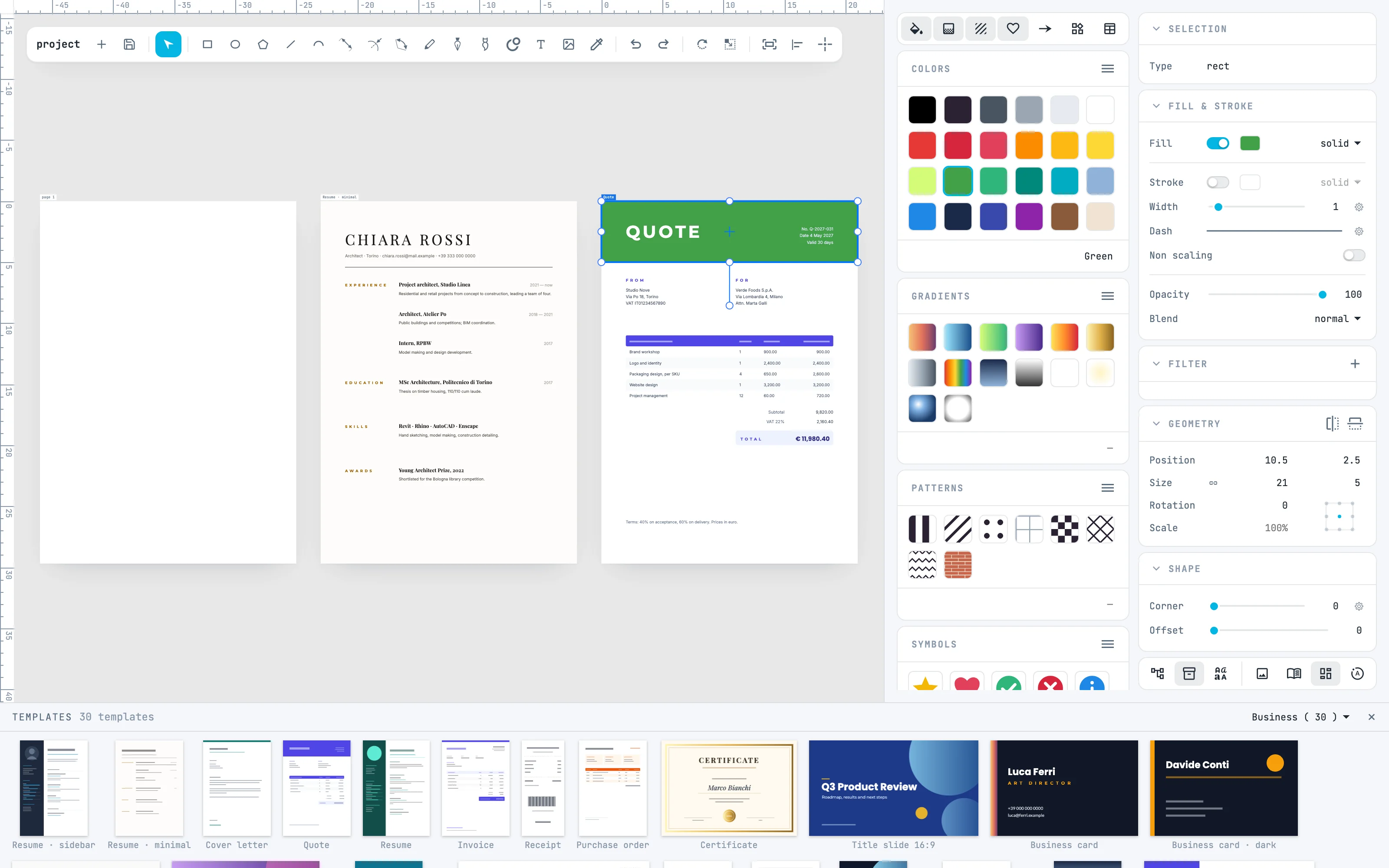
Open it from the templates button of the bar at the bottom of the inspectors: the ready-made pages sit in the footer, as thumbnails. The first time you see the first category. The thumbnails grow when you widen the panel, and wrap.
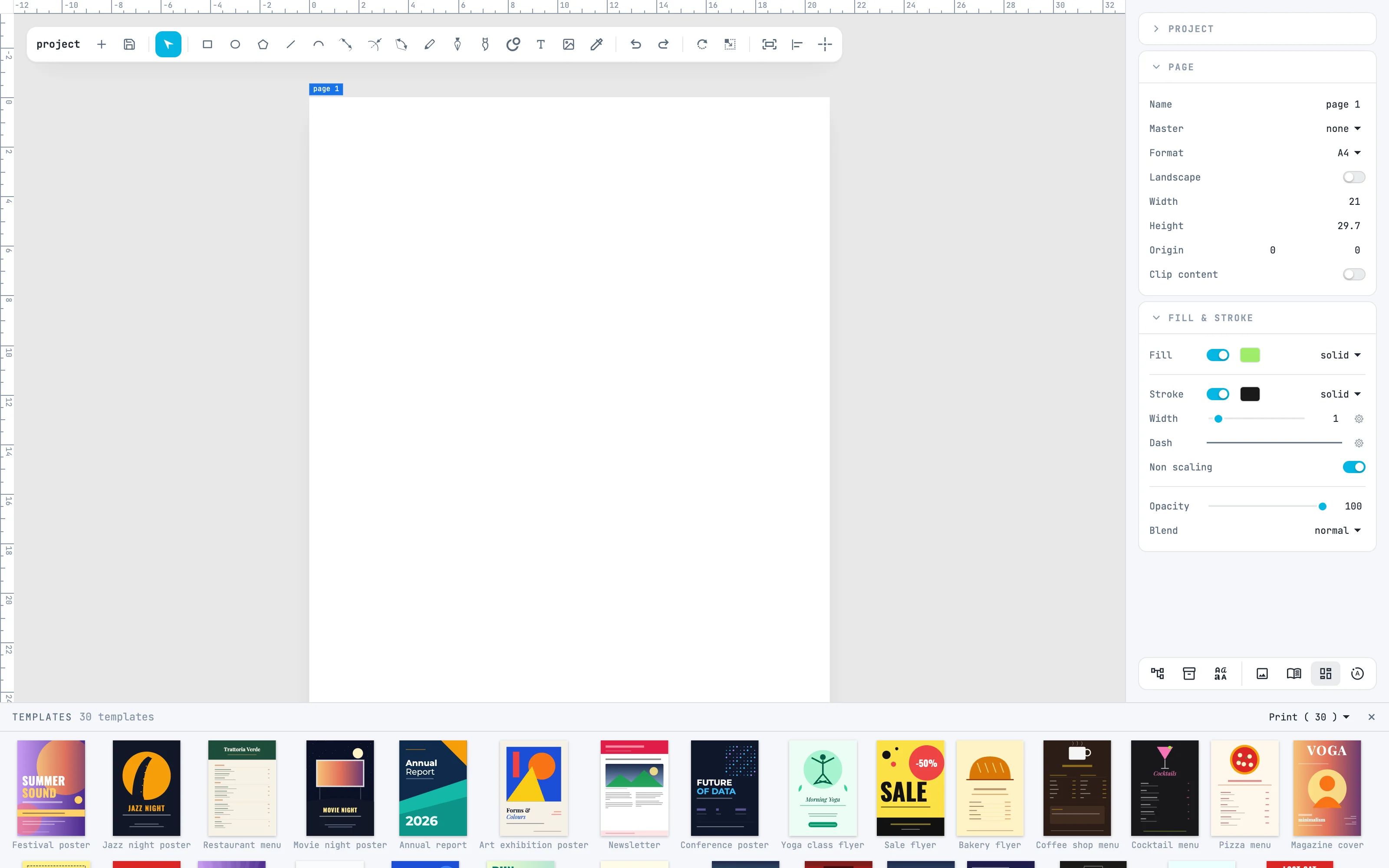
2 · The categories
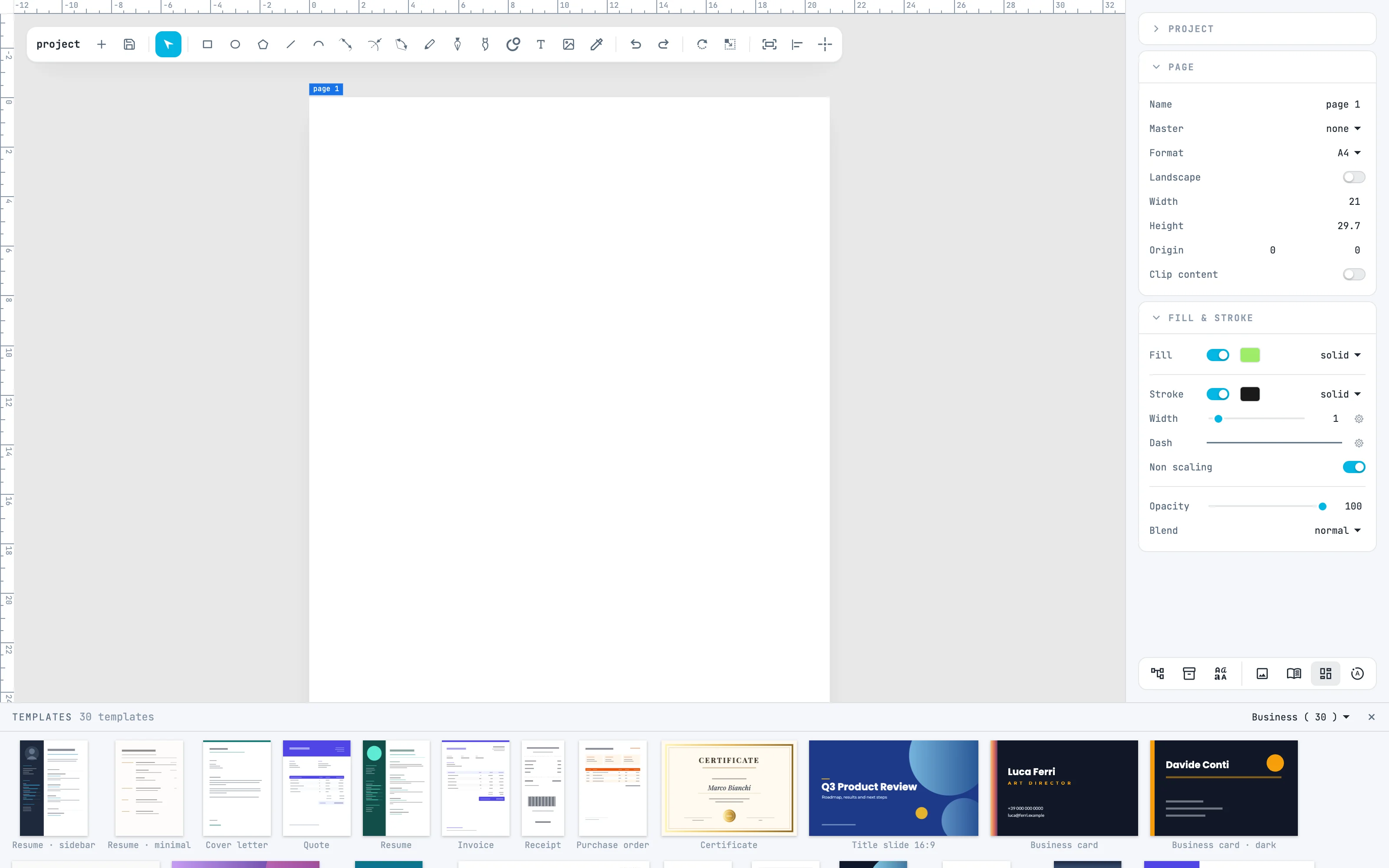
The menu in the panel header changes category: Print, Business, Cards & events, Planners, Social, Interior, Web, each with the number of its templates. Here Business: résumés, letters, quotes, invoices, business cards.
3 · A page by double-click
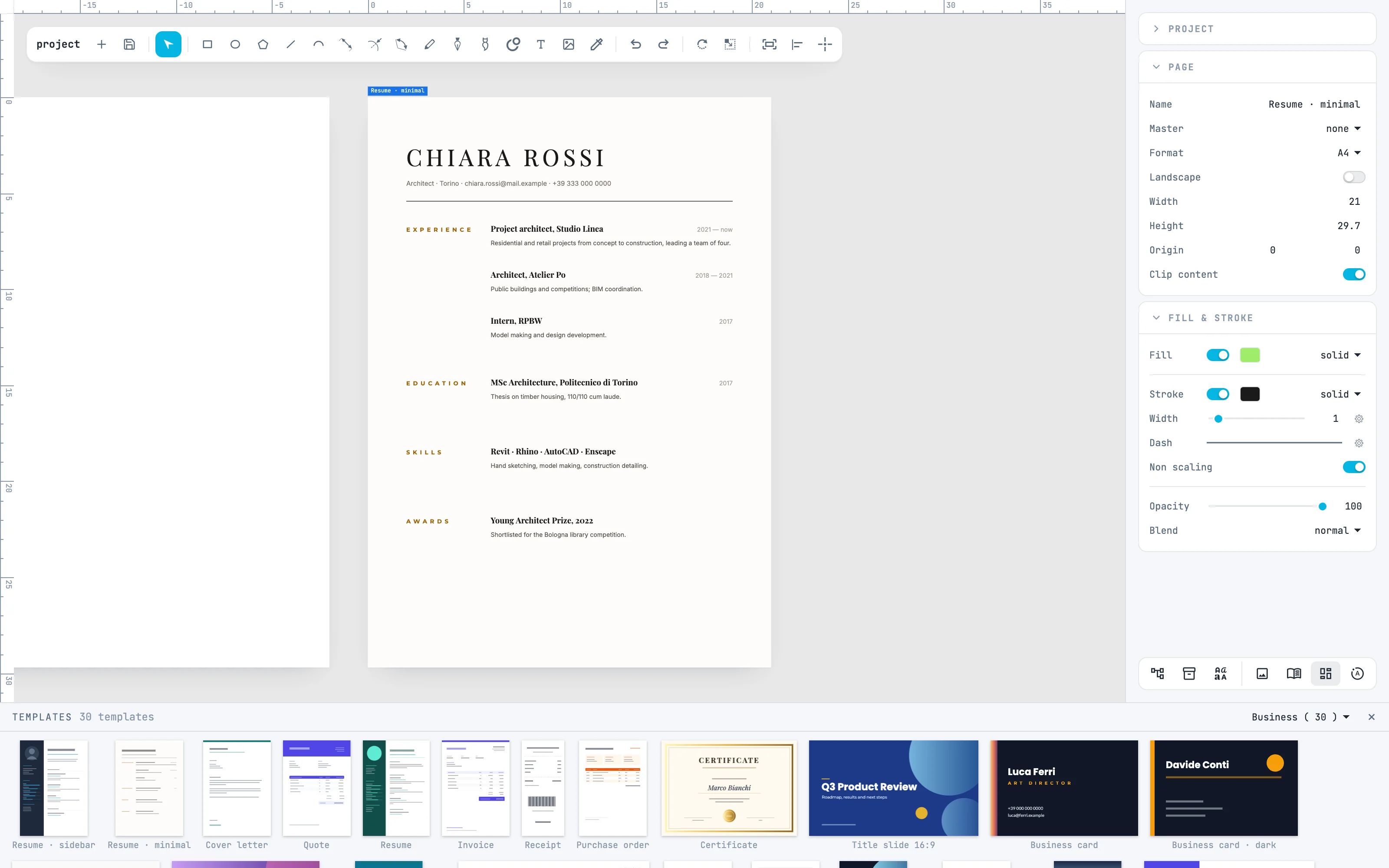
Double-click a template: it becomes a new page of the document, its own size, where a new page would be created. It becomes the active page, framed.
4 · A dragged page
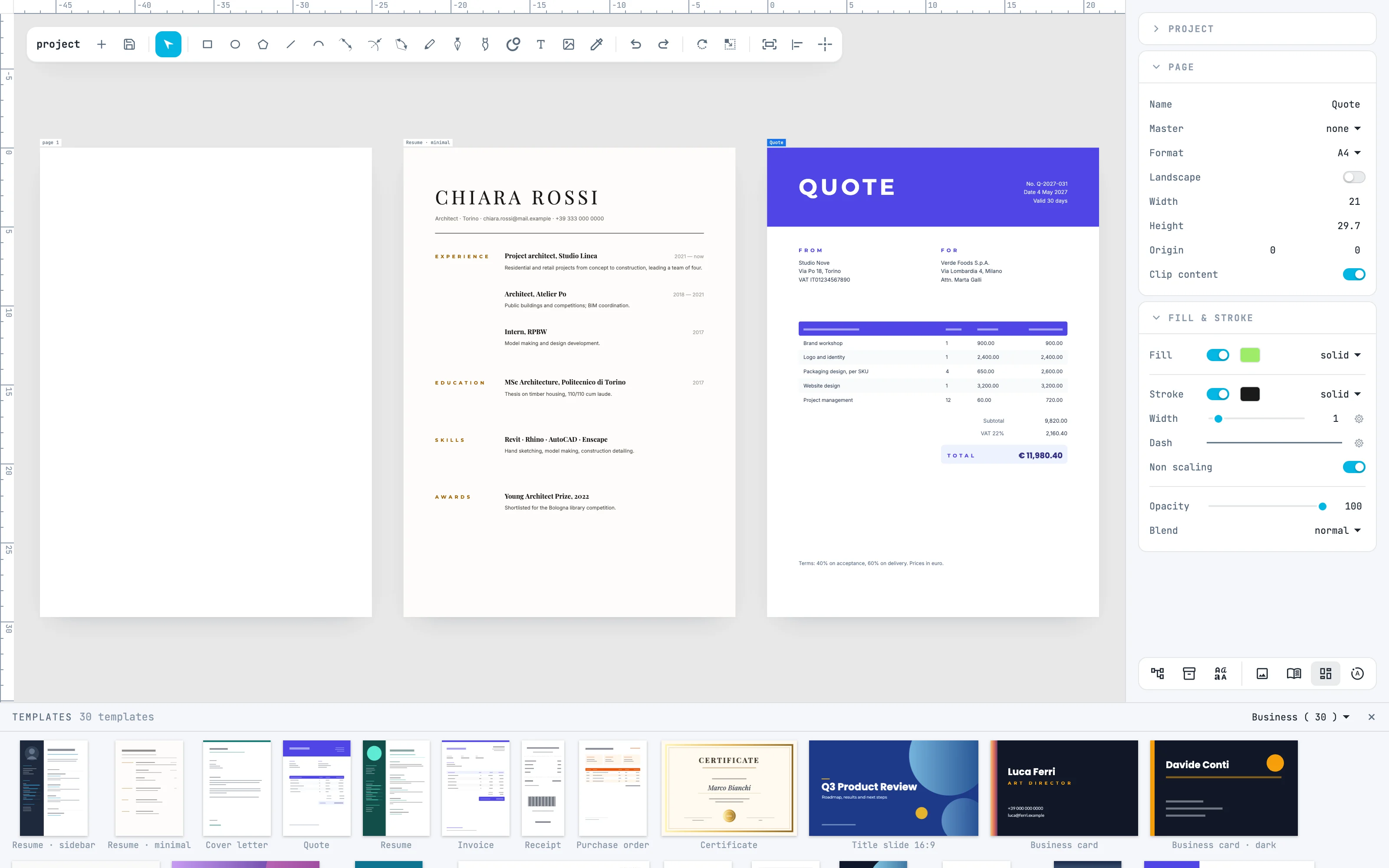
Drag a template onto the canvas: the new page is created with its top-left corner where you drop it. In a document in rows, like this one, the layout puts it in the row. It takes the master of the active page.
5 · The copy is yours
The page is an independent copy, with the resources it uses: changing it does not touch the template. Here the header of the quote, selected, takes a green from the library with a double-click on the swatch in the Colors panel; in the Templates panel the thumbnail stays purple.
Going further
In the guide: templates, the Pages panel and master pages.