
Take the style from another object
The eyedropper: fill, stroke and text style, with one click
Do you already have an object with the right colors? No need to copy them by hand: with the eyedropper you take them from there and give them to what is selected. Where you click says what is taken.
1 · Select, then the eyedropper
Select the object to change, here the grey rectangle, and take the eyedropper from the toolbar (eyedropper, I). Moving over the other objects lights up what you would take: here the fill of the circle.
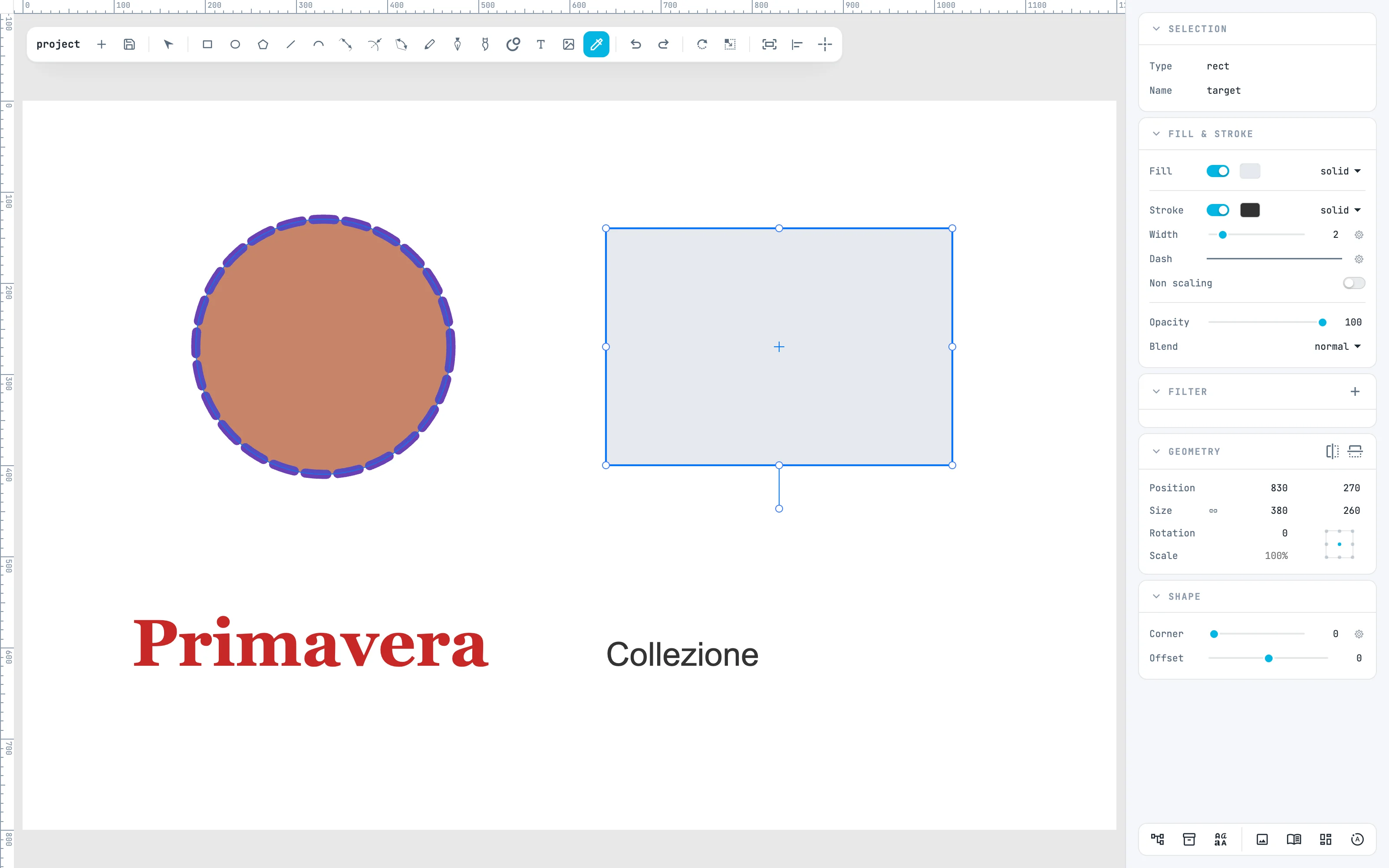
2 · Inside: the fill
Click inside the circle: the rectangle takes its fill. The selection stays, and the arrow comes back to hand. Each click is one step, and one undo removes it.
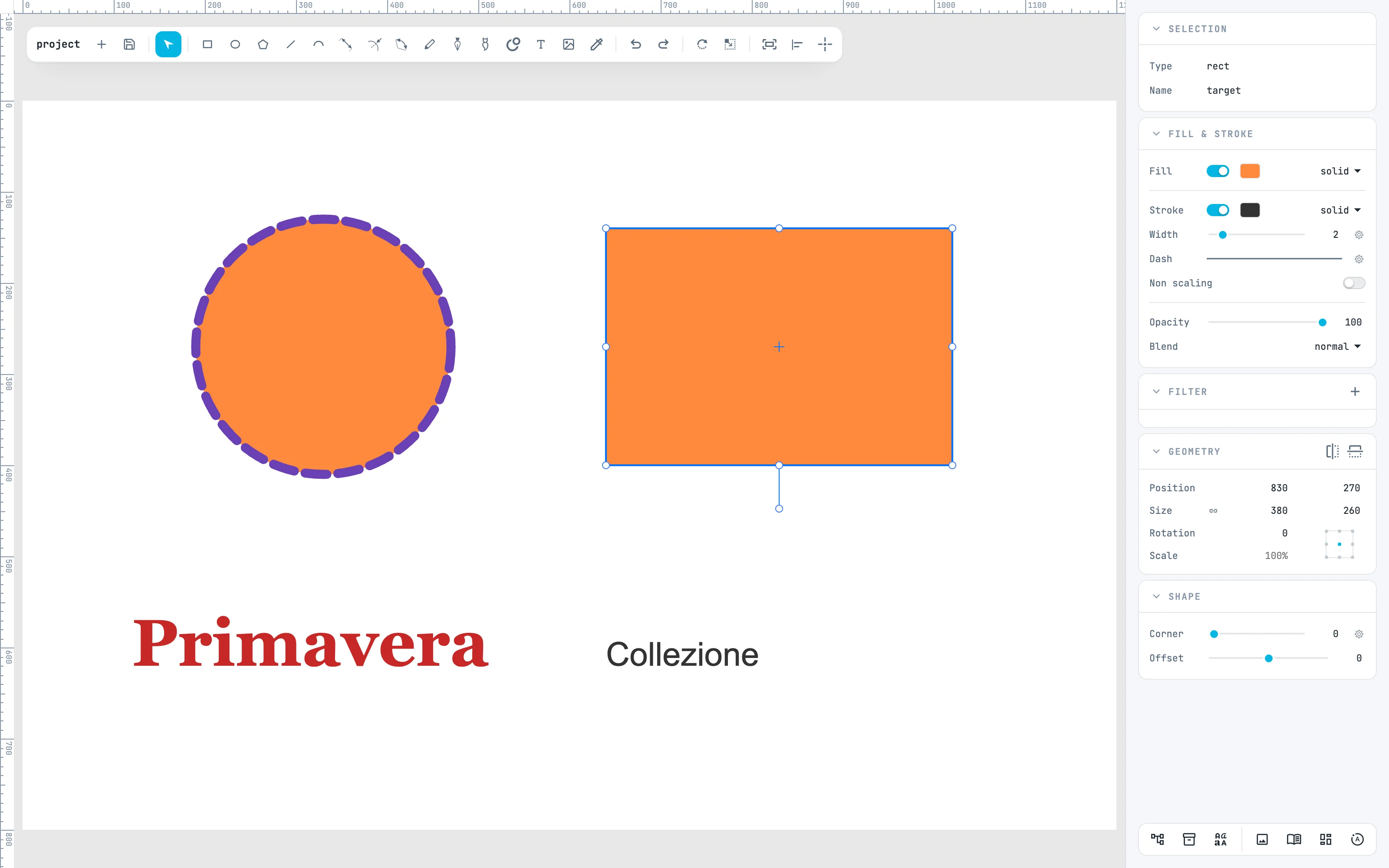
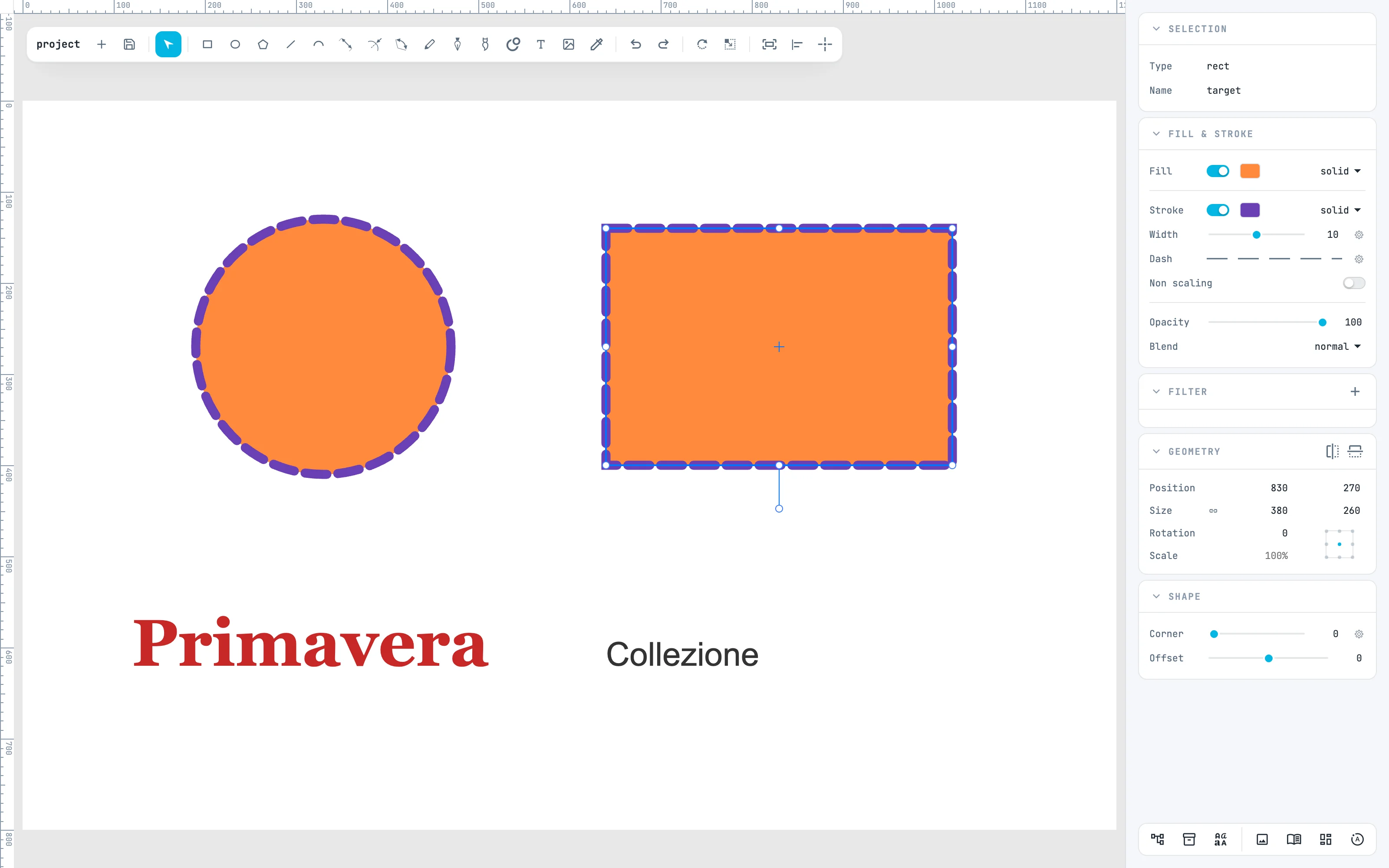
3 · On the line: the stroke
The eyedropper again, and a click on the line of the circle: the rectangle takes the whole stroke, that is color, width, opacity, dashes, caps, joins and Non scaling.
4 · On a text: the text style
Select the small text, take the eyedropper and click a letter of the title: the text style of that letter is passed on, that is font, size, weight, style, decoration, spacing and colors. A text takes everything, a shape only the colors. Sizes pass on as they look: a text in a scaled group gives the size you see.

5 · To letters, to a group
If you are typing in a text with some letters selected, the style goes only to those. If a group is selected, the style goes to its children.
Going further
In the guide: fill and stroke, stroke style and letter style.