Markers and gradients
Arrows and marks on the ends of lines, and gradients to edit in the panel and on the canvas
A marker is a mark placed on the vertices of a line: an arrow at the end, a dot at the start. A gradient is a paint that blends between several colors. Both can be taken from the library or created, and edited.
1 · A library marker
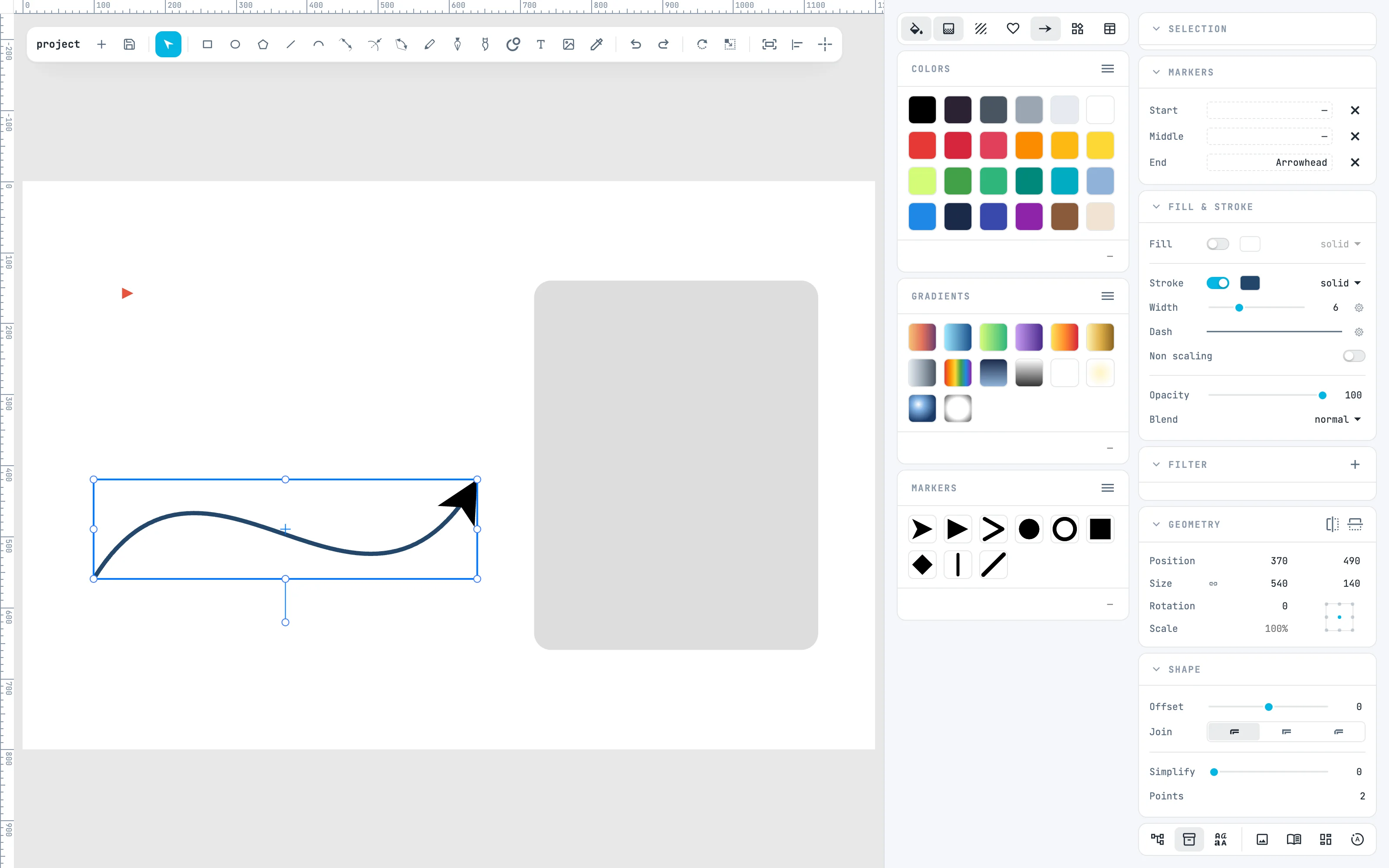
In the Resources column turn on the Markers panel with its button at the top of the column. Select the line and drag a marker onto the End zone of the inspector's Markers panel: the line ends with an arrow. There are three zones, Start, Middle and End; the × next to them removes the marker.
2 · Create marker
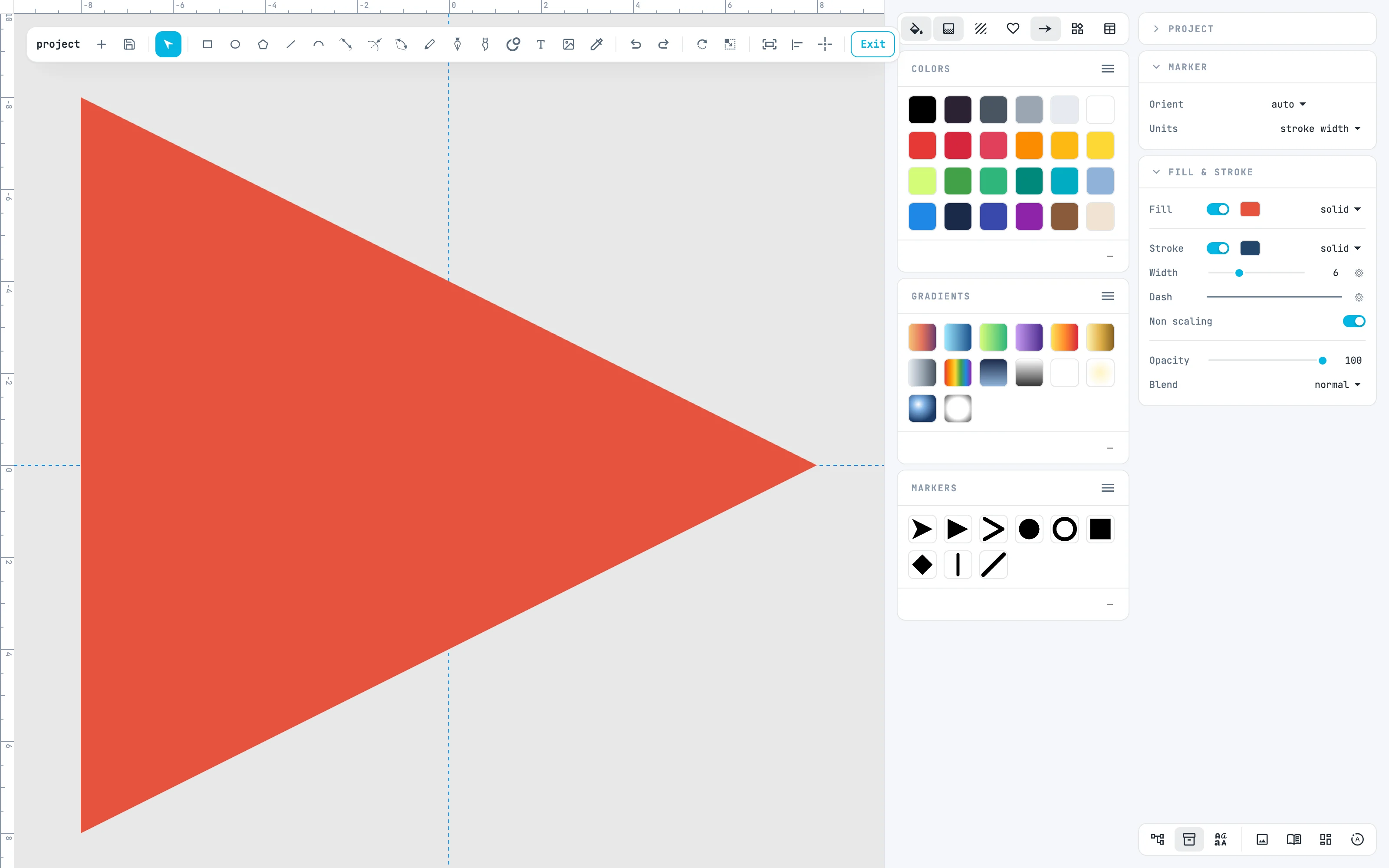
Select the red triangle and, in the right-click menu, Create resource › Create marker: you enter the marker. Its origin is the center of the box, the point that will fall on the vertex. The Marker panel says how it turns (Orient auto: along the line) and in which unit it is measured (Units stroke width: it grows with the line's width).
3 · Give it to the end of the line
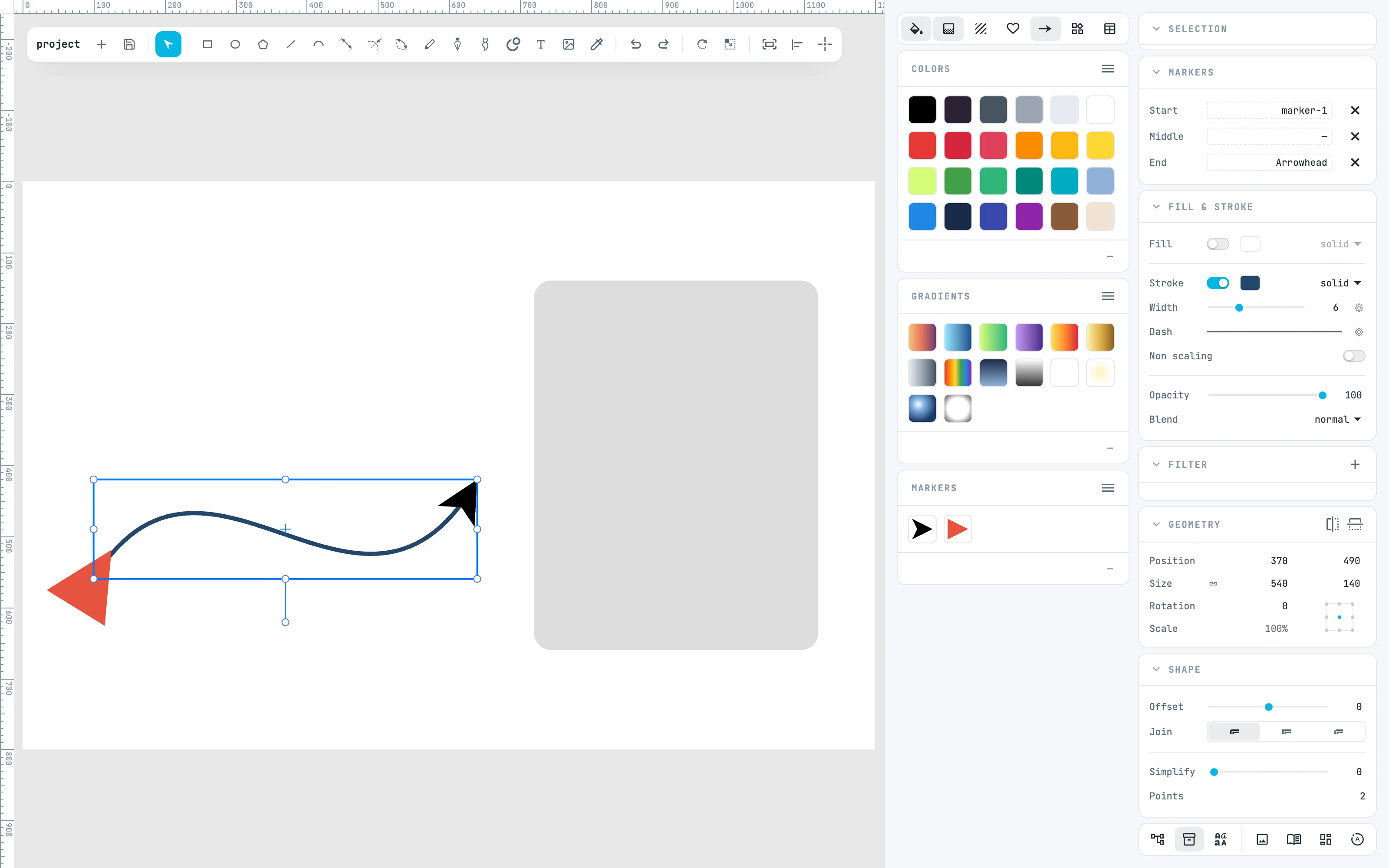
Exit with Esc, select the line and switch the Markers panel to the document (≡ › Document): drag "marker-1" onto the Start zone. The triangle orients itself on the line, and grows with its width.
4 · A gradient
Select the box and double-click a library gradient: in the Fill & stroke panel, below the type row, the strip appears, with one mark per stop. A click on a mark opens its color; dragging it moves it, dragging it off the strip removes it.
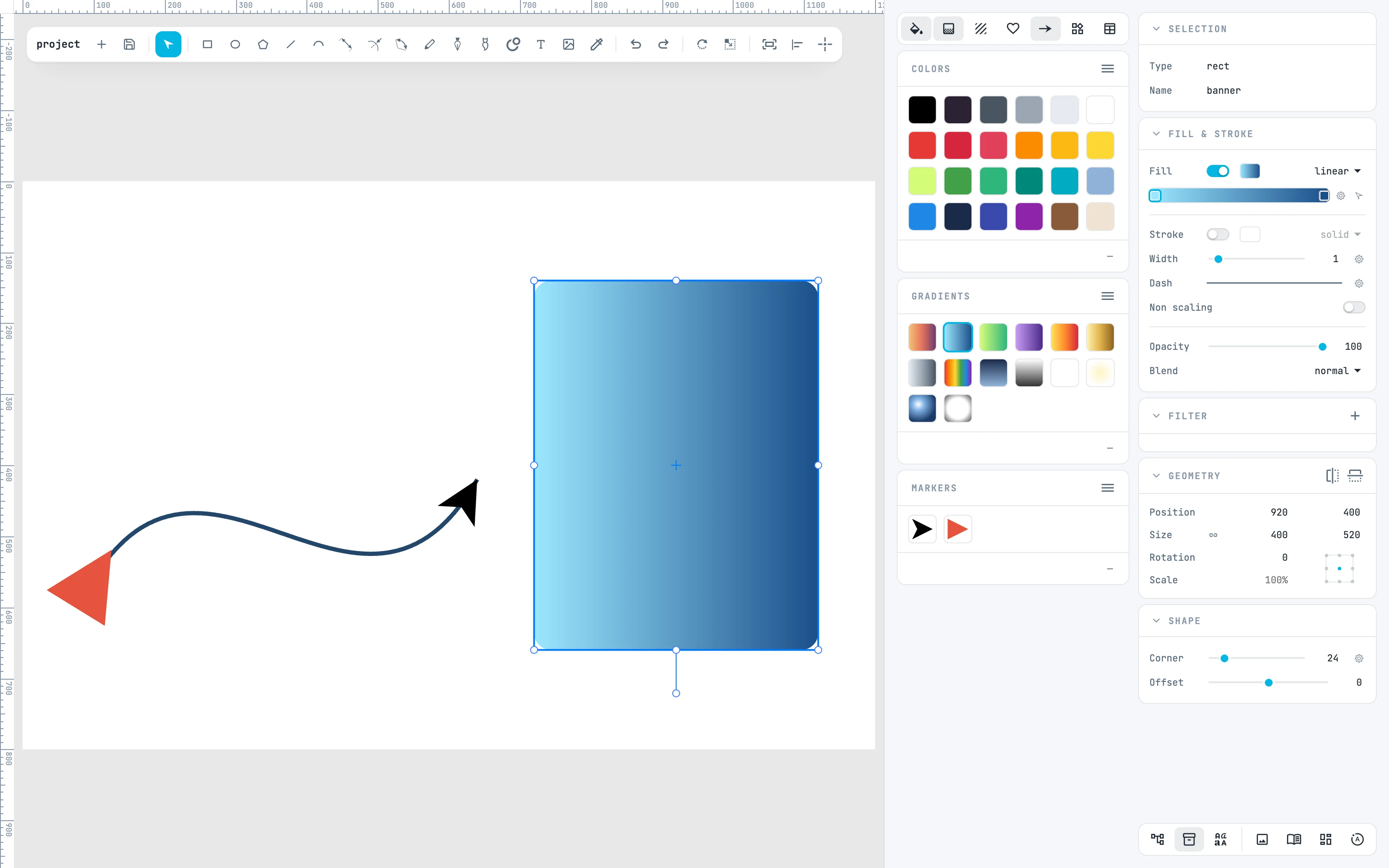
5 · One more stop
Double-click the strip: a new stop is created, in the color the gradient already has at that point. If other objects also use the gradient, it is copied at the first change, and changes only for the selected ones.
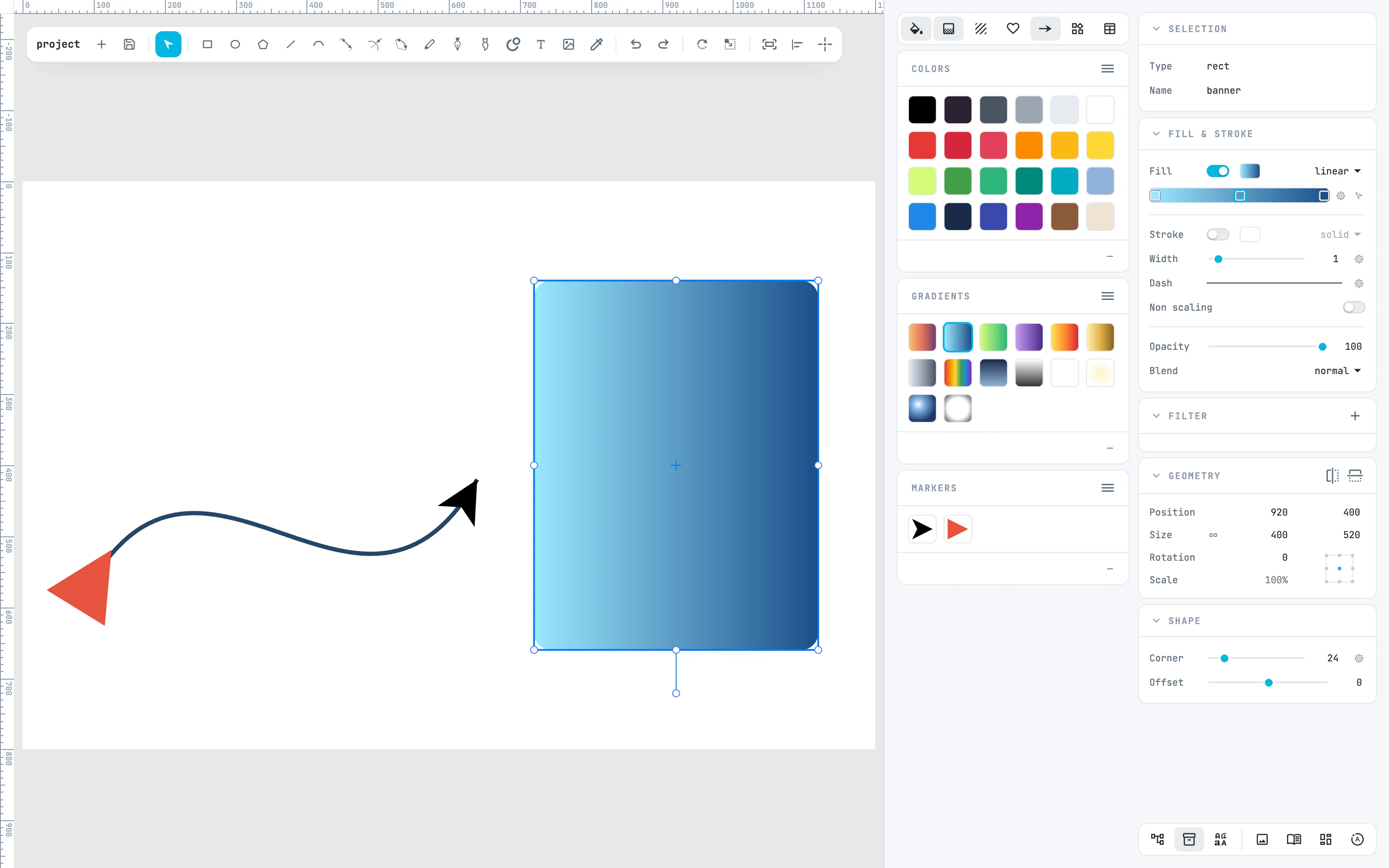
6 · The gradient on the canvas
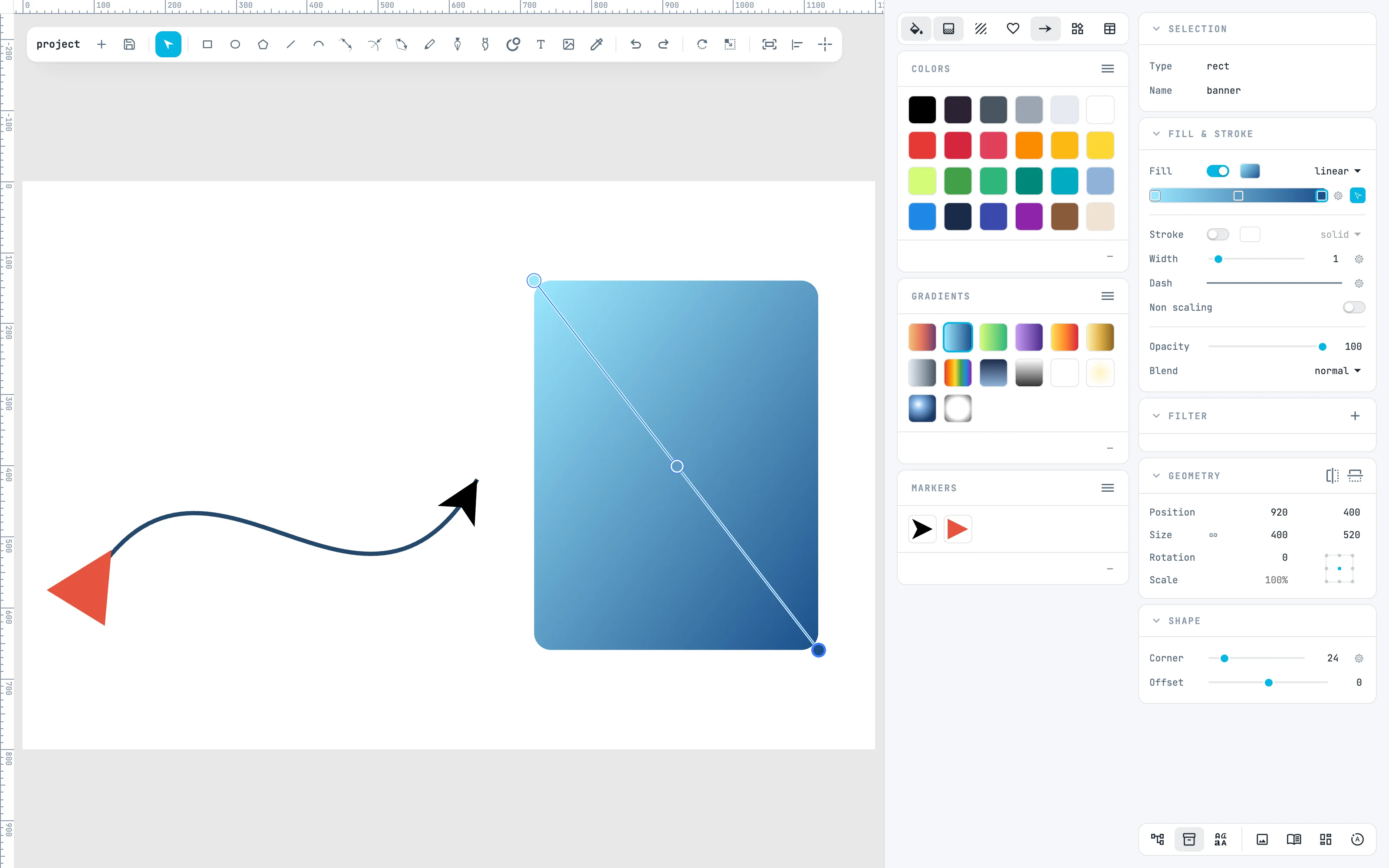
The edit on canvas button at the end of the strip opens the gradient on the object: the line from one end to the other, the stops as dots. Dragging an end moves it, and the ends snap; here the end moved to the bottom right: the gradient runs diagonally. Next to it, the angle wheel turns the gradient.
Going further
In the guide: markers, gradients, Symbols and Markers and creating resources.