
Drawing with precision: snapping
Vertices, midpoints, centers, edges, guides, intersections, perpendiculars, tangents, angles and alignments
While you draw or move, the pointer snaps to the notable points of the drawing: corners, midpoints of sides, centers, outlines, and the points you build yourself by pausing over a reference. Here you see them all, one at a time, on a rectangle, a circle and a line.
1 · The Snap panel
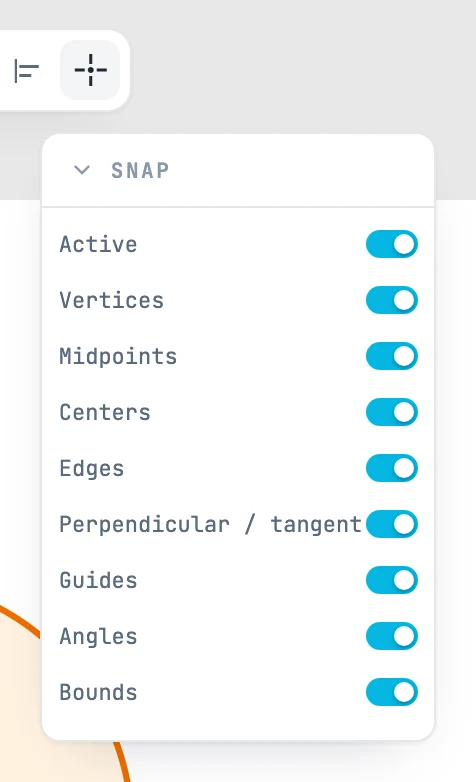
The snapping button is the last one in the toolbar: hovering over it opens the Snap panel. Active turns snapping on and off all at once; below it, one switch per kind. By default they are all on. It is an editor setting: it is not saved with the document.
2 · How it works
The pointer jumps to the nearest notable point within 10 pixels on screen, at any zoom. A small square marks the point, and its name appears next to it. If there is more than one nearby:
- a real point of the drawing wins — a corner, the midpoint of a side, a center —, even if it is a little farther away;
- then a built point, such as the crossing of two guides;
- then any point on an outline.
3 · Vertices
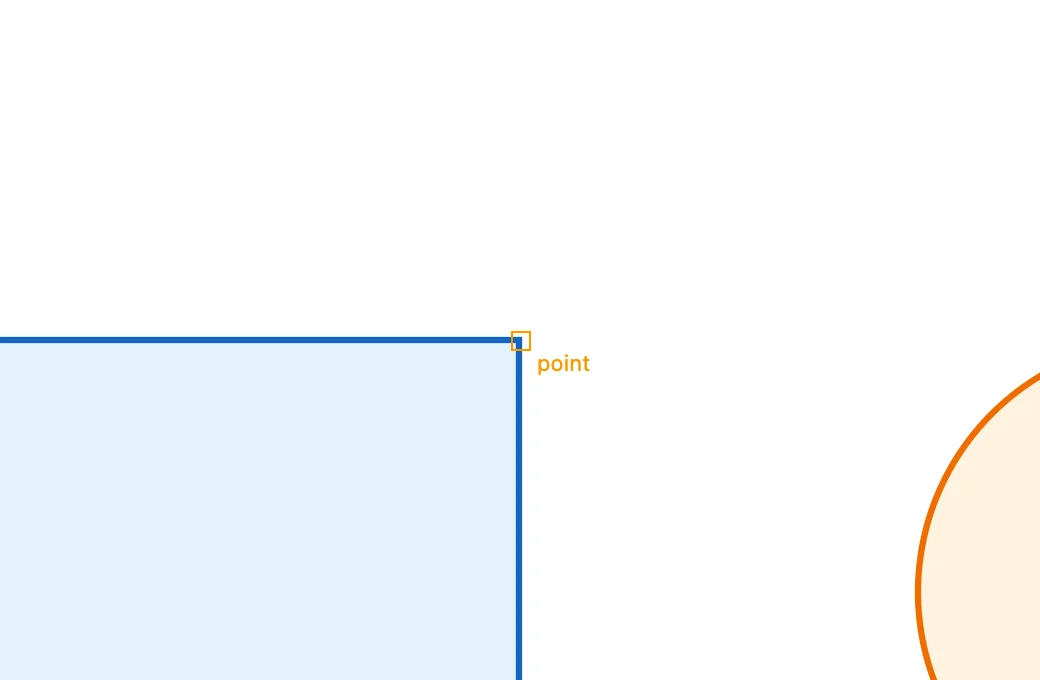
Vertices: the corners of shapes and the anchor points of paths. The marker says point; the first point of a path is start, the last one end.
4 · Midpoints
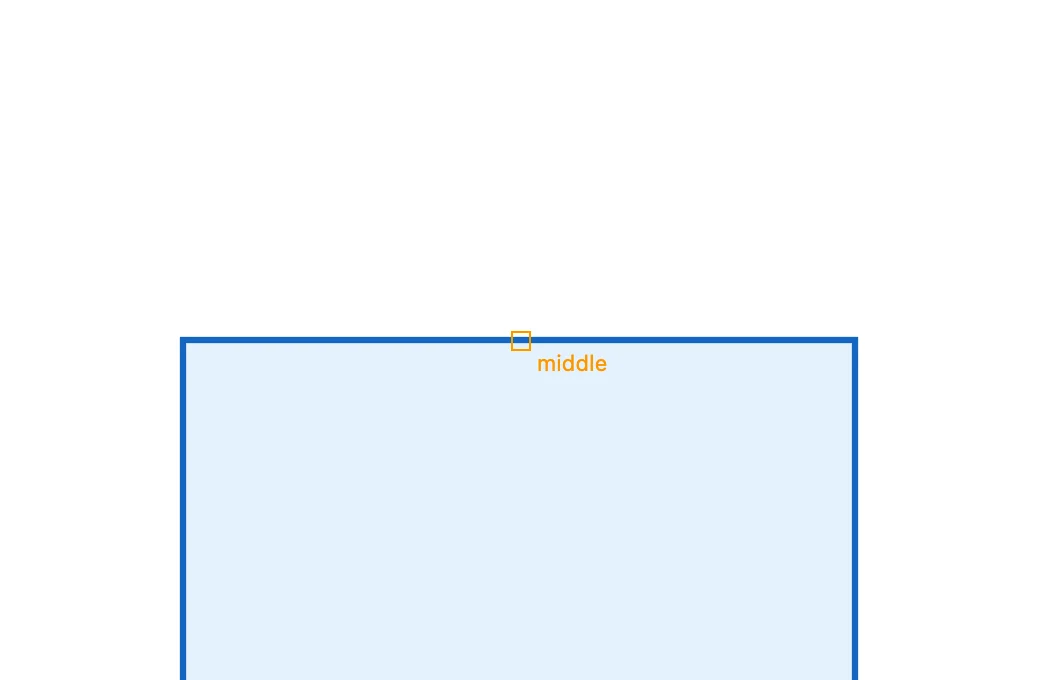
Midpoints: the middle of every straight segment. The marker says middle.
5 · Centers
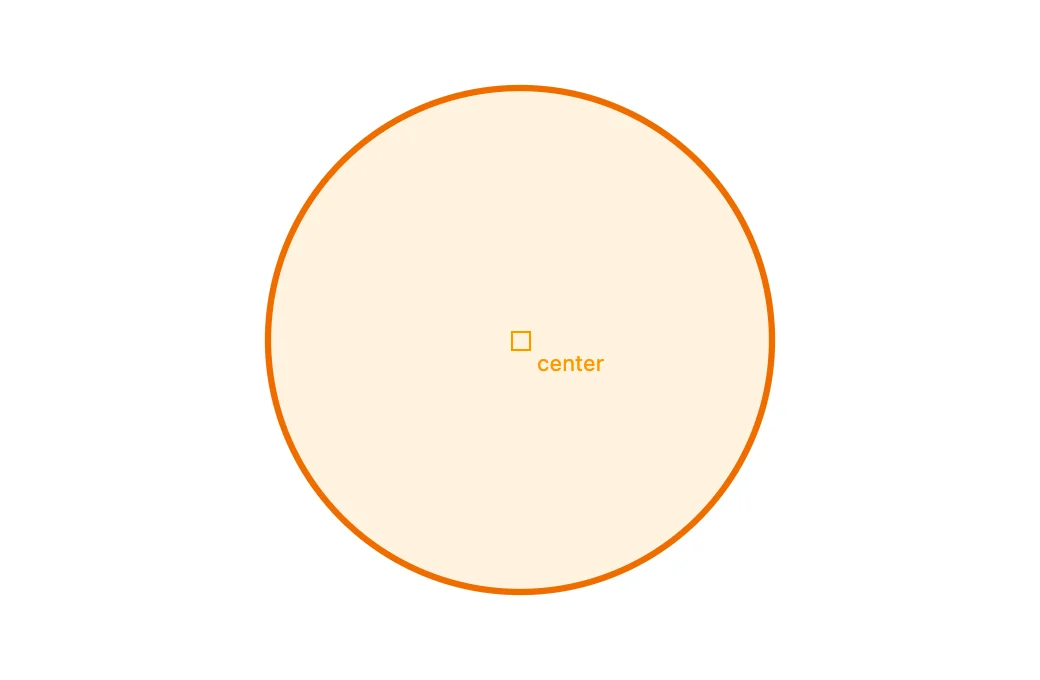
Centers: the center of a shape — that of its bounding box, which for a rectangle, an ellipse or a regular polygon is the real center — and the center of an arc. The marker says center. Texts and images, which have no outlines, snap to the corners and the center of their bounding box.
6 · Edges
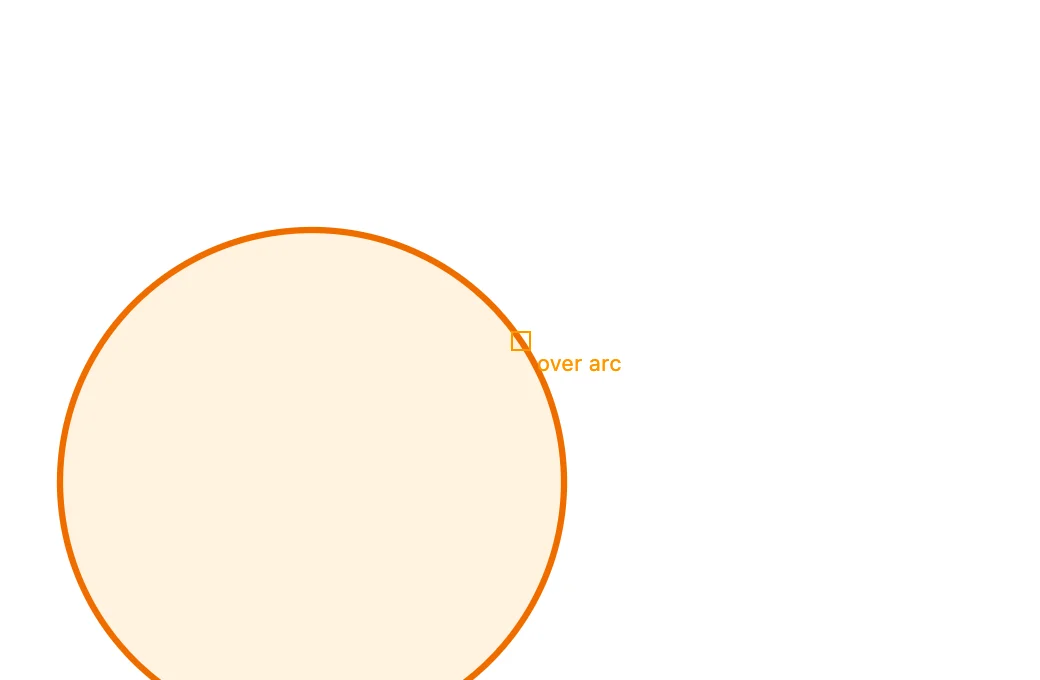
Edges: any point on an outline. The marker says over line on a straight segment, over arc on an arc or a circle, over ellipse on an ellipse, over curve on a curve.
7 · Guides: pause for a moment
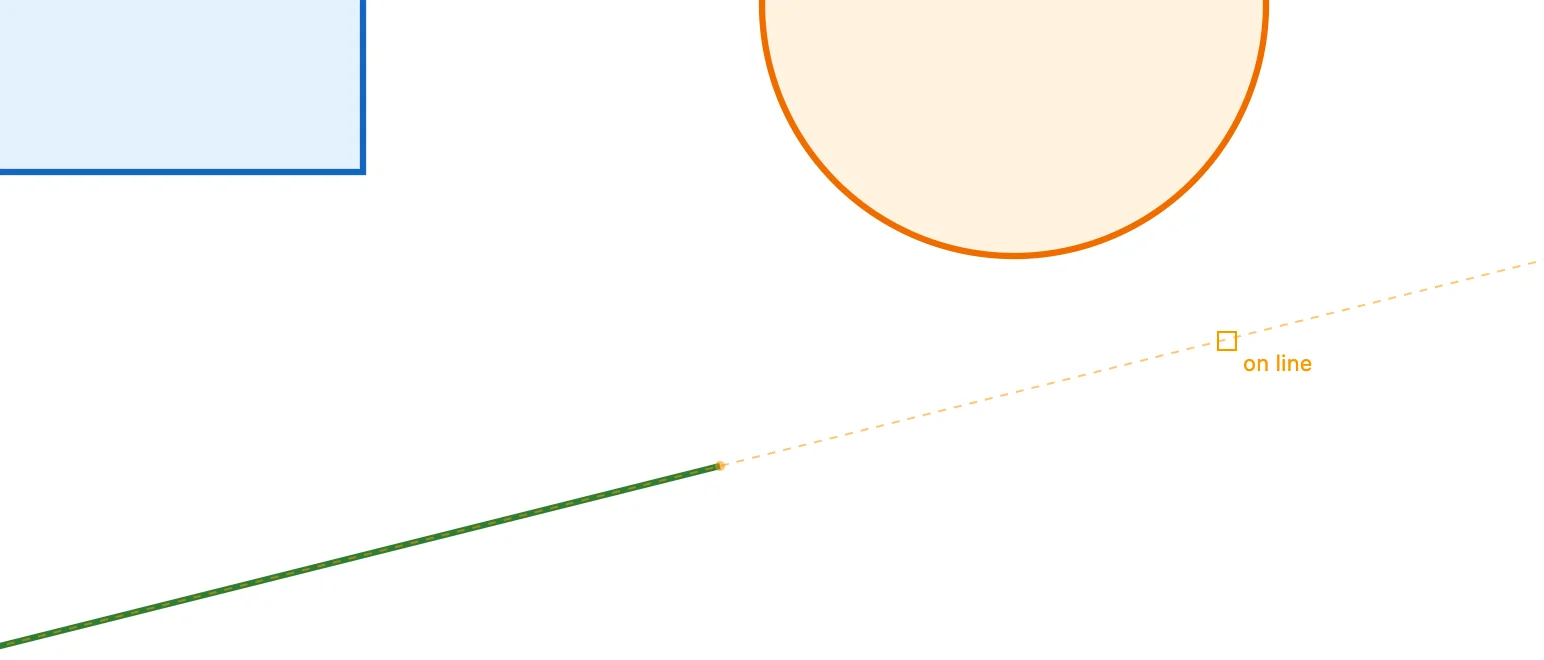
Guides: if the pointer pauses on a snap for a moment (400 milliseconds), a guide is created there. A point gives its two axes, horizontal and vertical; a straight segment its line, infinite; an arc its circle and its center. On guides the marker says horizontal, vertical, on line, on circle. Guides last until you place the shape you are drawing, eight at most. Here the pointer paused on the green line, and its line continues past its end.
8 · Intersections
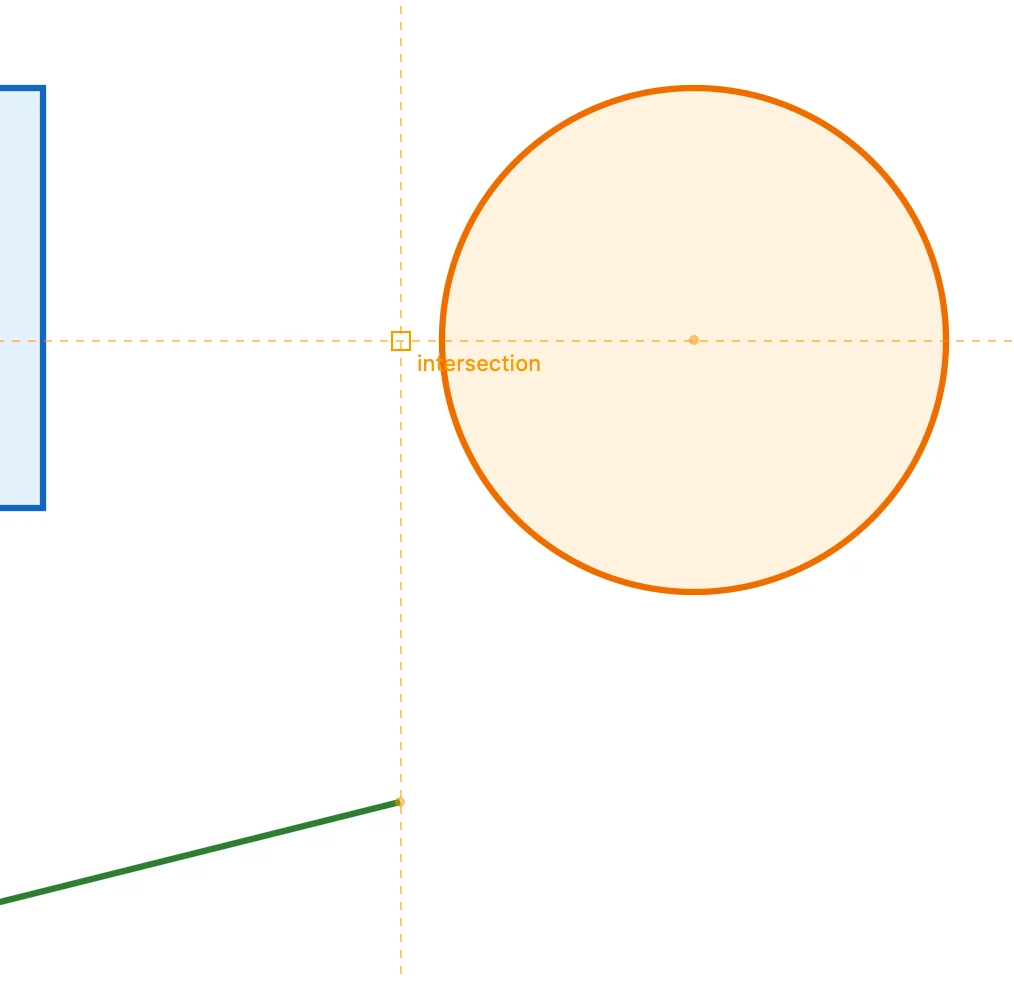
Two guides taken together give their crossing: intersection. Here the pointer paused on the end of the green line and on the center of the circle: where the vertical of one meets the horizontal of the other there is a point that does not exist in the drawing.
9 · Perpendicular
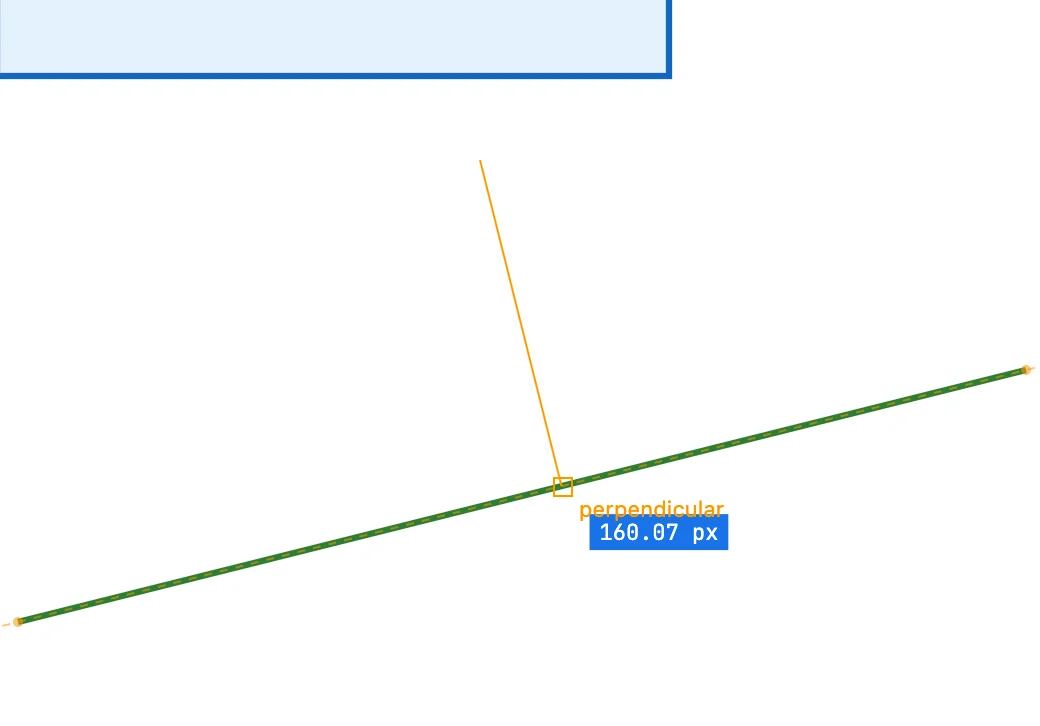
Perpendicular / tangent: once a line has started, near a straight segment the pointer goes to the foot of the perpendicular dropped from the starting point. The marker says perpendicular. It works on guide lines too.
10 · Tangent
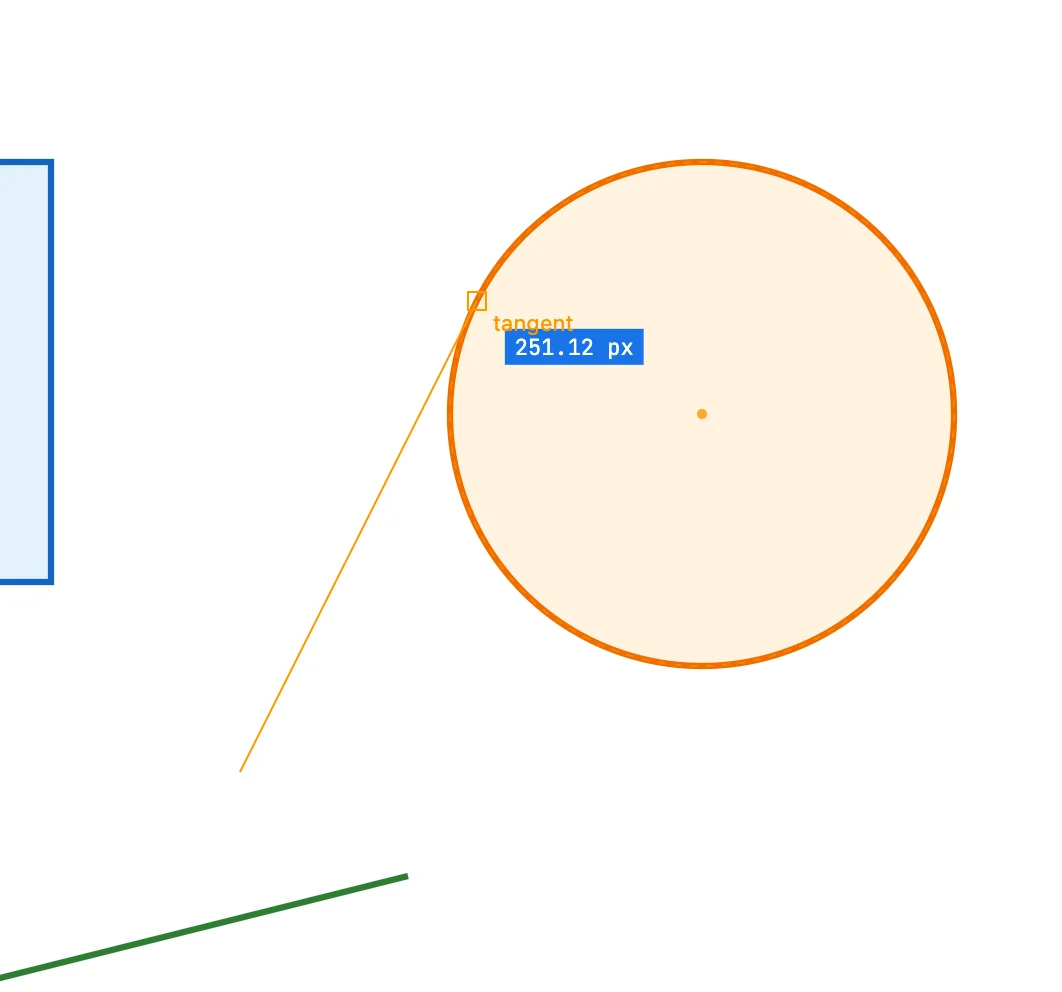
Near a circle or an arc, the pointer goes to the point where a line from the starting point touches it without crossing it. The marker says tangent. If the starting point is inside the circle, there is no tangent.
11 · Angles
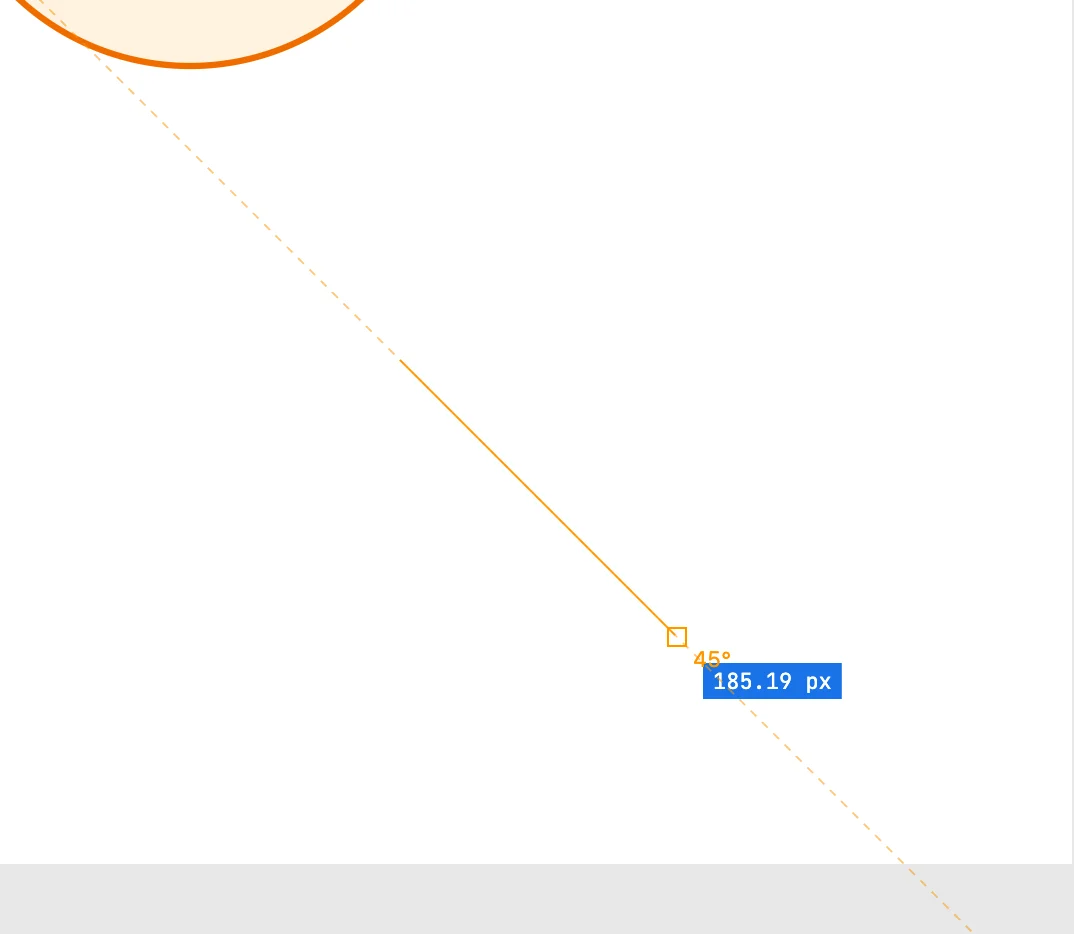
Angles: the first point of a drawing gives its axes and the two 45° diagonals. The marker says horizontal, vertical or 45°. When you draw a rectangle, the diagonal gives a square.
12 · Aligning bounding boxes
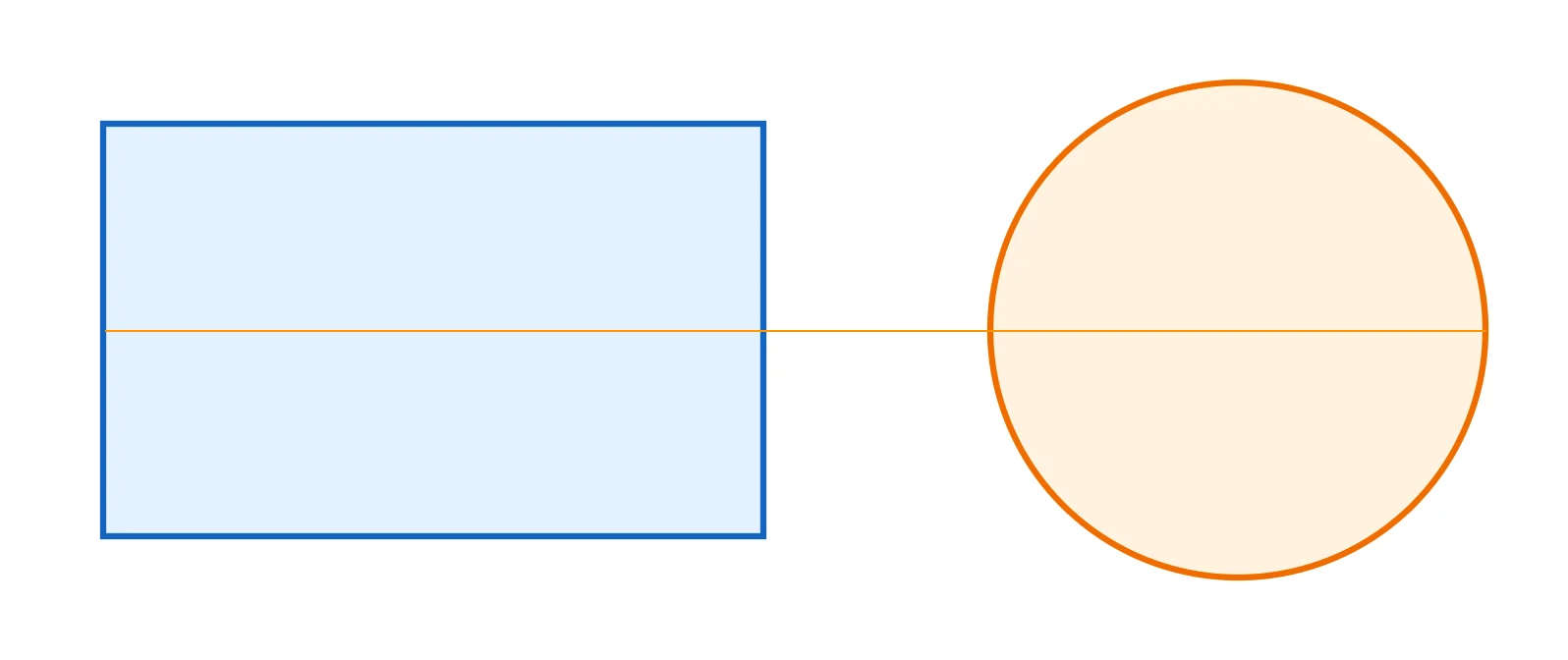
Bounds: while you move, the edges and the center of the bounding box of what you move line up with those of the objects on the same level, with the page sheet and with the ruler guides. A line shows the alignment. Here the dragged rectangle has its center at the height of the circle's center.
13 · Ruler guides
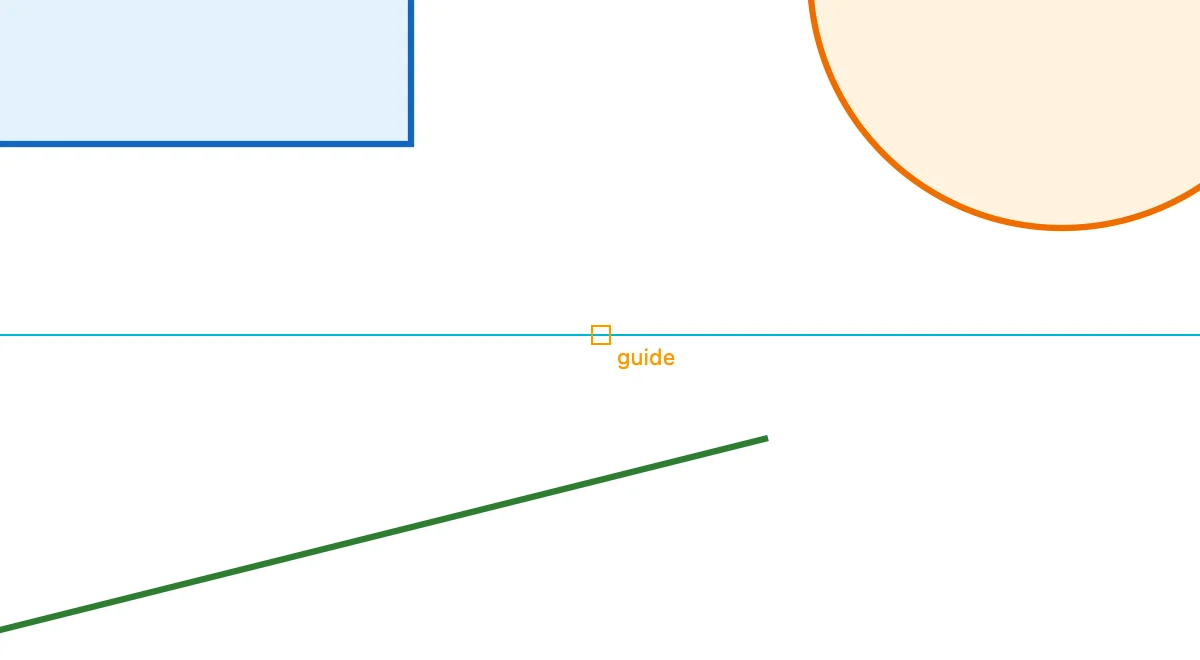
You drag them from the top ruler (horizontal) or from the left one (vertical), and they stay on the page, saved with the document. They snap with the Guides switch: the marker says guide. Double-clicking a guide asks for its position; from the View menu: Show guides, Lock guides, Clear guides.
Going further
In the guide: snapping, rulers and origin and moving objects.