
Create symbols and patterns
From the selection to a resource: a symbol to repeat, a pattern to paint with
A drawing you need several times becomes a symbol: you place it as many times as you like, and changing it changes every copy. A tile becomes a pattern, which fills any shape. Both are created from the right-click menu › Create resource.
1 · Create resource
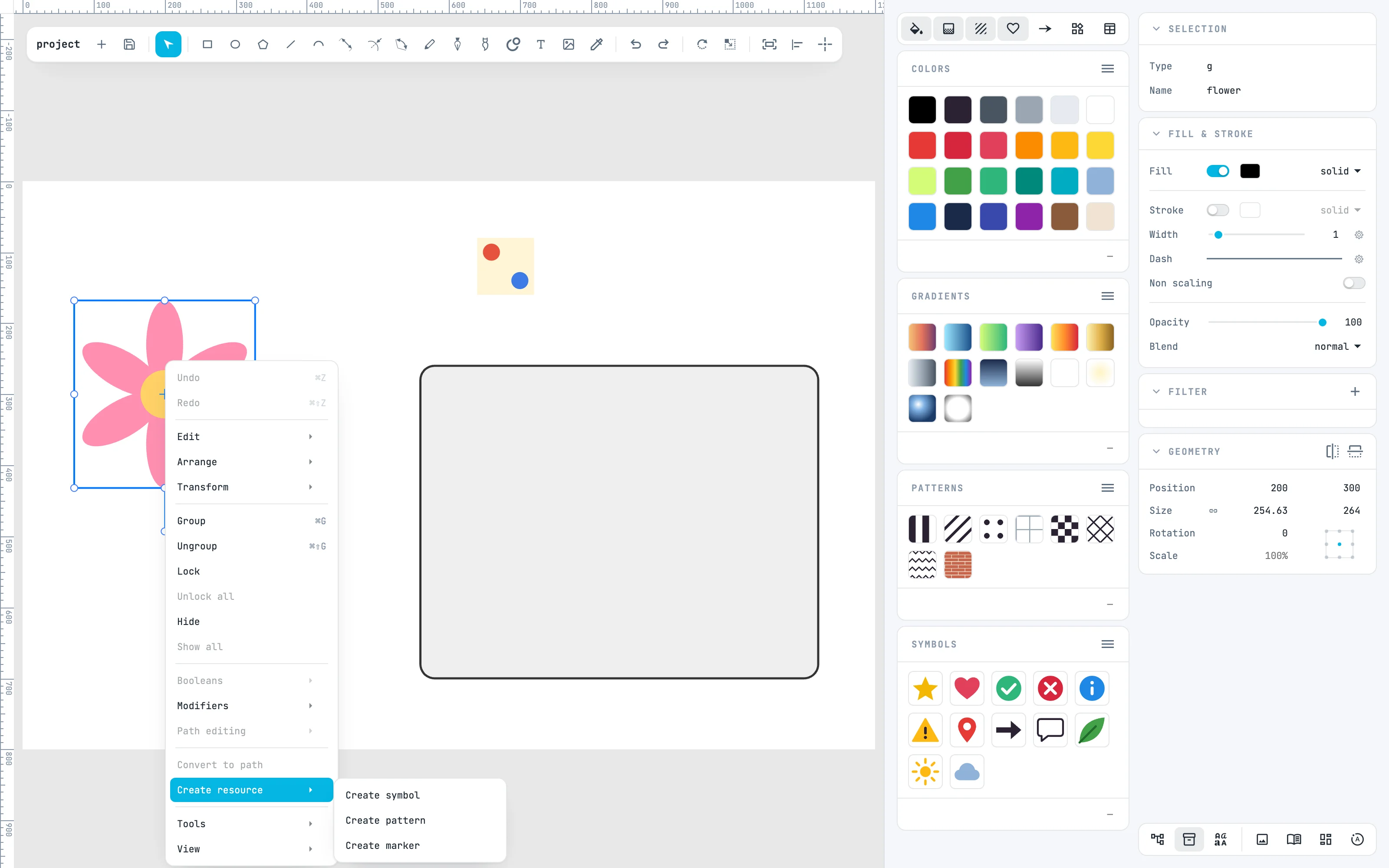
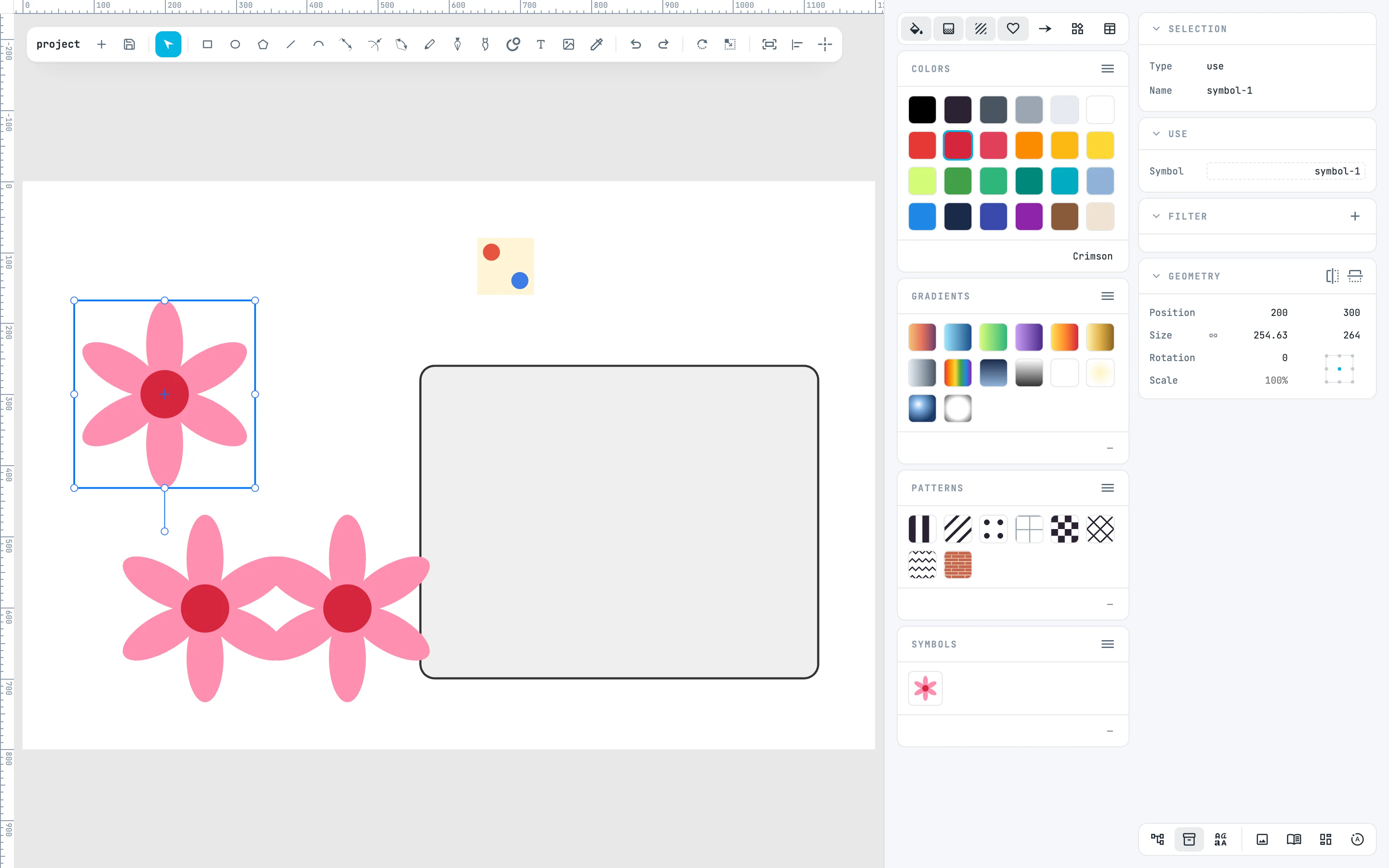
Turn on the Resources column (resources), select the flower and open the right-click menu: Create resource has three entries, Create symbol, Create pattern and Create marker.
2 · Create symbol
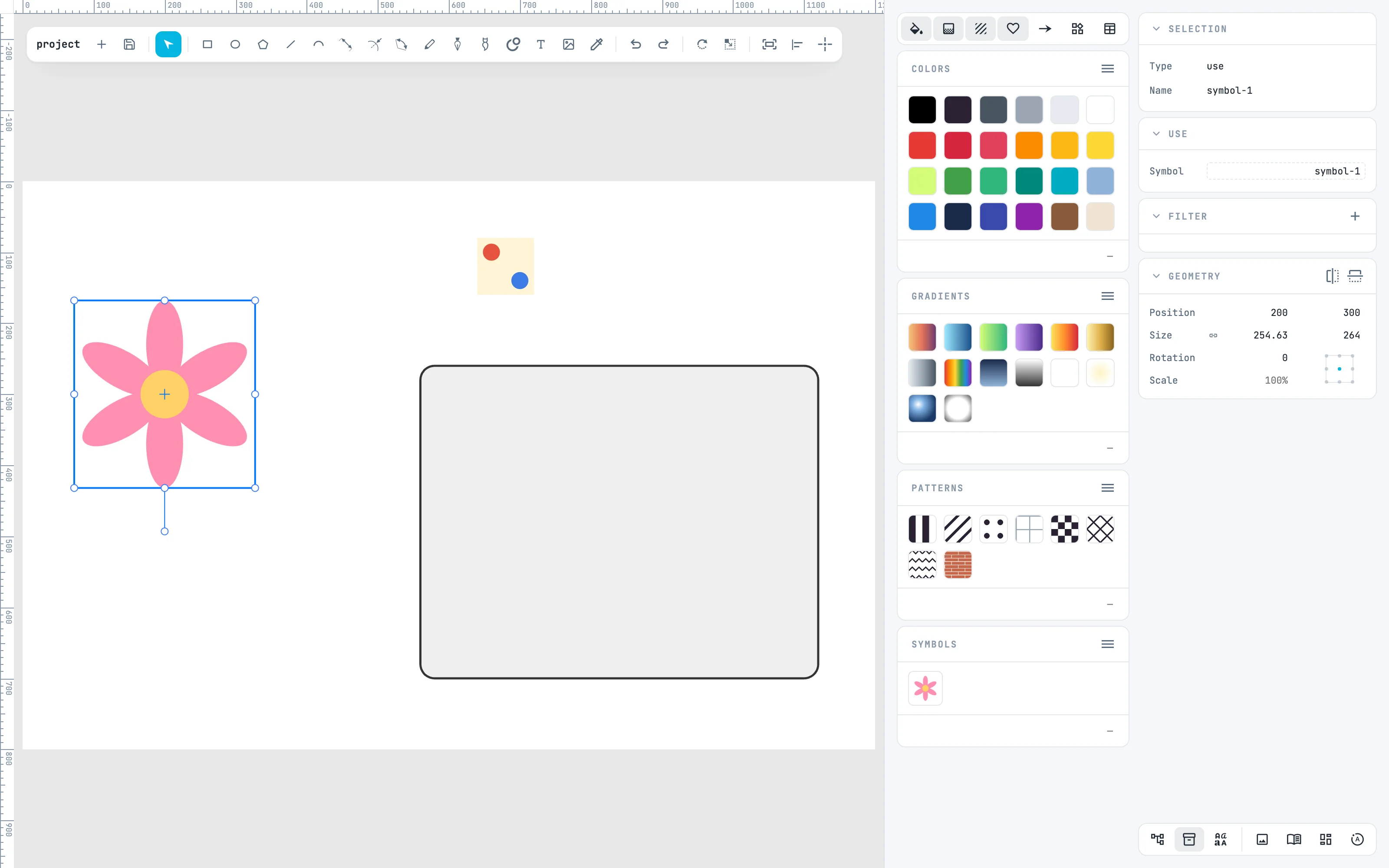
Create symbol: the flower goes into the symbol "symbol-1", and in its place a use remains that shows it there, selected: the drawing does not change. In the ≡ menu of the Symbols panel, Document shows the document's symbols.
3 · Place more copies
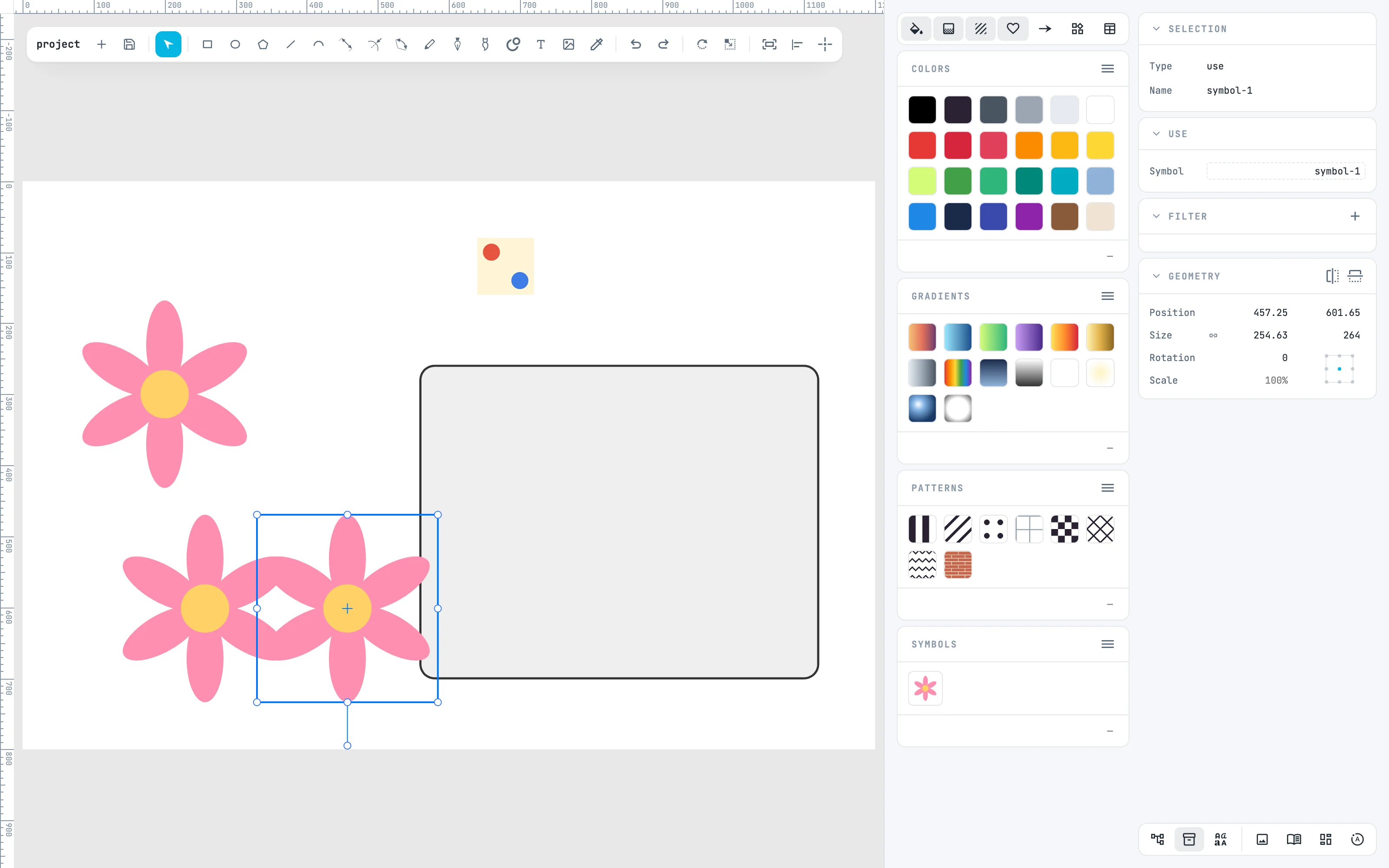
Drag the symbol from the panel onto the canvas: a use is created, with the symbol's origin at the point. A use moves, scales and rotates like any object. Dragged onto the Use panel of a selected use, it replaces its symbol.
4 · Edit the symbol
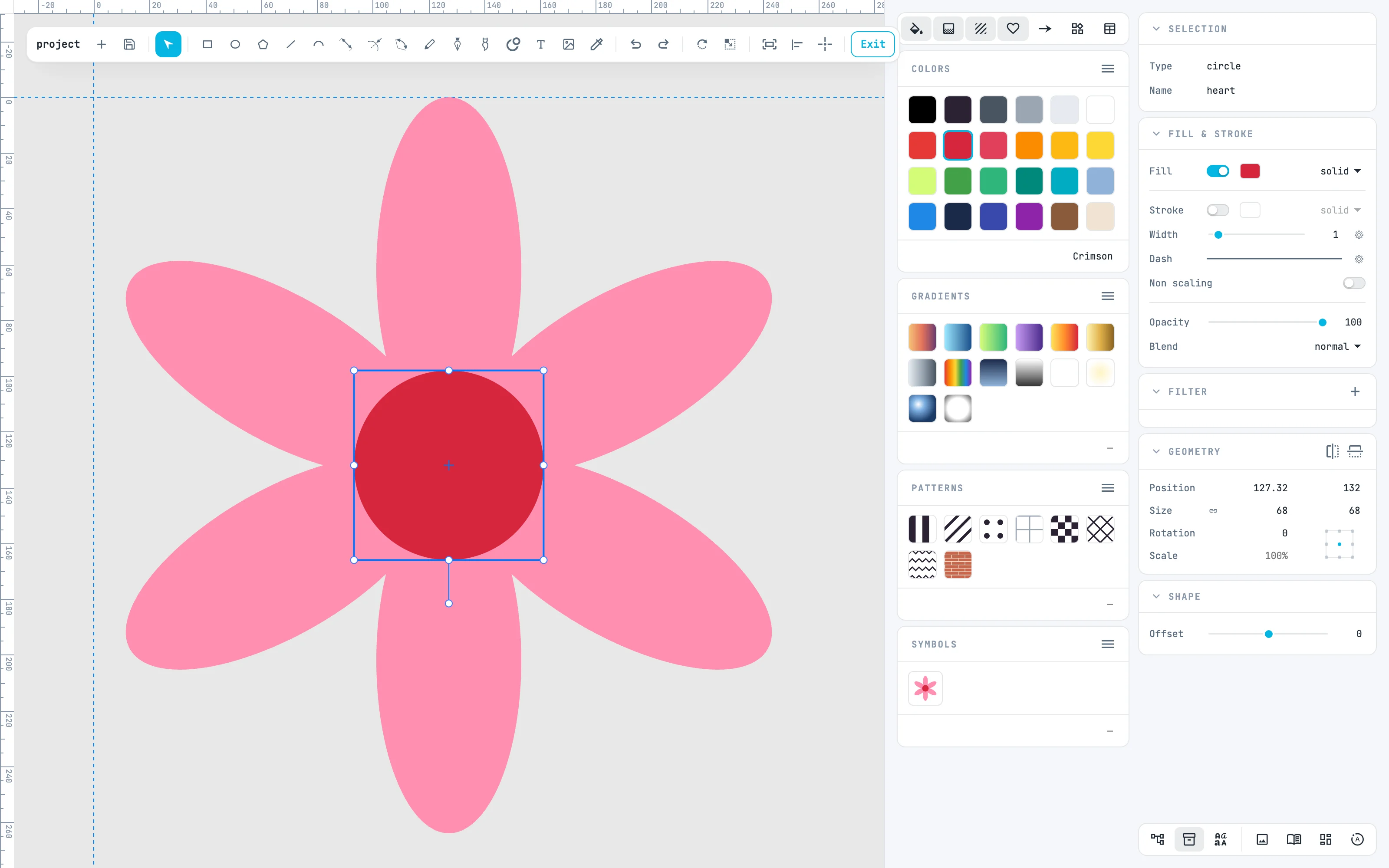
Double-click a use: you enter the symbol, framed, with the cross of its origin. Here the yellow heart, selected, takes a red from the library with a double-click on the swatch.
5 · They all change
Exit with Esc: you go back to the use you entered from, and every use shows the red heart. The symbol is one, the copies refer to it.
6 · Create pattern
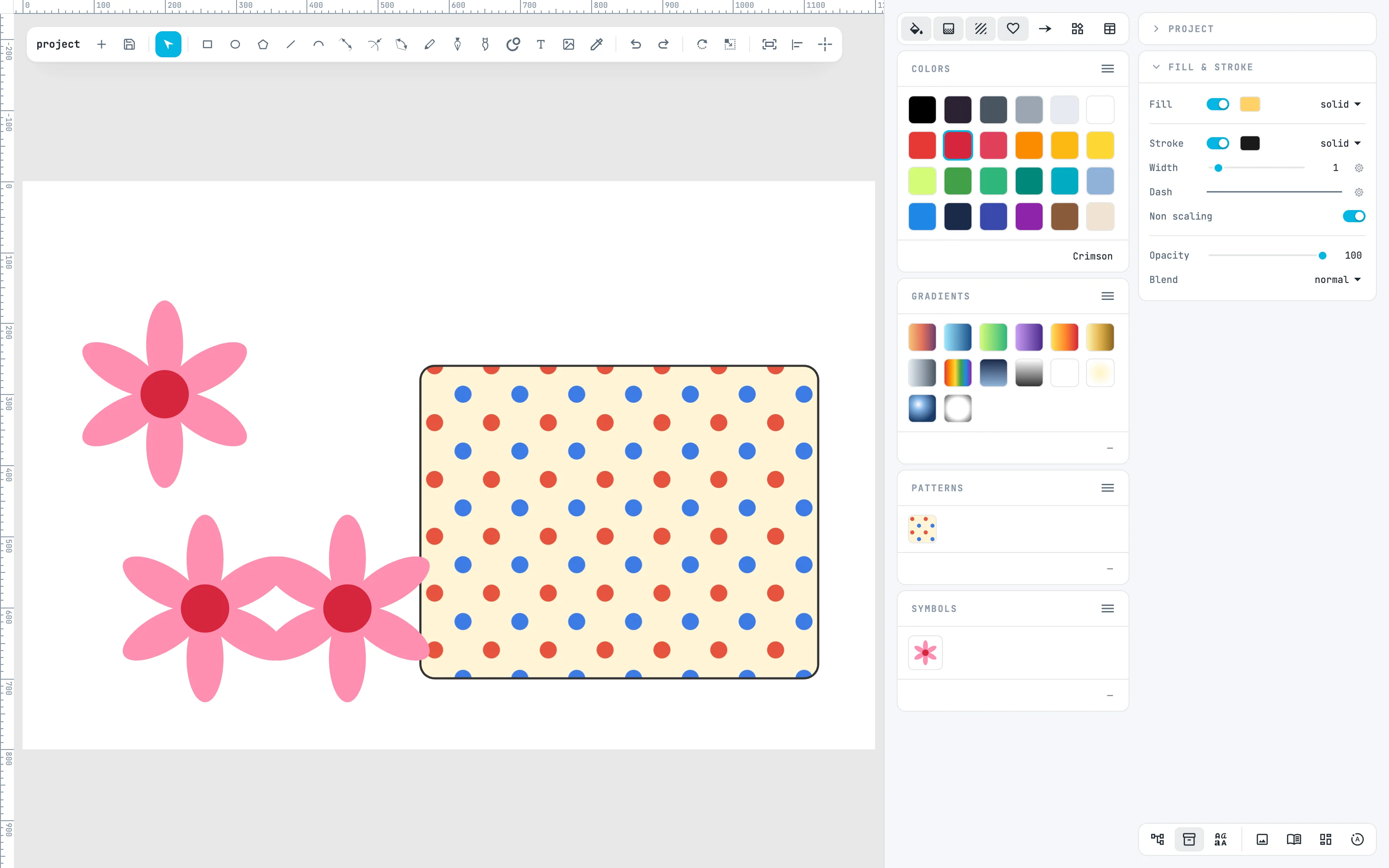
Select the tile with the two dots and Create resource › Create pattern: the selection leaves the drawing, becomes a pattern as big as itself, and you enter it; exit with Esc. From the Patterns panel on the document, drag it inside a shape: it fills it, repeated. In the Fill & stroke panel you move, rotate and scale it.
Going further
In the guide: creating resources, Symbols and Markers and patterns.