
Repeat and deform with modifiers
Array in a row, around and along a path, Perspective, and shape Offset
A modifier takes what is selected and puts it into a new node that draws the result: nothing is lost, with a double-click you go back in and edit the sources. They are all in the right-click menu › Modifiers; each operation is one undo step.
1 · Array: in a row
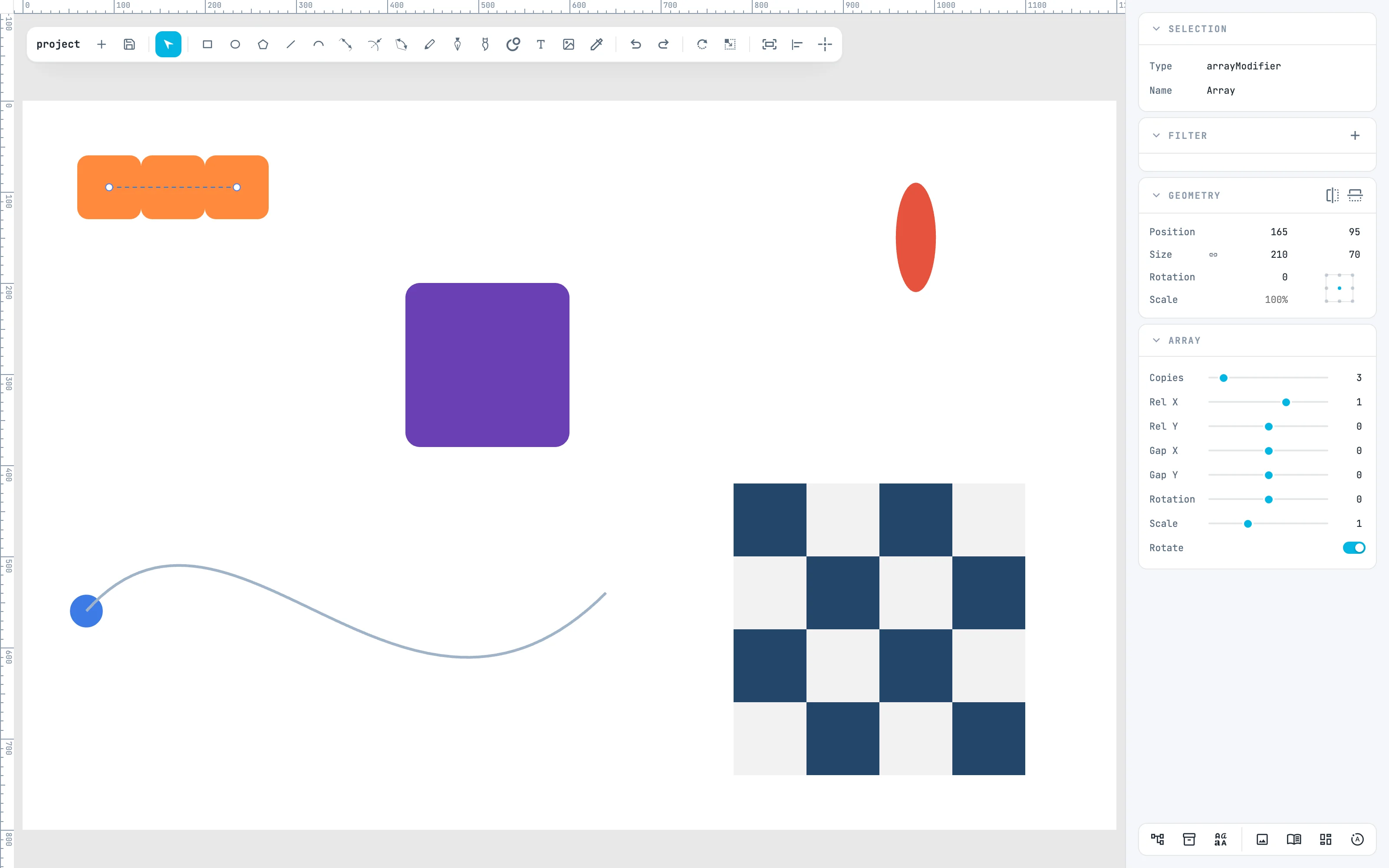
Select the tile, Modifiers › Array: copies are created in a row, each the previous one moved. The line from the center of the source to the center of the last copy is the run: it is pulled with its handle. The copies are not objects in their own right: clicking one selects the array.
2 · The array's numbers
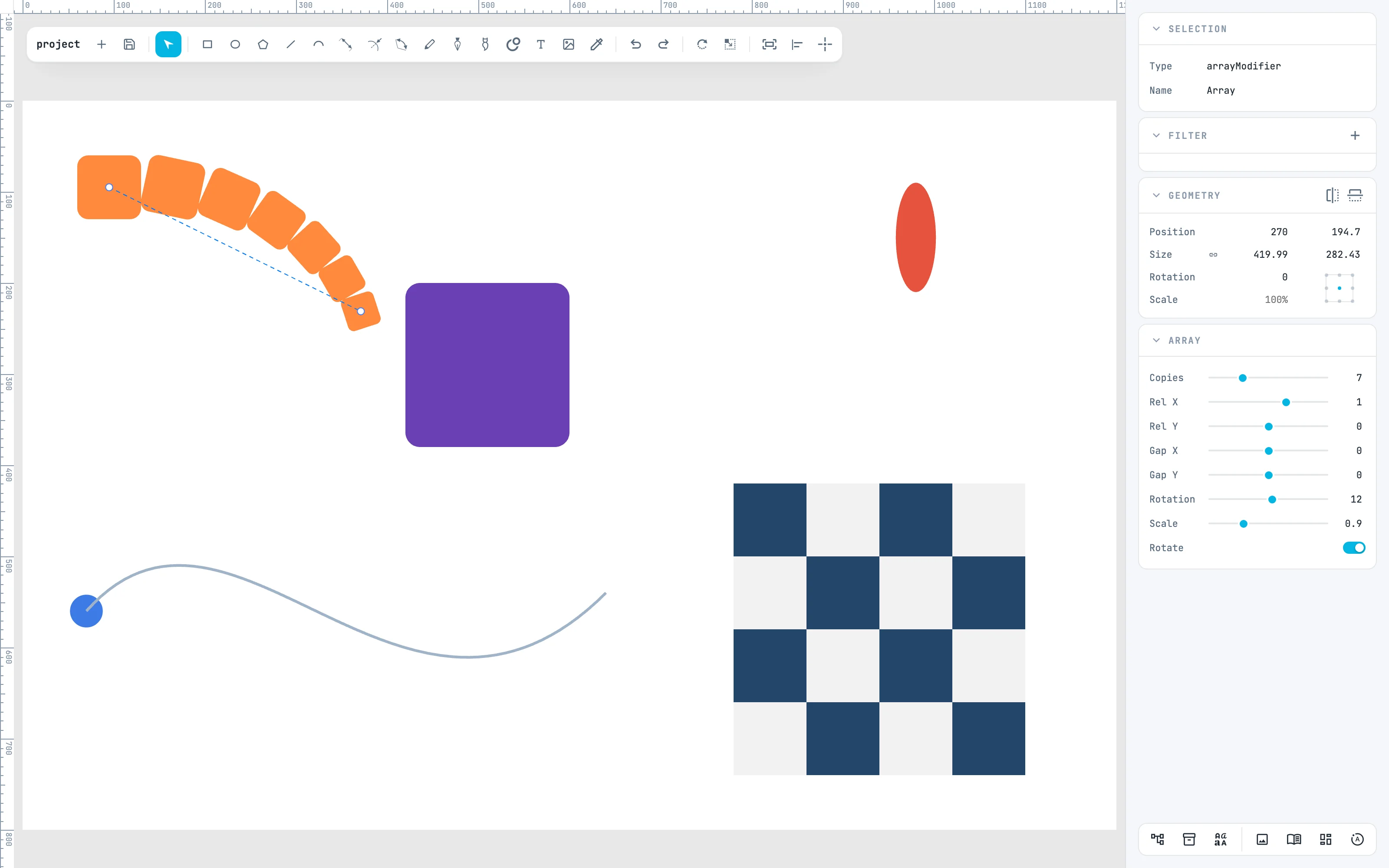
In the Array panel: Copies how many copies (from 1 to 500), Rel X / Rel Y the offset in multiples of the source, Gap X / Gap Y an extra offset, Rotation and Scale a rotation and a scale per copy. Here 7 copies, 12° and 0.9: the row bends and shrinks.
3 · Radial array: around
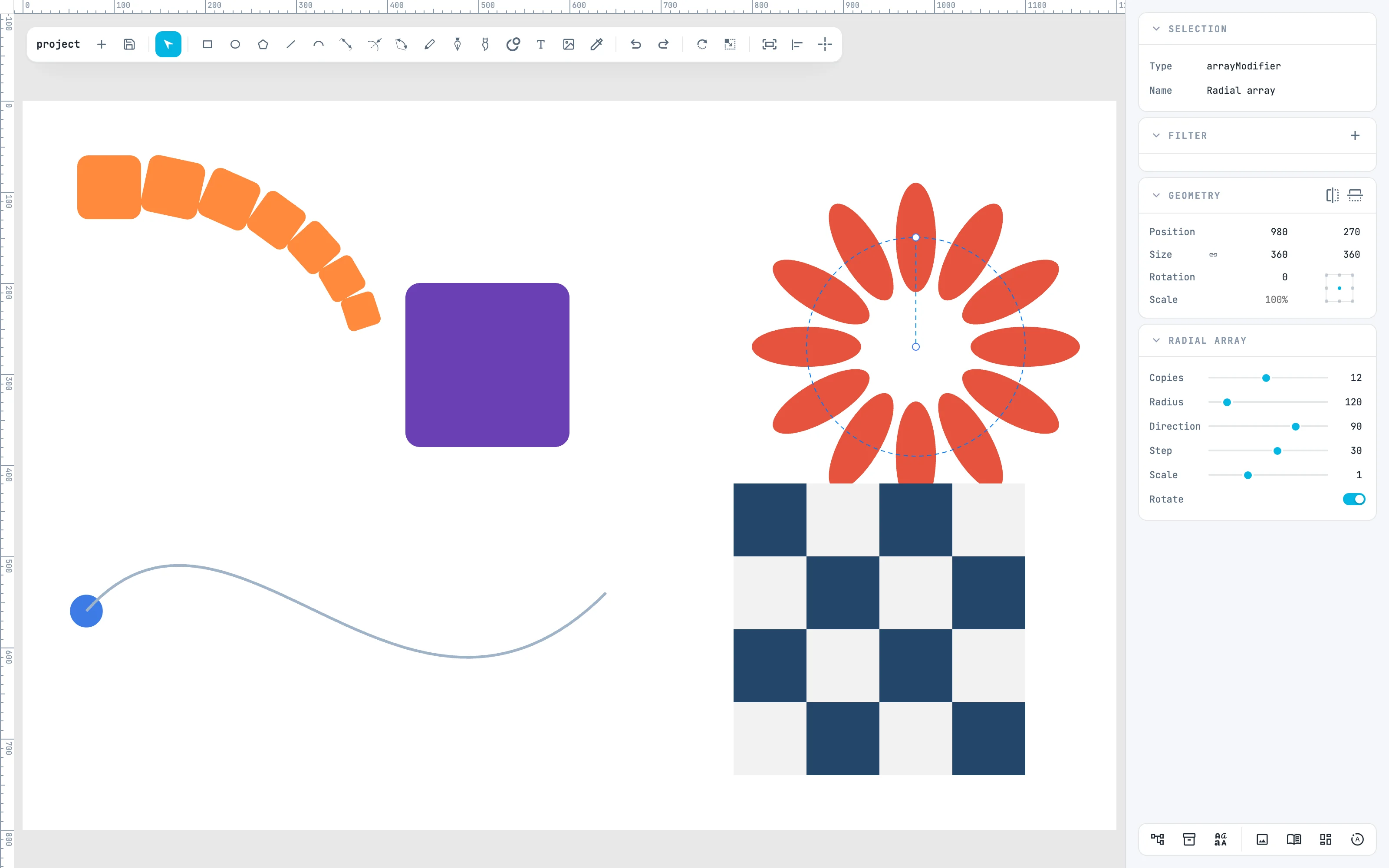
Radial array puts the copies around a center: 6 copies at 60° are created, a closed ring. Radius is the distance of the center, Direction where it is, Step the angle between copies. Here 12 copies at 30°: a flower.
4 · Path array: along a path
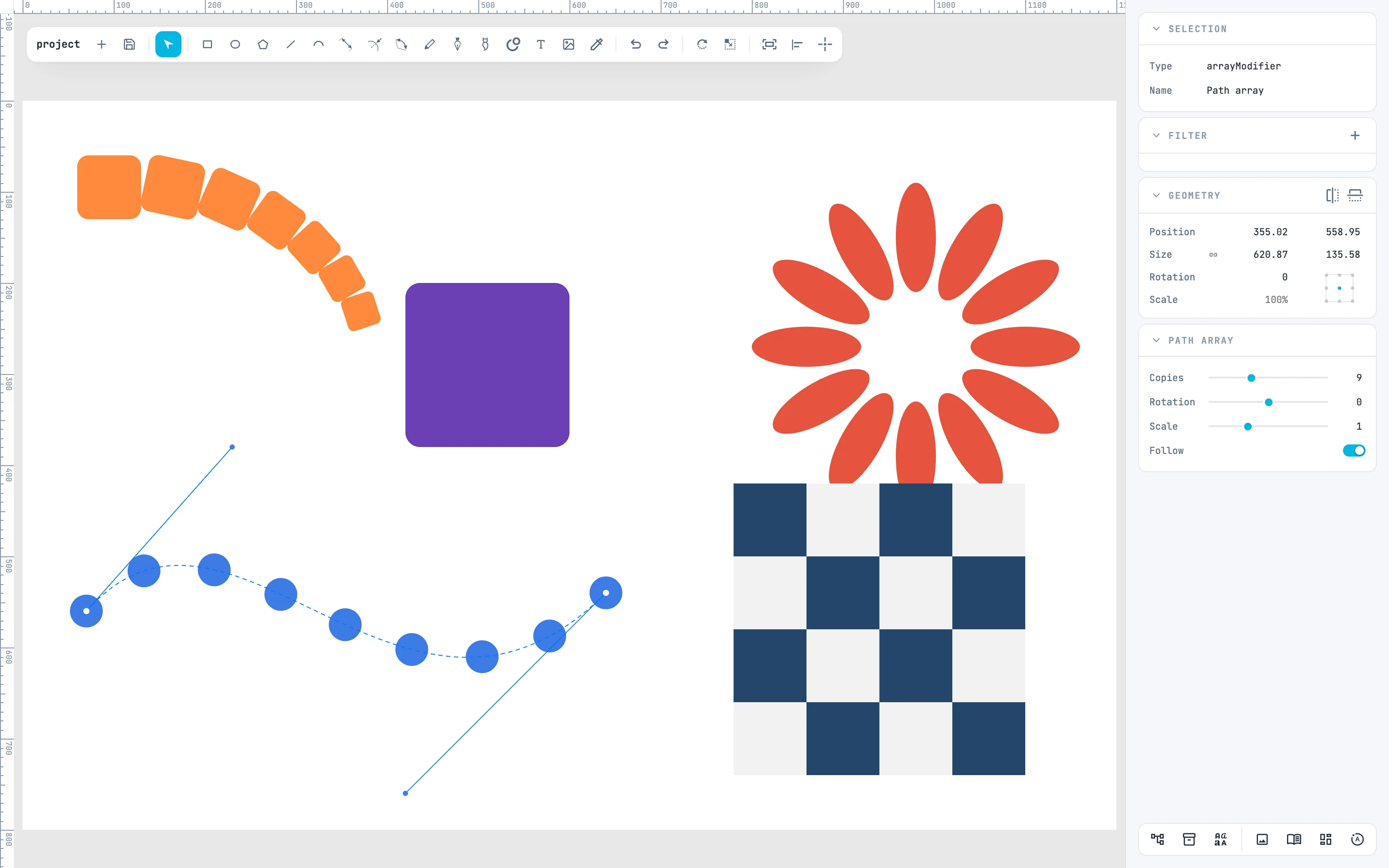
Select the dot and the curve, Path array: the copies sit at equal distances along the last selected object, the guide, which must have a length. It sets direction and distance: to change them you edit the guide. Here 9 copies.
5 · Perspective
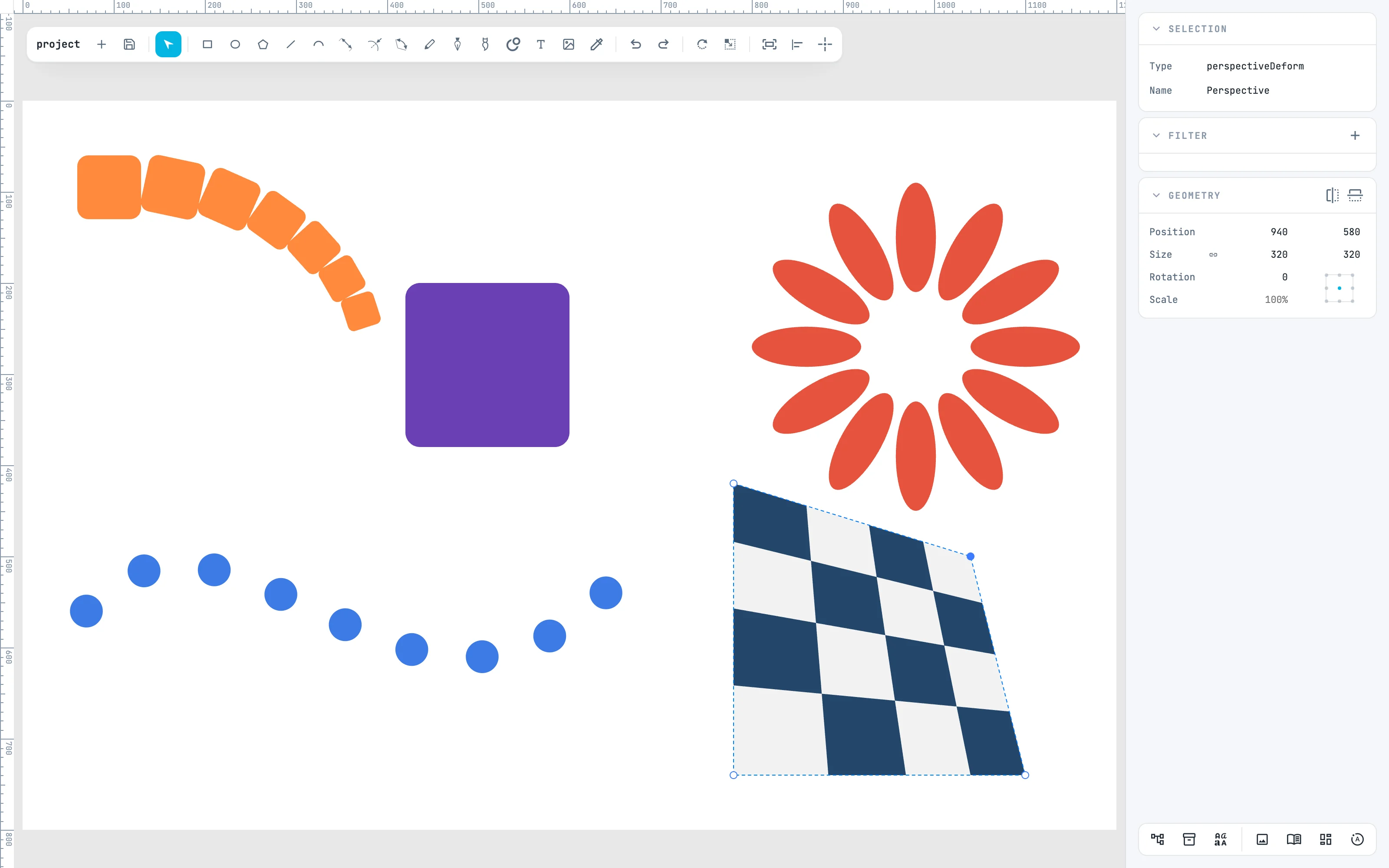
Select the squares of the checkerboard, Perspective: the handles are the four corners. Pulling one, the others stay put and the shapes are redrawn, with straight lines staying straight. Here the top right corner, pulled down to the left. With a double-click you edit the shapes, still straight.
6 · Offset: a hole or a frame
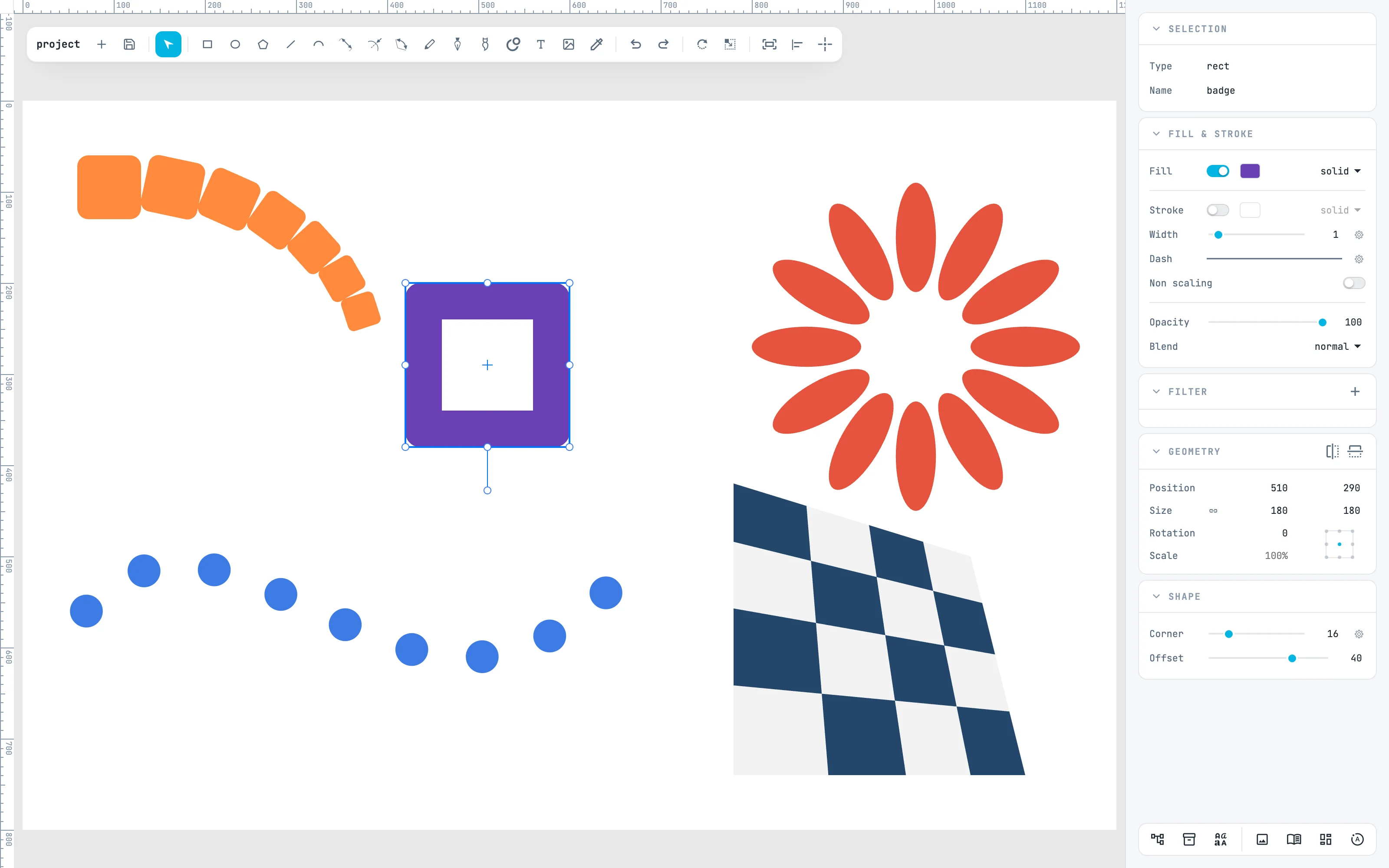
It is not a modifier but works like one: in the Shape panel, a positive Offset opens a hole inside the shape, a negative one grows a frame outside. The hole is part of the outline: booleans, snapping and Convert to path see it. Here 40 on the purple square.
Going further
In the guide: modifiers, Array, Perspective, Spine and Offset and frame.