
Above, below and the Document tree
Stacking order, the Document column, moving objects by dragging rows
What is above covers what is below. You change the order with the Arrange menu or the keys, and see it in the Document tree, where dragging rows moves objects, even into a group.
1 · The Document column
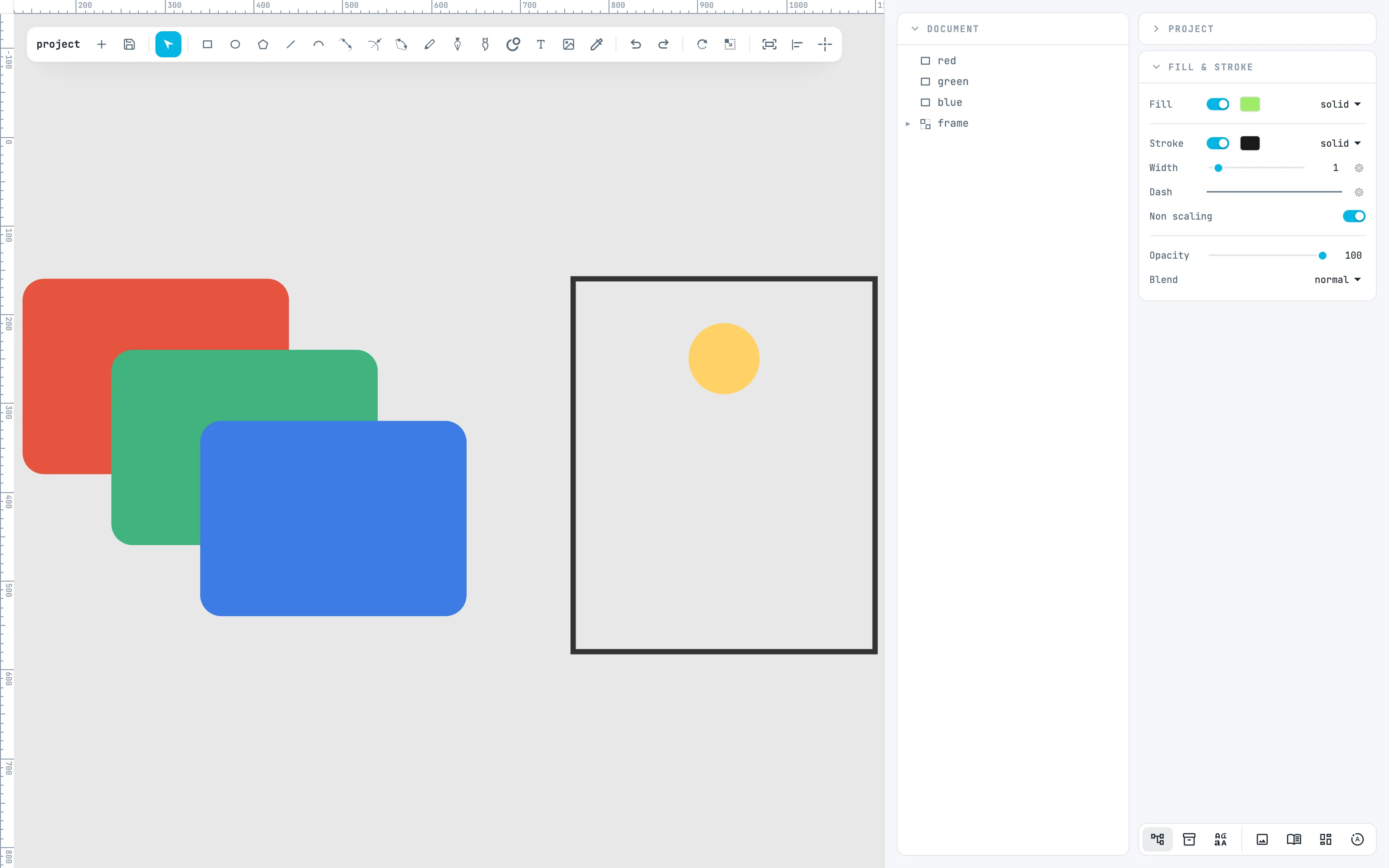
Turn it on with the first button of the bar at the bottom of the inspectors (document). One row per object, in the order of the document: the first row is the lowest, the last the one that covers all. The name is the object's name, or its id, or its type; the arrow opens and closes a group.
2 · The Arrange menu
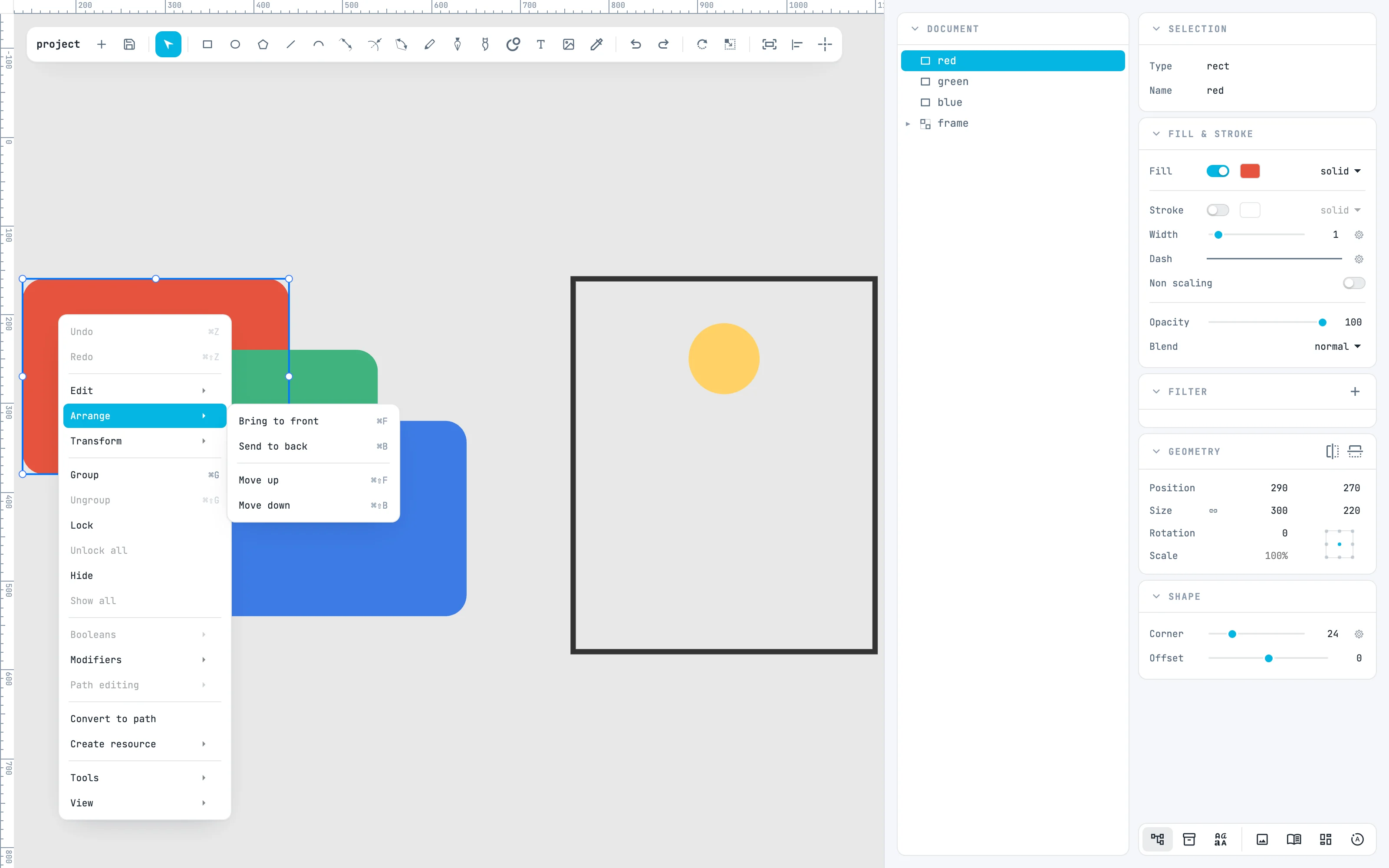
Select the red card, the lowest: its row lights up. In the right-click menu, Arrange: Bring to front (⌘ F), Send to back (⌘ B), Move up (⌘ ⇧ F) and Move down (⌘ ⇧ B), one place at a time.
3 · To the front
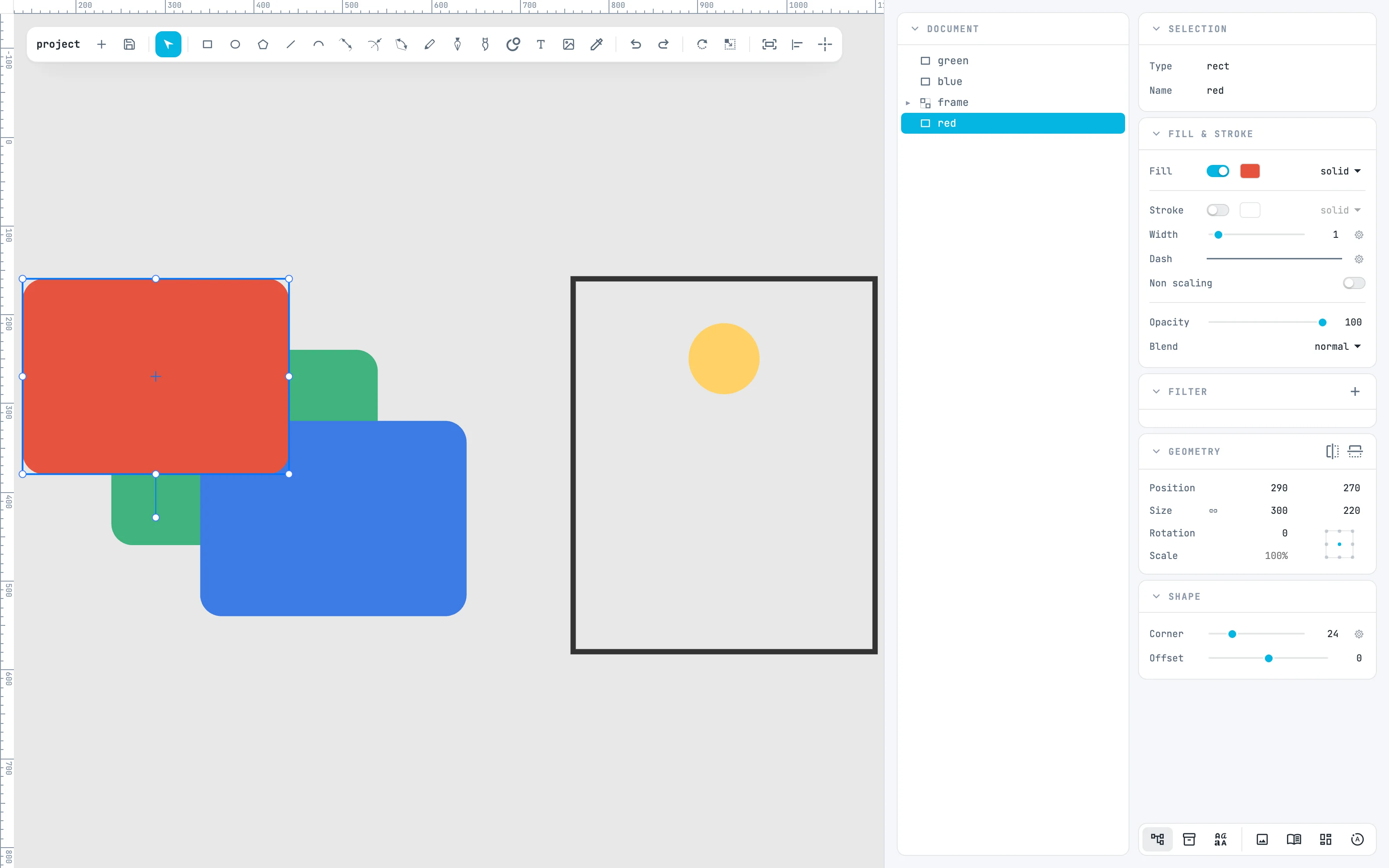
Bring to front: the red card goes above all its siblings, and its row moves to the end of the list. The order applies within the object's container: the page, the group.
4 · Drag a row
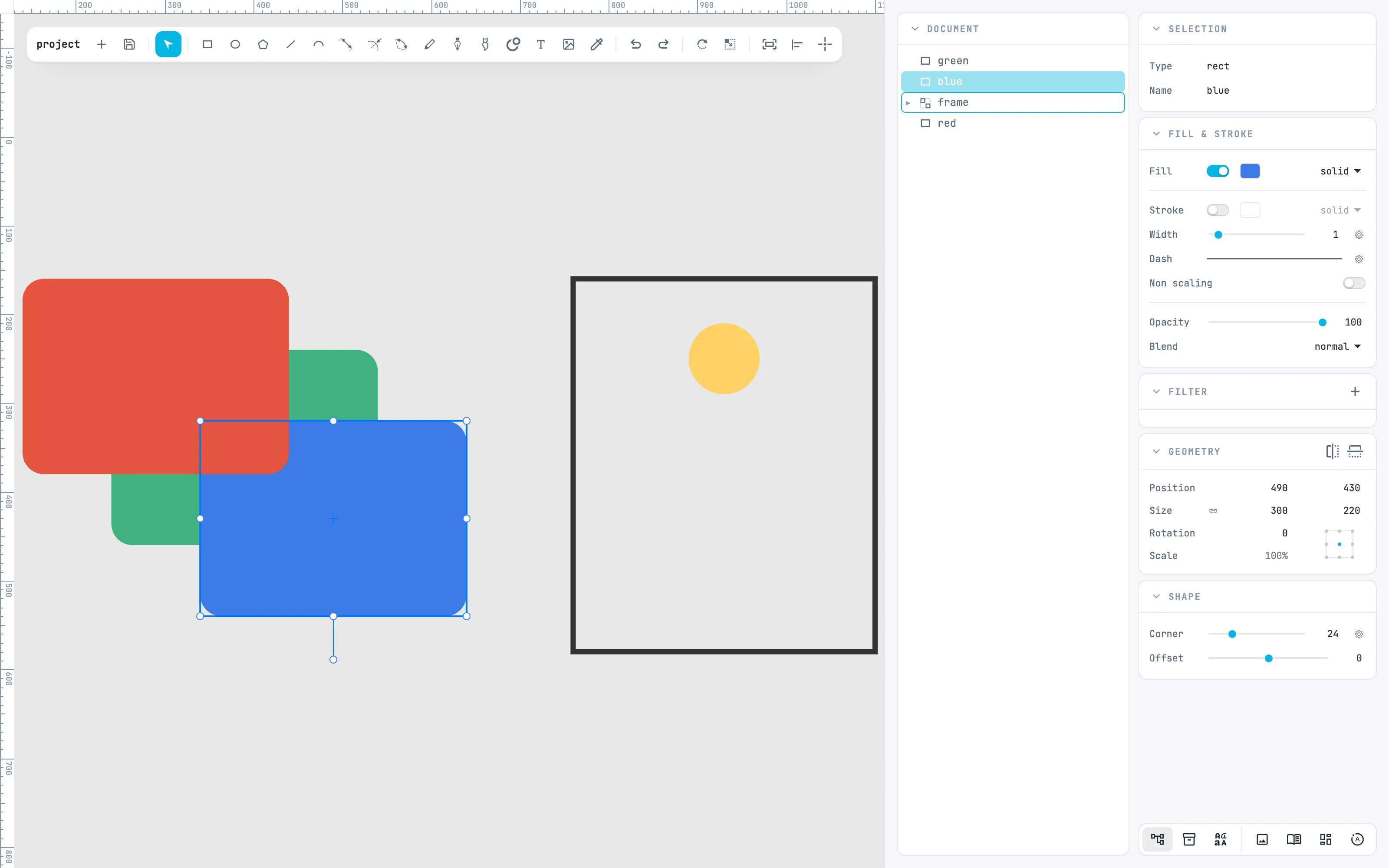
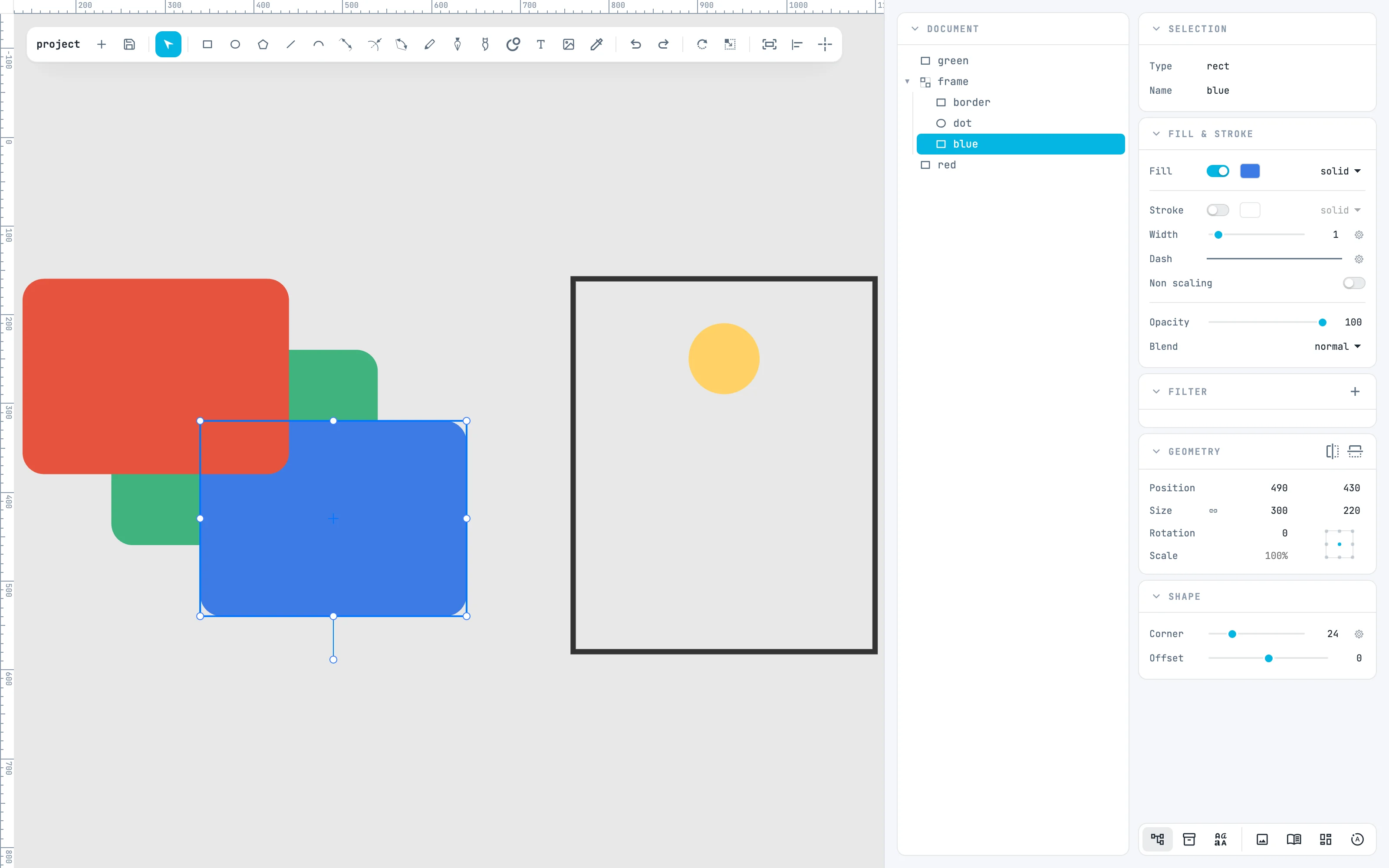
Drag a row in the tree: dropped above or below another row it changes place in the order, dropped in the center of a page or a group it goes inside. Here the row of the blue card on the center of the "frame" group, which lights up.
5 · Inside the group
Dropped: the blue card is a child of the group, and in the tree it sits under "frame". On the canvas it stays where it is seen, and stays selected; one undo step. Selecting on the canvas, the rows light up and the branches open by themselves; at the end of each row the padlock locks and the eye hides.
Going further
In the guide: stacking order, the Document tree and groups, locking and visibility.